CRM - User Guide EN
Περιεχόμενα
Persons Management
How do I enter a Legal Entity
 In order to enter a legal entity, we select from the CRM menu New\Legal Entity
Through the fast insert form we can complete fields that concern the Identity of the legal entity (Name, TRN, TAX OFFICE, VAT Regime), Professional and Grouping data (Profession, Group, Category etc).
In the Addresses/Telephones page, we can enter more than one address (head office, branches, warehouse etc) and define which one is the person’s main address.

In the Relations page and by typing to the Name column, a dialog appears, where we can select a person as a “contact” or select the Create new button in order to create a new person.

In case we select Accept, in Relations page a new entry for this person is completed and we can define additional fields of the relation such as the Relation type, the segment, the position, the email address etc. 
 In case we select Create new, we must define the type of the person (Physical, Legal) and continuing to complete the related fields.
How Do I Enter A Physical Person
In order to enter a physical person we select from the Entersoft CRM menu New\Physical Person

Through the fast insert form we can complete fields that concern the Identity of the physical person (Name, TRN, VAT, Identification number, Profession, Address and communication data).
In the Relations page, in similar way, as we saw to the previous chapter, we can define more than one relations with persons (physical or legal) and continuing to complete the fields that define this relation.

How Do I Manage Persons
Persons management consists the main application of a CRM system. The basic data that are provided by Entersoft CRM concerning persons management, are the following:
Physical and Legal persons fast insert entry forms
Context scroller of persons management
Automatic proposal of individuals first and last name cases based on grammar rules
Functionality of multiple addresses, telephones, email, fax
Relations between persons
Actions of mass send – communications to persons
Context Scroller Definition: A context scroller provides a list of entities with the parallel functionality of current entry display and update through a user definable form. It is divided in a parameters area, an entries list area and finally an area with the management form of the selected entry. Besides modifications, it allows the insertion of new entries.
The Entersoft CRM provides a number of context scrollers (Leads administration, Opportunities, Service Folders, Campaigns, Events etc.) The following example concerns the context scroller Person Management that described below.

The user can select alterations Auto Save when the current entry is modified, without being necessary to answer to the question Save modifications? For select an entry, the user can use the buttons appearing to the horizontal toolbar on the top of the selected entry.

Context Scroller – Person management: Provides the functionality of person entries processing (physical and legal) as well as the full information in sales activities area and Service provision. We select Work Space\Person Management

Through the context scroller Person management for each selected entry, the following functionality is provided, through the related pages:
General information of the selected person such as identity data and professional data
Functionality of multiple addresses management
Relations management with the functionality of actions execution
Completed information to areas of: Communication (Incoming and Outcoming emails), Sales Activities (Sales actions, Sales and Offers cases) and Customers Service (Cases, Support calls, Complaints and Tasks)
When it concerns a physical person, is given the functionality of automatic completion of the name and full-name cases based on grammar rules. The completion mechanism of the calls sets by default the gender of the physical person.

In Relations page, the following automations are available (actions):



|
|
|---|---|

|
|

|
|

|
|

|
|

|
|
Resources Management
Resource is the basic media for tasks assignment and execution.
The following resources types defined by the system:
Person
Fixed Asset
Resource group
General resource
How Do I Create Resources
The Entersoft CRM offers a wizard for mass creation of resources of person or fixed asset type. The wizard is based on the use of a scroller of persons or users for resources of person type and to a scroller of fixed assets for resources of fixed asset type. From the CRM Management\Resources menu we select Create resources

Continuing we select the resources type (person or fixed asset) that we want to create. We define whether the resources that are about to be created will be available to all system companies (inter-company) and we define whether the measurement unit will be time range (e.g. manpower) or another one.

Continuing we select one of the available lists (Users, Physical persons or Fixed Assets).

We select the entities (system users for instance) for wich we want to create resources. Caution: The users must have been previously connected to a physical person.

We complete the process by selectimg the Execution button. 
How Do I Manage Resources
As mentioned before, the resources may be of different type and this has immediate effect to the completion of some fields. The following examples show the differentiation of a resource depending on its type.
Resource example of person type

Resource example of fixed asset type

Resource example of Resource group type

A resource must have at least one role (e.g. Sales, Service etc) and is especially important since it is directly related to the assignment rules that are in force in a task type. As far as the selection of roles is concerned, we have the functionality to define for each resource entry, the selected roles, by selecting from the available roles list. A resource may contain more than one role.


From the CRM Management\Resources menu we select the Resource list which is the main management scroller of the particular entity.

This scroller appears the resources we have created, groupped by resource type.

Mass Assignment Of Resource Roles
We can use the functionality of roles mass assignment to one or more resources, through the actions of the particular scroller.

Communications / Tasks Management
How Do I Enter A Task
In order to enter a task, we select from Entersoft CRM menu New the task type that we want to create:

By selecting the Sales Appointment task-type, we must give values to the various fields presented to the different areas.
Classification area

| Subject | A short description of the task (up to 100 characters). |
|---|---|
| Status | The current status of the task. Each status also defines a particular level of completion (e.g. if it is pending or if it is completed). |
| Related to | It defines qualitative, what a task is concerned. The available options can be altered. The field is available to particular task types. |
| Outcome | Describes the task result (task review) and is only available to particular task types. |
| Belongs to | A task may be autonomous or may be subtask of another task. The searching returns the tasks that are allowed to be parent tasks of the task that is entered. During task selection, the trade account data is automatically completed. The field also supports advanced search with Shift-F3. |
| Campaign - Response | Defines the Marketing Campaign to which the task refers. The response field defines the last response of the person for the selected campaign, when exists. |
Scheduling and Ownership area

| Owner | It is the resource responsible for the task life cycle. |
|---|---|

|
Possibility of sending e-mail to the task supervisor. The electronic address derives from the related resource, if exists, otherwise from the persons’ electronic address. |
| Assigned to | It is the resource to which the task is assigned. |
|
|
Possibility of sending e-mail to the task assignment resource |

|
It shows the journal of the tasks assigned to the selected assignment resource. |
| Group | A task can be assigned to a group of resources. |
| Location | Defines the place where a task may occur and it only appears if the task type is Appointment. |
| Due date | The ending date that is demanded for the task to be completed. This date allows comparing the variations from the initial dates that were reported. |
| All-day | It defines if the task is an all-day event. |
| Planned Start | The planned starting date and time of the task. It is automatically completed with the current date and time. |
| Planned end | The planned end date and time of the task. |
| Duration | The estimated duration of the task. In case a value is defined, the Planned end field is automatically selected. |
| Actual closed | It defines the actual date and time of task completion. The field is automatically activated in the case where the selected status is Successfully completed, Failed or Cancelled. |
| Reminder | Defines the time and the hour that we wish the system to remind the task. |
Trade Account Details

| Company - Person | We must select the person for which the task is taking place. The field supports advanced search with Shift-F3. |
|---|---|
| Trade acct | The trade account connected to the person. In order to select trade account is not required the person to be completed as after the selection of the trade account, the person is suggested by default. The field supports advanced search with Shift-F3. |

|
Possibility to create a customer based on the person of the task. In case the trade account is completed, it will appear the form containing the data of the selected customer. |
| Contact | We select the contact of the person. It is not required to have a person or trade account selected in order to select a contact. |

|
There is a functionality of a new physical person creation (contact) with creation of a relationship with the person of the task at the same time. In case a contact has been selected already, it is presented the form with the data of the selected contact. |
|
|
Functionality of sending e-mail to the selected contact. The email address derives from the relation between the person and the task contact. If there is not an electronic address in the relation entry, it is selected the one of the persons’ email address. |
| Address | The persons’ address. For instance, into a sales appointment we select the persons’ address where the appointment will take place as long as it occurs to the place of the trade account. |

|
It gives the possibility of the selected person’s addresses handling, as well as of new addresses creation. |
| Contact details | Defines contact details of the selected address, such as street, area, telephones, fax. |
Other than the above basic fields, there are additional available fields to other task pages. For instance, to the Sales Appointment task form, the following pages are presented.
Participants
A task may occupy other resources than the one to which is assigned. They are defined to the Participants\Resources page. In addition to the Participants\Other page, we select persons (physical or legal) with which the task is related. For instance, a Sales appointment could contain the list of external consultants that will take part to the decision of some investment.

Notes
We have the functionality to enter Notes for the task that can be really useful for the management of a task but also to type important comments to the Communication field. The content of this field does NOT go under alterations or is deleted.

Items/Services discussed
Into a task may be entered more than one item that are related with this task. These may be stock items, services or even catalogue items.

Facts
Into the facta page are entered the actual data of the task execution such as, the time spent from resources, any expenses occurred etc.

Audit trail
Through the Audit trail page we get information concerning data of the entry as well as reganding the alterations to some fields value such as the status, the estimated day of completion etc.

With the completion of a task programming (eg. Sales Appointment) we are provide with the functionality to search the particular entry for a possible alteration or update through the Sales\Activity Information\Sales Appointments menu 
The particular scroller illustrates the number of the appointments of sales department per Assignment resource.

In the same way, we can get information concerning sales activities, Sales presentations, as well as for the outcoming calls.
How Do I Create repeatable Tasks
In order to define a repeatable task (e.g. a repeatable appointment) we must select Recurrency parameters from the actions of the related form and to define the repeatability range through the specially designed form that follows.

The start date of the repeatable tasks as well as the time and duration are defined from the source task form. Through the following dialog we are programming whether the execution of the task will be on a daily, weekly or monthly and depending on the option we define additional data for instance, per how many weeks or which days.
Continuing, during task save the repeatable tasks will be created following the repetition parameters in the way these have been defined.

How Do I Manage outlook addin
To Entersoft CRM Outlook Addin provides the following:
Filing of incoming emails to ES CRM
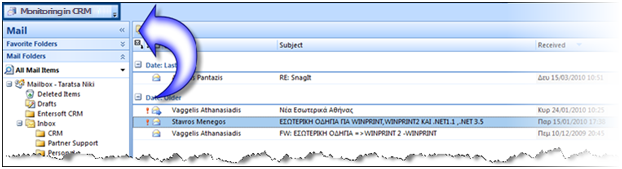
The filing process selects the person or the person and the contact for the task of e-mail type that will be created based on the electronic address of the sender. By selecting Monitoring in CRM for an e-mail, we achieve its filing to the Entersoft CRM, this is the automatic creation of a task of e-mail type.
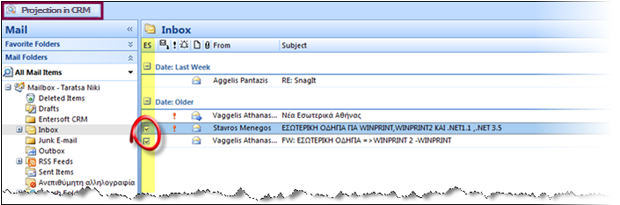
After the completion of the above action, we notice that for the particular e-mail, we now have the Projection in CRM option and the ES indication appears. Through this indication, we take the information that an e-mail has been filed to Entersoft CRM.
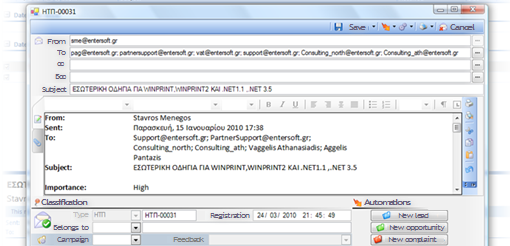
By selecting Projection in CRM, the following screen appears. This screen illustrates the particular e-mail through the Entersoft CRM environment
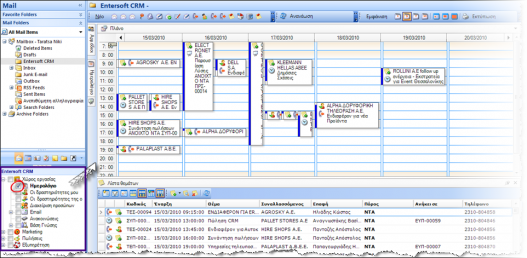
Tasks management through the tree menu
Each scroller is saved to the memory, in order not be necessarily executed every time the user selects it. In this way the user decides which scrollers will remain to the memory.
Registration of appointment, tasks and contacts
By entering an appointment to the MSOutlook you are given the Monitoring in CRM functionality. We notice that we will need to select the task type that we want to be used in order the particular appointment to be registered from MSOutlook to ESCRM.
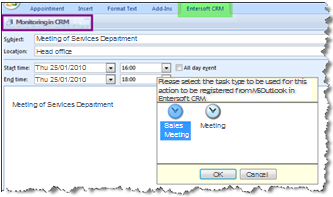
The same process is used for tasks registration of MSOutlook to ESCRM.
By entering a new contact to Outlook, we can select Monitoring in CRM.

Continuing, with the Projection in CRM selection, we notice that for the entered contact to MSOutlook, has been created an entry of a physical person.

Synchronization of appointments, tasks and contacts between ES CRM – MSOutLook
From MSOutlook Journal we can select Synchronization from ESCRM to MSOutlook.
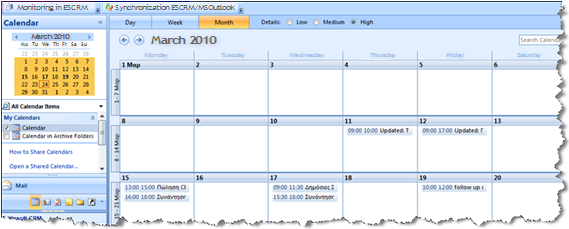
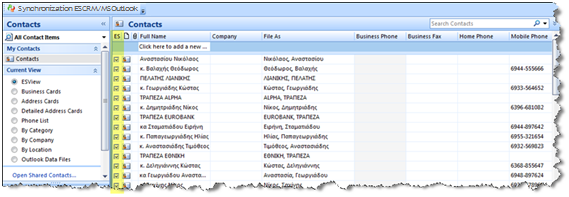
From MSOutlook contacts we can select Synchronization from ESCRM to MSOutlook. The indication in ES column gives us information as to the Outlook contacts that have been registered to ESCRM.
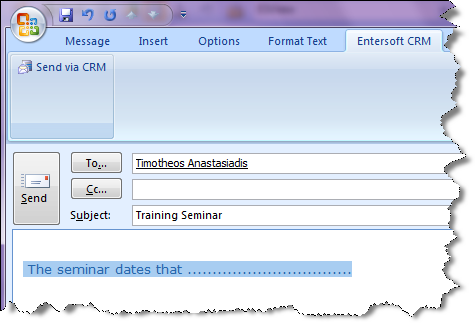
Send e-mail & at the same time registration from MSOutlook by selecting Send via CRM.
Parametric management per separate folder
We select properties to a particular Outlook folder (e.g. Inbox) where we can define whether e-mails automatic registration of the particular folder will occur, if registration data will be presented and finally whether the ES indication column will appear.


Calendar Management
The Tasks Calendars provides tasks charts. Through the tasks calendars of Entersoft CRM we have the following options:
New task entry
Time modification of a task (start – end)
Alteration of assigned resource of a task or participants
Information as to the scheduled tasks to be executed in any period (day-week-month).
For instance, we select Sales/Calendar from Entersoft CRM

Each Calendar contains the Plan where tasks are illustrated to a chart depending on the option selected in Show parameter. The available options are daily, weekly, working week and monthly appearance. There are options for Print and Print preview, also.

In the particular calendar (sales) to the left section of the journal, are presented resources with the role Sales. In the case where the resources belong to groups, then they appear in a tree format under theirs group.
At the bottom part of the calendar is presented the tasks list. In this case, the Synchronization parameter is activated (appears in intense color), then for each selected task from the Tasks List it automatically occurs focus to the particular area (ημέρα-μήνας) of the calendar plan. The completed tasks are presented in grey background. .
In the case where a task eg. a sales appointment, has been assigned to a resource or to another participating resource, then the journal plan will appear twice and into two list rows. In this way the monitoring of resources occupation becomes easier.

How Do I Manage A Task Through A Calendar
With right click, after we have selected the desired time range, we can create a new task by selecting the task type and continuously we enter the desired fields. In this way the Planned start and end date as well as the task duration, are automatically completed.

Another way is to select from the New area the task that we want to enter. The difference is that no programming field is automatically completed.

How Do I Control Managers Availability
In the Actors area we select the resource that we desire which results, to the presence of only the tasks that have been assigned to the particular resource or the tasks to which is simply participates, into journal plan. In this way we can easily control the availability of a resource for a particular time range.

If we select one or more resources then we can compare theirs availability with drag and drop to change ones task resource assignment from one to another or to alter someone from the participating resources.

With the Journal selection we can easily get informed as to the dates where tasks have been programmed.

Knowledge Base Management
The Entersoft CRM provides the functionality of Company Knowledge Base management. The main contents are:
- Knowledge entries
- Solutions
- Announcements
HOW DO I Manage Company Announcements
From the menu Knowledge Base\Database administration, we select Announcements.

Through this option, the context scroller Announcement management appears and where we can then select the Announcement that we are interested in. We have the opportunity to get informed in relation to her content as well as to make some alterations if is desired. 
In the case, we desire to enter a new announcement then from the Knowledge Base\New menu we select Announcement.

Continuing we complete the fields of the following form by defining for instance, the announcement category, the subject, the date up to which will continuous to appear as well as the announcement content.

How Do I Manage Solutions
From the Knowledge Base\Database administration menu we select Solutions

Through this option, the context scroller Resolution management appears through which we select the Resolution that we are looking for. We have the opportunity to be informed in relation to the resolution status (draft, published), the items that the resolution is concerned as well as the content. From the criterions area we restrict our searching by selecting particular words-keys.

In the case we wish to enter a new resolution we select Resolution through the Knowledge Base\New menu.

Continuing we select fields of the following form by defining for instance, which is the subject of the resolution, if it is characterized as FAQ (Frequently Asked Question) as well as and multiple words keys that help to the searching process.
To the Items page, we insert the items that concern the particular resolution. This enables for instance, the immediate response to a problem from the customers’ service department when a customer reports a problem concerning an item and the service agent has an available resolution to recommend to the customer about this item.
Also to the attachments page, we are provided with the functionality to attach an important documentation for the particular resolution.

How Do I Manage The Knowledge Base Articles
From the Knowledge base\Database administration menu we select Knowledge Entries.

Through this option will appear the context scroller named Articles Management.
If we want to enter a new announcement, we select from Knowledge Base\New menu the KB Article option.

Continuing we complete the fields of the following form by defining for instance, the subject of the article, the category as well as multiple words keys that will help to searching.

Sales Management
Τhe Entersoft CRM fully covers all the spectrum of actions that are executed by the representatives of a sales department. These tasks are either executed as autonomous tasks or concern a sales case such as the Sales Opportunity or such as a Lead. These activities are standard. Each task type has special qualitative characteristics related with the entry form as well as with the behavior of the available fields. The available types are the following:
Sales calls
Sales appointment
Sales E-Mail
FAX
Presentations
requirements collection
Quote creation
Receipt
The total management of a sales department is covered from the following:
Recording of business tasks: The tasks are recording important information such as the person or customer, the hours that the task will take place, what is concerned, the sales executive that is responsible for the task as well as other information such as the products or services, the attachments eg. marketing documentation, sales offers.
Sales tasks calendar: The number of the sales representatives tasks is automatically presented through charts in a tasks calendar.
Sales tasks results: The reason for which a task occurs, her status as well as her results can be recorded and analysed. The Entersoft CRM contains a number of lists – reports that provide information for the total of the tasks that are executed from sales representatives.
How Do I Manage a lead?
As a lead, I defined the NOT certified sale information. One lead concerns an existing customer or a potential customer. Traditionally, one lead is a result of a marketing campaign but it can also be directly inserted from a sales representative after information obtained through a communication. This communication may be an appointment, a Phone call, an email or a fax.
One lead is assessed from the sales representative that is being managed aiming its conversion to sales opportunity (lead conversion).

Some basic fields of a Lead are the following:
| Lead source | Indicates the source of a lead (eg. campaign, internet, personal contact eg.) |
|---|---|
| Lead quality | Indicates the lead quantity based on sales executive evaluation that the lead manages. |
| Suggested by | Indicates the person that introduced the lead. This field provides the searching functionality to the persons and supports advanced search with Shift-F3. |
| Campaign | Indicates the marketing campaign from which the lead originated. |
| Response | Indicates the last response of the person or contact for the selected campaign. |
| Business Unit | Defines the business unit where the trade account of the lead belongs and is automatically updated from trade account business unit. |
| Activity | Indicates the activity of the trade account of the lead and is automatically completed from the trade account activity. |
| Time plan | Indicates the estimated time range based on which the interested party will express real interest for the sale. |
To the header of the form there is an available action for the conversion of a lead to sales opportunity. This action allows only one sales opportunity to be produced from a lead. The conversion presuppose the lead assessment from a sales executive. The fields concerning Lead assessment:
 Lead source
Lead quantity

From Sales\Lead information menu we select Lead evaluation, a scroller where the Leads Sources with the number of Leads per source are displayed. For each Lead Source we can view the Leads grouped by Quantity.
When the Assessment process for a lead is completed, we are provided with the functionality to execute the  action. This will result to the Lead conversion into a Sales Opportunity. We notice that after the completion of this action the lead Status turned to convert to opportunity and the created sales opportunity now appears as Lead sub-task

One Lead is usually originates from a marketing action but it can also be created directly from a sales representative from an information obtained through a phone communication (sales phone call, sales e-mail). In this case and as we notice to the following picture, we have the functionality to execute the New Lead action through the screen of the corresponding communication.

After the completion of the action we notice that in leads’ sub-tasks , the task has been automatically completed (eg. Sales appointment) from which has originated and the Status has turned into Completed.

From the Sales menu and through the context scroller Lead Management we are provided with the functionality to manage the leads and to easily identify the new leads through the  indication

For sales analysis, an important scroller is the Lead progress stage where is analyzed the exploitation degree of the Leads regarding the resources to which have been assigned. The leads of each resource are separated into open, in progress, successful (transferred to opportunities), failed and cancelled. Is examined the Leads conversion rhythm to Sales opportunities, in order any excessive loss of potential opportunities to be detected. .
For each assigned resource, the Leads will be analytically displayed and are grouped per status.
For each Lead, are analytically displayed its sub-tasks, grouped by Status and per each opportunity that is connected to a Lead are displayed her sub-tasks (e.g. Appointments, presentations, Calls) as well as any Offers, Orders and Invoices that produced.

Another important scroller is the Lead conversion rate where the Leads conversion into Opportunities, Offers, Orders and Invoices, per assigned resource, is illustrated.
It is accomplished a comparison of Leads number with the next levels, quantitative and in percentage.
Finally, the estimated revenues (defined in opportunity) are compared with the actual sales revenues, which consists of the Back orders value and the Invoices Net Value. The achievement rate compares the estimated sales with the actual.

How Do I Manage A Sales Opportunity
As a sales opportunity is defined the products and services certified sales information. A sales opportunity may concern an existing customer or a potential customer. It can be autonomous created or after a certified lead conversion.
The sub-tasks, in the context of, a sales opportunity completion, could be appointments, calls, emails as well as of other type. The total picture of a sales opportunity is directly visible through the sales opportunity form as well as from the hierarchical lists that are provided from Entersoft CRM in the sales activity area.

Some of the basic fields included to Sales opportunity form are:
| Category | Grouping element where some default values are New customer, Existing customer, New partner, Existing partner. |
|---|---|
| Revenues | Defines the estimated revenues that are expected from the sales representative from the sales opportunity. |
| Certainty (%) | Defines the certainty (in percentage) of the sales representative that manages the opportunity in relation to the sales possibilities |
| Win/loss reason | Defines the basic reason of sales opportunity win or loss. |
| Importance | Indicates the importance of the sales opportunity for our company. |
An opportunity may be connected with one or more sales factors. Sales factors are important to be known in the initial phases of the opportunity. In this way we can export conclusions which are helpful to the right actions management that we are doing, for the opportunity successful completion.

An opportunity can be related to stock items, catalogue items as well as services which are of the potential customer interest.

In the Items page we are given the functionality to create a sales offer related to our opportunity. By executing the
action, we create the sales offer. The following opportunity data are transferred to the offer form:

Customer
Person
Contact
Opportunity items
Sales opportunity
After entering the quote is created a task Follow up on quotation where is referred the code of the quotation where follow up must follow. The sales manager can undertake task time scheduling through the related calendar.

To the Quotes, Orders and Sales pages are presented the related documents that are connected with the Opportunity.

An opportunity may be related with one or more competitors. A sales representative must be aware of his competitors within an opportunity as well as theirs advantages and disadvantages. The management of an opportunity competitors is hierarchical. We can record one or more advantages-disadvantages per competitor. The following table presents the available entering fields.

The fields concerning competition are the following:
| Name | Defines the competitors’ name. The searching concerns the persons that are included to the system. |
|---|---|
| Threat | Defines the treat from each competitor (e.g. low, high) |
| Prime Competitor | Only one competitor can be identified as prime competitor for an opportunity. |
| Winner | In the case where an opportunity is lost, we are given the functionality to characterize a competitor as a winner of the opportunity. |
| Comments | We complete comments. |
For the opportunities analysis per competitor, we can see the Competition Analysis scroller, where the opportunities and theirs expected revenues are analyzed.
Opportunities are separated into: Open, In progress, wins, Losses and Cancelled.
For each competitor, are analytically presented the Opportunities where is involved, grouped by Status. For the opportunities that are lost from a competitor the Lost Revenues are presented into a separate column. (These that we had evaluated as expected revenues). An opportunity can possibly appear many times if there are many Competitors involved.

Through the sale methodology, we are provided with the functionality to define one or more questionnaires that the sales manager will need to answer in order to enable for a complete “picture” for the topics that concern the particular sale.

From Sales menu through the Opportunity management scroller, we are provided with the functionality to mange Sales opportunities as well as to distinguish the new Opportunities through the indication.

An important scroller for sales analysis is the Opportunities conversion rate. In this scroller is analyzed the Opportunities conversion to Offers, Orders and Invoices per assigned resource. It is achieved comparison of the number of the opportunities with the next stages, qualitative and quantitative. Finally, are compared the expected revenues that were defined to the opportunity with the actual sales revenue which consist from Back orders value and the Invoices Net Value. και την καθαρή αξία Τιμολογίων. The achievement % compares the expected sales with the actual.

The Opportunity certainty analysis scroller presents the sales opportunities and theirs predicted revenues concerning the possibility degree per assigned resource. Are presented the open opportunities, in progress opportunities which are divided into 4 categories depending on the possibility percentage that has been given with limits 25%, 50%, 75% και 100%. The successful Opportunities are these that ended up to Orders or invoices and the failures these that ended up to a competitor or were not occur due to lack of interest. For each assigned resource we are provide with the functionality to analytically present his opportunities, grouped by status.

System parameterization
In order to obtain the system parameterization of Entersoft CRM we need to follow the steps below:
1st step: We select from the menu Τools/Data import/exportImport data (advanced mode)...

2nd step: We select Files\Open in order to search the appropriate .emi file

|
3rd step: We select the ESMigration area |

4th step: We select the ESCRMZero area

5th step: We select the CRM_ZeroMigration_V4.emi file

6th step: Is especially significant to correctly define (and not to leave the default value) to the Source Space field, this means to define the area where the field that was selected to 5th step is found this is the CRM_ZeroMigration_V4.emi file

7th step: The last action concerns the Run option in order ESCRM Parameterization Insertion to be completed.

