Entersoft eHasp-User Guide v1.0
eHasp
Entersoft Business Suite ®
| Document Version | 2 |
| Last Updated | 21/02/2024 |
| Software Version | 1.0.0 |
| Last Updated | 19/01/2024 |
Intro
eHasp is a new web application developed with Entersoft Web Studio®.
The objective of this application is to replace the hardware hasp keys used at present, by creating one time tokens that can be used with EBS credentials with the same effects.
Potential users are:
- Entersoft Support
- Entersoft Consultants
- Entersoft Partners
The minimum EBS Version supported is 5.7.0.1
You can find eHasp application at the following URL
https://apps.entersoft.gr/esconportal/esentersoft/app/signin
Signin
You can use your current EBS credentials to sign in the application.

A successful login will land you at the home page. Use the menu at the top left corner to navigate through the application.


- Current logged in user’s image and name
- About page
- Create new tokens.
- Your token history.
- Change the theme of the application.
- Change your password.
- Configure Two Factor Authentication.
- Logout
Be aware that actions (6) and (7) are processed by EBS application server and modify your EBS credentials in real time.
Create New Token

A new token is issued against a specific application serial number.
You can search serial numbers either by customer name (1)

or by customer’s tax registration number (2)

If you know the serial number, you can type it in the field (3).
Press “Search” (4) to search against your criteria.
All available serial numbers are listed in the grid (10).
You can clear search results and parameters with the button “Clear” (5).
Select a serial number,

And press “Create New” button (6) to create your token.

The token is then displayed in the new token box (9)

You can view token details by pressing the info button (8)

By pressing ”Copy and email” button :
- New token will be copied to your clipboard.
- An email will be sent to your registered email address containing the token and all related details.
- An S.M.S. will be sent to your registered mobile phone stating the successful operation.
- A token must be used within 60 minutes. After that time a new token must be issued.
- If you use the token in the above timeframe, you can work in EBS for as long as you want.
Using the token
When logging into EBS, at the login screen enter username as usual.
At the password field, paste the token and add the user’s password at the end of the token.

A1
View Token History
By entering the page all your issued tokens will be displayed sorted from newer to older.

You can:
- Search for a specific serial number by entering it at (1) field and pressing button (2)
- Add or remove grid columns with button (3)
- Export the results with button (4)
- Clear search results with button (5)
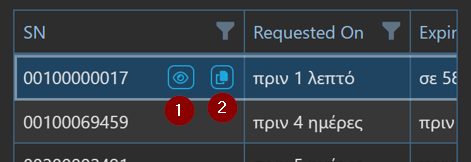
Selecting a specific serial number, you can:

- View token details (1)

- Create a new token (2) for the selected serial number without going to “Create New Token” page.
About

