EBS CRM - Marketing Promotion Programs EN
Entersoft Business Suite® | Entersoft CRM®
Features and functionality
Περιεχόμενα
- 1 Identification
- 2 Copyright
- 3 Symbols
- 4 = New Features & Functionality (Outline)
- 5 System preparation and configuration
- 6 Working with marketing promotional programs
- 7 Working with promotional actions
- 8 Planning spends/sales turnover
- 9 Communicating a promotion action
- 10 Launching a promotion action
- 11 Extend expiration
- 12 Set promotional action status
- 13 Order promotion determination
- 14 Promotional program reports
Identification
Software version Merchandise
Last updated on 02/02/2021
Copyright
© Copyright 2020 Entersoft S.A. All rights reserved.
No part of this work may be reproduced, transmitted, stored, or used in any form or by any means, without the prior written permission of the publisher. Regarding the present content …
- It may be altered at any time.
- It serves exclusively informative goals.
- No guarantee whatsoever is handed out for the possible existence of mistakes or the wrongful use or non-wanted results produced by the use of processes hereby followed and recommended.
Symbols
| Symbol | Definition |
|---|---|

|
User |

|
Administrator/Consultant |

|
Attention! |

|
Suggestion |

|
Note |

|
Example |

|
Configuration |

|
Parameter |
| <ENTER> | Keyboard |
| Menu | Menu options, actions |
= New Features & Functionality (Outline)
A promotion program is a marketing activity used by industries that sell into the retail channel or through dealers or wholesalers. A trade promotion takes place within a specific time period and aims to:
- Increase brand capital
- Increase brand awareness & market share
- Improve product image
- Increase sales volume
- Launch new products or product lines
The newly added features and extensions aim to help you create promotional programs easier and faster.
A promotional program may include several sales promotional actions. A sales promotion action defines a condition - reward combination that is valid for a specific time period to sell specific items to a specific target group of point of sales.
Additionally, the promotional actions can be communicated to the audience of a target group using the provided newsletter functions.
Marketing promotional actions are fully integrated with ERP sales orders. In this context, during the creation of a sales order advanced functions are provided for determining a promotion offer.
A detailed presentation of the aforementioned features and extensions, accompanied by user guidelines and examples are provided where necessary, in the following sections.
- Working with marketing promotional programs & sales actions
- Working with planning program sales or / and spends
- Newsletters
- Launching promotional actions
- Order promotion determination
- Promotional program reports
System preparation and configuration
Before proceeding with the marketing promotional programs, the following procedures are required:
Execute ‘Data preparation for use in marketing promotion programs’ procedure, through the menu: Tools and configuration > Maintenance tasks.
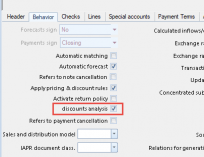
Activate the discount analysis monitoring for all sales order and invoicing document types, through the menu: Tools and Configuration > Document and series > Document types. The related field is located on the ‘Behavior’ tab.
Import data from ESCRMZero using the related emi
Through the menu: Tools and configuration > Additional development tasks, activate the following rules:
Campaign \ CRM Promotion Programs
Campaign \ CRM Promotion Planning
Trade Document \ CRM Marketing Promotions

Working with marketing promotional programs
To create a new promotional program, go through the menu: Marketing\Trade promotion programs\ Promotional programs to the view marketing promotional program list and click the button on the toolbar placed on the right side.
General data
Starting with the creation of a promotional program, its master data should be defined. To do declare them, fill in the following fields:
| Field name | Description |
|---|---|
| Code | Mandatory - The code of the marketing promotional program. It is automatically assigned by the system when the program is saved. |
| Status | Mandatory - The status of the marketing promotional program. The default value is ‘In process’ |
| Planned cost | Optional – The budgeted cost of the promotional program |
| Turnover target | Optional – The targeted turnover of the promotional program |
| Description | Optional - The description of the marketing promotional program |
| Owner | Optional - The owner of the marketing promotional program |
| Start date | Mandatory -The start date of the marketing promotional program |
| Completed on | Mandatory -The end date of the marketing promotional program |
Each marketing promotional program may include several sales promotion actions. These actions refer to the condition that should be met to receive the related reward(s).
To create a new sales action, click the  button on the top of the promotional actions section and the related entry form is shown. The creation of a promotional action is thoroughly described in the following paragraphs.

Working with promotional actions
A promotional action defines its basic rules, i.e. the condition that should be met, the reward type that will be given when the defined condition is met, etc. Also, the basic rules include the specific condition entries (items/attributes) to which the action will be applied, as well as which of them are mandatory. Additionally, based on the reward type, a promotional action can define the reward items. Furthermore, an action can be assigned to one or more specific representatives.

General data
| Field name | Description |
|---|---|
| General data | |
| Code | Mandatory - The code of the promotion action. It is automatically assigned by the system when the action is saved. |
| Description | Optional - The description of the marketing promotional program |
| Trade promotion program | Mandatory – It is automatically assigned to the action and it refers to the promotional program. |
| Supplier | Optional – The supplier that the promotion action refers to. |
| Budgeted cost | Optional – The budgeted cost of the promotion action |
| Turnover target | Optional – The targeted turnover of the promotion action |
| Status | Mandatory - The status of the marketing promotional program. The default value is ‘In process’ |
| Start date | Mandatory -The start date of the promotion action. The start date of the action should not exceed the valid period of the promotional program |
| Completed on | Mandatory -The end date of the promotional action. The start date of the action should not exceed the valid period of the promotional program. Though it can be extended through the action Extend expiration (see section 7) |
| Discount attributes | |
| Condition type | Mandatory - The condition type of the action |
| Available values | |
| |
| Target (quantity / value) | Optional – The quantity / value that should be spent to get the reward. The value of this field is always set to zero when the condition type value is Based on total item quantity OR Based on total item value |
| Target (different items) | Mandatory – The number of different items that should be spent to get the reward. The default value is 1. |
| Differentiation attribute | Mandatory – The attribute of diversity. The default value is ‘Item’ |
| Available values | |
| |
| First N | Optional – The number of batches that the promotional action will be applied to an order. The value of this field is always set to zero when the reward type value is discount percentage. |
| Trade accounts list | Optional – The trade accounts list to whom the promotion action will be available. For further information see 3.1.1 |
| Reward type | Mandatory - The reward type of the action |
| Available values | |
| |
| Reward discount (% / value) | Mandatory – The reward discount (% / value) that will be given if the condition of the action is met |
| Quota |
Optional – How many times the promotional action condition is achieved. It refers to each trade account of the trade account list. If the condition type is Based on item with specific quantity and unit price then this field refers to the times that the Target (quantity/value) of the condition items is achieved. |
| Max Quota |
Optional – The maximum quota of the promotional action referring to all trade accounts. The value of this field is taken into account only when the value of the Quota rule field is Quota by trade account. |
| Quota rule | Mandatory – The limit rule of the promotion action. Based on which rule the limit of the action will be allocated. The default value is None |
| Available values | |
| |
| Single transaction |
Optional – Defines if the action will be available only once or not, If true then the action will be available only once. If false then the action will be available to be used multiple times. |
| Discount information | A short description can be written in this field. |
Select trade account list
In the aforementioned list of fields, one of them (Trade account list) refer to the trade accounts list. The value of this field can be assigned to by selecting Lists > Select list on the promotion action toolbar. The related dialog box appears. By clicking on the
in the Tr. acc. list, the list with the existing lists is shown.

Create trade account list
To create a new trade account list, click on the
button next to the trade account list field. Then, select the list type (Business address (POS) or Customer) and click the
button. The entity list form is shown. Through the Select entries filter section of this form, the entries of the list can be easily defined using the parameters panel. Finally, when the list is saved, the newly created list code is assigned to the promotion action,


Edit trade account list
To edit the trade account list which is already assigned to the promotion action, click on the
button next to the item trade account field. The entity list form is shown in which you can make the changes you wish through the Select entries filter section.

Condition items/attributes
In this section, the items/attributes of the action are defined. The following fields should be defined:
| Field name | Description |
|---|---|
| Item list | Optional – The items list that the promotion action refers to. For further information see sections 3.2.1 - 3.2.3 |
| Condition attribute |
Mandatory – The attribute of the condition entries If the Item list field is filled in, then automatically the Item value is assigned to this field. If the Item list field is NOT filled in, then you can assign one of the available values. |
| Available values | |
| |
| Mandatory attribute | Mandatory – The attribute of the mandatory entries |
| Available values | |
|
Select item list
In the aforementioned list of fields, one of them (Items list) refer to the items list. The value of this field can be assigned to by selecting Lists > Select list on the promotion action toolbar. The related dialog box appears. By clicking on the
Create item list
To create a new item list, click on the
Edit item list
To edit the item list which is already assigned to the promotion action, click on the
Select condition items
The condition items can be defined by assigning the items list or not. If an items list is assigned to the action, the
can be used for differentiating e.g. the Target (quantity / value) of some items of the selected list.
If NO item list is assigned to the action, then you should use the

| Field name | Description |
|---|---|
| Item code | The item code – It is filled in when the condition attribute value is Item |
| Description | The item description - It is filled in when the condition attribute value is Item |
| Item attribute value | The item attribute value - It is filled in when the condition attribute value is NOT Item |
| Target (quantity / value) | By default, the value of the Target (quantity / value) in General data of the promotional action is assigned to, when the selected items/attributes are inserted. The value of this field can be edited |
| Unit price | The unit price of the item/attribute - The value of this field can be edited ONLY when the condition type value is Based on item with specific quantity and total value |
Example of assigning different Target (quantity / value) of some items
A list of items has been assigned to the action which includes the Vodka01, Vodka02. Whiskey01, Whiskey02 items and the Target (quantity / value) is 2 (in the General data section of the promotional action), then the target for each item of the selected list will be 2. Though, you wish to set a different Target (quantity / value) of the Vodka01, Vodka02 to 3. The Target (quantity / value) can be assigned using the Select condition items action, though which the Vodka01, Vodka02 can be selected and inserted in the entries grid, where the Target (quantity / value) can be set to 3.
When the status of the promotional action is ‘In process’ then you can delete entries of condition items/attributes by selecting the lines you wish in the related grid and then by clicking on the
next to it.
Select mandatory items
This action can be used for defining the mandatory items/attributes of the promotional action by clicking on the
button. The entries can be either items (fill in the Item field of the action) or attributes (fill in the Attribute field of the action) or can be both (fill in both fields). The list of entries that can be selected through this action, depends on the value assigned to the mandatory attribute field. If the item value is assigned to the condition attribute field, then all condition/list items will be listed. If the item family value is assigned to the mandatory attribute field, then all the condition/list item families will be listed, and so on and so forth.

| Field name | Description |
|---|---|
| Grouping | The grouping of the mandatory items/attributes. The value of this field can be edited. By default, when a new item/attribute is inserted the Grouping 1 value is assigned to |
| Item code | The item code – It is filled in when the entries inserted are Items |
| Description | The item description - It is filled in when the entries inserted are Items |
| Item attribute value | The item attribute value - It is filled in when the entries inserted are NOT Items |
| Target (quantity / value) | By default, the value of the Target (quantity / value) in General data of the promotional action is assigned to, when the selected items/attributes are inserted. The value of this field can be edited, though, if the same items/attributes are inserted into the entries grid with different value, then the value of the entries grid will be assigned to the mandatory entries grid when the promotional action is saved. |
The mandatory entries can be categorized into groupings. The groupings are provided to easily define the rules between the entries.
When the same grouping is assigned to several entries, then the customer should buy one of these entries at the defined Target (quantity / value).
When different groupings are assigned to several entries, then the customer should buy items/attributes from both at the defined Target (quantity / value).
A list of condition items has been assigned to the action which includes the Vodka01, Vodka02. Whiskey01, Whiskey02 items. The Vodka01 and Whiskey01 items must be defined as mandatory items. By clicking on the
If the entries belong to the same grouping, then the customer should buy any of them at the defined Target (quantity / value). In this context, Vodka01 at the defined Target (quantity / value) OR Whiskey01 at the defined Target (quantity / value).
If a different grouping needs to be assigned to the entries, then the customer must buy both at the defined Target (quantity / value). In this context, Vodka01 at the defined Target (quantity / value) AND Whiskey01 at the defined Target (quantity / value).
A grouping can include as many entries as needed.
When the status of the promotional action is ‘In process’ then you can delete entries of mandatory items/attributes by selecting the lines you wish in the related grid and then by clicking on the
Attention
- You can insert mandatory entries ONLY if Item list is defined and/or entries of condition items/attributes are inserted into the related grid.
- When the value of the condition attribute field is changed, then all entries inserted into both entries and mandatory entries grids are deleted.
- When the value of the mandatory attribute field is changed, then all the entries inserted into the mandatory entries grid are deleted.

Reward items
In this section the reward items of a promotional action can be assigned to the related grid, when the reward type value in the General data section of the promotional action (see paragraph 3.1) is not Discount percentage or Discount value.
| Field name | Description |
|---|---|
| Code | The reward item code |
| Description | The reward item description |
| MU | The reward item measurement unit |
| Quantity | The reward item quantity |
| Discount/Value | The reward item discount/value |
When the status of the promotional action is ‘In process’ then you can delete entries of reward items by selecting the lines you wish in the related grid and then by clicking on the  next to it.
Attention
When the value of the reward type field is changed and the assigned value is one of the following, then all reward items inserted into the related grid are deleted.
Discount percentage
Discount value

Representatives
A promotional action can be assigned to specific representatives. This requires that the value Allocation by representative should be assigned to the Limit rule field and the Limit field value is greater than zero in the General data section of the promotional action (see paragraph 3.1). To allocate the previously defined limit to the representatives you should click on the  button. A dialog box with the following fields pops up:
| Field name | Description |
|---|---|
| Representatives | By clicking on the  button, you can search through the available representatives. button, you can search through the available representatives.
|
| Allocation method | The method that the limit will be allocated among the selected representatives. |
| Available methods | |
| |
| From date | The start date of the time period used for calculating the figure needed (depends on the allocation method). If the allocation method is Equivalents then the value of this field is not taken into consideration. |
| End date | The end date of the time period used for calculating the figure needed (depends on the allocation method). If the allocation method is Equivalents then the value of this field is not taken into consideration. |
After defining the aforementioned fields, by clicking on the  button, the selected representatives are inserted into the grid as well as the limits calculated based on the allocation method. The allocation method selected, is shown on the top of the grid.
| Field name | Description |
|---|---|
| Code | The representative code |
| Description | The representative description |
| Limit | The calculated limit. |
When the status of the promotional action is ‘In process’ then you can delete entries of representatives by selecting the lines you wish in the related grid and then by clicking on the next to it.
Attention
When the value of the limit rule field is changed and the assigned value is one of the following, then all representatives inserted into the related grid are deleted.
- None
- Limit by trade account
Planning spends/sales turnover
All promotional programs and their sales actions target to increase the revenues of a company. In this context yoy may wish to plan the sales turnover for a program or/and a sales promotion action. Moreover, spends should be also planned by defining quota for different spend types. Usually, these spend types refer to the medium used to announce your promotional offer (tv, web, radio, etc.) Therefore, the spends and the revenues of a promotional program or action can be budgeted using the Planning > Spends/Sales action. This action is available on the top of each promotional program and action form.
Planning Spends
To budget the spends of a promotional program or action click on the Planning > Spends action on the toolbar, to open the Spends budget form.
| Field name | Description |
|---|---|
| General data | |
| Code | The code of the spends budget. It is automatically filled in when the form is saved. |
| Description | The description of the spends budget. It is automatically filled in with the concatenation of the promotional program or action code and its duration. |
| Program | The code of the parent promotional program or action. |
| Owner | The owner of the budget |
| Period type | The period type of the budget. It is automatically filled in when you select the period type through the related action |
| Spends plan | |
| 1st level | |
| Period | The period of the budget |
| Spends | The amount of the budget for the selected period. It can be edited when there are no 2nd level entries |
| 2nd level | |
| Attribute | The attribute of the budget |
| Spends | The amount of the budget for the selected attribute. It can be edited |
The period type and the amount of a budget should be defined by clicking on the  button. The available period types are the following three:
- Monthly – Entries for each month of the duration of the program or action are inserted and the spends amount is equally allocated.
- Quarterly - Entries for each quarter of the duration of the program or action are inserted and the spends amount is equally allocated.
- Consolidated – One entry for the overall duration of the program or action is inserted.
Furthermore, each entry that refers to the periodic allocation of the spends amount can be further allocated to specific attributes. To do so, select the periods you wish (that have been previously inserted) and click on the  button, to select the attributes you wish to use for further allocating the amount of the spends of the selected periods. By clicking the
  button, the amount of each selected period is equally allocated to the selected attributes.
Finally, when the spends budget is saved, the total spends amount is assigned to the Planned cost field in the program or action form and this field is locked. The amount can be edited only though the aforementioned action.

Planning Sales Turnover
To budget the sales of a promotional program or action click on the Planning > Sales action on the toolbar, to open the Sales budget form.
| Field name | Description |
|---|---|
| General data | |
| Code | The code of the sales budget. It is automatically filled in when the form is saved. |
| Description | The description of the sales budget. It is automatically filled in with the concatenation of the promotional program or action code and its duration. |
| Program | The code of the parent promotional program or action. |
| Owner | The owner of the budget |
| Period type | The period type of the budget. It is automatically filled in when you select the period type through the related action. |
| Sales plan | |
| 1st level | |
| Period | The period of the budget |
| Turnover | The amount of the budget for the selected period. It can be edited when there are no 2nd level entries |
| 2nd level | |
| Attribute | The attribute of the budget |
| Turnover | The amount of the budget for the selected attribute. It can be edited |
The period type and the amount of a budget should be defined by clicking on the button. The available period types are the following three:
Monthly – Entries for each month of the duration of the program or action are inserted and the sales amount is equally allocated.
Quarterly - Entries for each quarter of the duration of the program or action are inserted and the sales amount is equally allocated.
Consolidated – One entry for the overall duration of the program or action is inserted.
Furthermore, each entry that refers to the periodic allocation of the sales amount can be further allocated to specific attributes. To do so, select the periods you wish (that have been previously inserted) and click on the button, to select the attributes you wish to use for further allocating the amount of the sales of the selected periods. By clicking the button, the amount of each selected period is equally allocated to the selected attributes.
Finally, when the sales budget is saved, the total sales amount is assigned to the Turnover target field in the program or action form and this field is locked. The amount can be edited only though the aforementioned action.
Note
You can assign the amount you wish to the related fields of the program or action form and proceed with budgeting afterwards. The amount set to the related field will automatically be assigned to the spends/sales field shown when clicking on the
button. After creating a budget for either spends or sales then the related field is updated and locked. The amount of each field can be edited only though the budgeting actions.
Plan insights
Through the  action on the spends/sales plan toolbar, you can easily review / update the spends/sales plan created. This dashboard shows analytically the amount set to this plan:
Per period
Per attribute
Per period and attribute
In this section of the dashboard the amount assigned to an attribute can be changed by clicking on the
 button. After changing the amount of the target, then all the related fields will be updated when the dashboard is closed.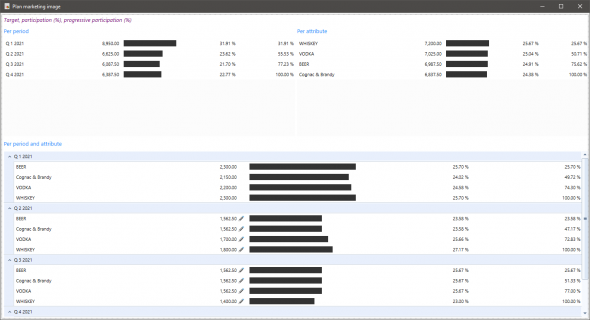


Communicating a promotion action
To communicate your promotional action to your customers, you may use the functions provided by the newsletter subsystem.
To create a newsletter for a promotion action, use the Newsletter action located on the toolbar of the promotional action. The Newsletter form is displayed and the ‘Name’, ‘List’ and ‘Email subject’ fields are already filled in with the information of the selected program action.
The audience of the newsletter is proposed based on the target group of the sales promotional action.
For further information about the Newsletter management please refer to the document with the title ‘CRM_Newsletters-UserGuideEN’ in ESBooks.
Finally, all the newsletters created for the actions of a promotion program are listed in this section.
Launching a promotion action
To make marketing promotional actions applicable to a sales order then they should be launched. To launch a program, select Commercial policy > Launch on the promotion program toolbar. When launching the action, the related ERP objects are created, and the status of the action is updated from In process to Published. When a program action is launched then it cannot be edited. In case that you need to edit a published action then it is important to delete the associated ERP objects using the action Commercial policy > Delete. The associated ERP objects are deleted, and the status of the selected promotional actions changes to In process.
Extend expiration
In some cases, a promotional program which has already been launched needs to be active for longer than originally set. To extend the expiration date of a promotional action and its associated ERP objects, click on the  action on the promotional action toolbar. A pop-up window opens, asking you to define the new ending date. Afterwards, you need to click on the button to update the expiration date of the action and its associated ERP objects. In some cases, if the promotion program end date is earlier than the end date defined, a warning message is shown and ask you if you wish to extend the promotional program end date as well as the end date of the promotional action and its ERP associated objects.


Set promotional action status
A promotional program can have one of the following states:
- In process – The default value given to a new promotional action. This status remains during the editing of a promotional action,
- Published – This status is given to the promotional action after it is launched.
- Completed
- Cancelled
The first 2 states are set to a promotional action by the system, after performing specific actions, such as creating a new promotional action or launching a promotional action. The last 2 states can be defined by the user by clicking on the  button on the promotional action toolbar. A pop-up window opens where the status can be selected and by clicking on the button to related promotional action field ‘Status’ is updated.

Order promotion determination
After launching the action, this could be connected to a sales order. In order to apply a promotional offer to a sales order, you need to use context view ‘Promotion actions’.
An offer is applied to a sales order based on the following criteria:
- Customer
- Document issuance date
- Salesperson
For instance, a sales order registered for the Customer X issued on 18/05/2020 and salesperson Rep1 then the promotional actions listed are those valid on the aforementioned date with trade account list that includes the Customer X POS or without trade account list at all and these promotional actions are assigned to the sales representative Rep1 or they are not assigned to no one.
Using context view ‘Promotion actions’
This context view is hierarchical. The promotional action is displayed on the first level and on the second one, the items of the condition of the related promotional action item list are shown. The information shown in this context view is as follows:
| Field name | Description |
|---|---|
| 1st level | |
| Code | The code of the promotional action |
| Description | The description of the promotional action |
| Ends on | The end date of the promotional action |
| Available quote |
If quota has been assigned to a promotional action, then
|
| Condition | The condition of the promotional action |
| Reward | The reward of the promotional action |
 (investigation button) (investigation button)
|
When the reward of the promotional action is reward item(s) then the investigation button is shown. By clicking on this button, the list of the reward item(s) is shown. |
| Discount information | Information about the discount given through the promotional action |
| 2nd level | |
 (selector) (selector)
|
When checked, then this item is selected. When is not checked, then this item is not selected. |
 (mandatory item flag) (mandatory item flag)
|
If this flag is shown, then this item is mandatory. If this flag is not shown, then this item is not mandatory. |
| Code | The item code |
| Description | The item description |
| Quantity | The quantity of the item. The value of this field can be edited. |
| Target (quantity/value) | The target (quantity/value) of the item. |
| Reward info | Information about the reward |
| Mandatory group | If an item is mandatory, then the mandatory group is shown in this field. For further information about the mandatory group see section 3.2.5 |
| Attribute | The attribute that the item belongs to. |
To apply an offer through the context view, declare the quantity of the item and select the related line by clicking on the selector and afterwards, click on the  button on the top of the view. To apply the commercial policy to the document, select
  button on the top of the view. The application of an offer can be undone if you select the items of the offer that was previously inserted into the item line of the sales order and then click on the
  button on the top of the view.

Example of offer related to promotional action with max quota
Supposing that the following are defined in a promotional action related to an offer:
- Quota equals to 3 – this defines the quota per trade account
- Max quota equals 8 – this defines the quota for all trade accounts
- Quota rule field is Quota by trade account
- the selected trade account list contains 3 trade accounts; TA1, TA2 and TA3
The offer is used tree (3) times in a sale order registered for the TA2 – The remaining max quota is five (5).
Then, the offer is used three (3) times in a sale order registered for the TA1 – The remaining max quota is two (2).
Next, the offer is used two (2) times in a sale order registered for the TA3 – The remaining max quota is zero (0).
The offer will be available to be used by a trade account of the selected list until the maximum quota is reached.
Attention – Remaining quota
If the voucher is connected with a promotion that defines a max quota then the remaining value quota is calculated as follows:
If max quota has been consumed then the voucher is not displayed – cannot be selected
If max quota - consumed offer quota >= remaining value then the remaining value is displayed
If max quota - consumed offer quota < remaining value then max quota - consumed offer quota is displayed.
Moreover, on commercial policy voucher application, a business rule prohibits an order to be posted if the current quota voucher consumption violates promotion offer max quota. In this context, the order contains items with quantity or value that consumes more than the current remaining quota of promotional offer.
Promotional program reports
Numerous reports have been created to monitor the performance of a promotional action, as well as the actions related to. In the following paragraphs, these reports are thoroughly described.
Newsletters
This report is available in the promotional action form. As previously mentioned, a promotional action needs to be communicated to a target group. This context view has been created to monitor the related actions, by reporting the following:
| Field name | Description |
|---|---|
| Start date | The start date of the newsletter |
| Ends on | The end date of the newsletter |
| Description | The description of the newsletter |
| Email title | The title of the email |
| Status | The status of the newsletter |
| List | The list of the newsletter |

Spends
This report is available in the promotional action form. As previously mentioned, the spends of an action could be planned. This context view has been created to monitor the related spends, by reporting the following:
| Field name | Description |
|---|---|
| Date | The date that the related document was recorded |
| Trade account | The trade account of the related document |
| Code | The spend code |
| Description | The spend description |
| Quantity | The quantity of this type of spend |
| Value | The value of this type of spend |
| Activity code | The activity code of the spend recorded |
Orders
This report is available in the promotional action form. This context view has been created to monitor the related orders, by reporting the following:
| Field name | Description |
|---|---|
| Order code | The code of the order |
| Date | The date that the order document was recorded |
| Customer code | The code of the customer of the order document |
| Customer | The name of the customer of the order document |
| POS | The POS of the order document |
| Representative | The representative of the order document |
| Item code | The item code of the order document |
| Item description | The item description of the order document |
| Measurement unit | The item measurement unit of the order document |
| Initial quantity | The initial quantity of items ordered |
| Open qty | The open quantity |
| Open quantity value | The open quantity value |
| Delivery date | The delivery date |
Target vs. actual
This dashboard is available in the promotional program and action forms. This context dashboard helps you monitor the progress of a promotion program or action briefly. You can compare how much you have really spent on/earned by this program or action with how much you have planned to spend/earn.

Performance KPIs
This dashboard is available in the promotional program and action forms. This context dashboard helps you monitor the performance of a promotion program or action briefly by presenting the following key figures:
Number of sales orders
Number of invoices
Turnover target
Turnover
Variance from target (%)
Turnover on total – the contribution of the promotion action to the overall turnover
Discounts
Planned expenses
Actual expenses
Cost of goods sold
Total cost
Profit margin
Profit margin percentage
Number of list POS
Responses
Response rate


Pending orders with reserved value
This report is used for monitoring orders connected to promotion program actions that define quota and are still not delivered / invoiced. It is available through the menu: Marketing > Trade promotion programs > B2B Promotion programs > Pending orders with reserved value. The following parameters could be defined in this report:
- Date
- Promotion action code
- Customer
- Item code
- MU type
This report shows the document line items along with the item code and description, item measurement unit, the initial quantity, the open quantity, the value of the open quantity the expected reserved value and the delivery date. In addition to the aforementioned columns, there is a column that displays an icon indicating the status of each line. The indicators are the following:
 Indicates that the overall quantity of the line is reserved, i.e. the initial quantity is equal to the open quantity.
 Indicates that part of the quantity is reserved, i.e. the initial quantity is not equal to the open quantity.
By double-clicking on a line, the related form document is shown.

Discount claims by supplier
This report is used for claiming discounts from a supplier, in case you have an agreement with them for a promotion program action in order to promote some goods with special discounts and after the end of this program these discounts can be claimed from them. It is available through the menu: Marketing\Trade promotion programs\B2B Promotion programs\ Discount claims by supplier. The following parameters could be defined in this report:
- Transaction date
- Promotion action code
- Supplier code
This report shows the document line items that have been invoiced. The details shown are the following:
- Supplier
- Transaction date
- POS
- Promotion program code
- Promotion program description
- Item code
- Item description
- Quantity
- Measurement unit
- Turnover
- Discount value
By double-clicking on a line, the related form document is shown.

Promotion action comparison
This dashboard is used for comparing the performance of two promotion actions. For instance, you can compare a promotion program action launched the previous year for the specific goods and compare its results with the results of a program promotion action launched this year with the same features (i.e. the same, season, the same target group, the same items, etc.). It is available through the menu: Marketing\Trade promotion programs\B2B Promotion programs\ Promotion action comparison. The following parameters must be defined in this report:
- Promotion action 1
- Promotion action 2
The sales key figures of the promotion action 1 are shown on the left side of the report while on the right side, the related key figures are shown for the promotion action 2. The sales key figures are the following:
- Number of sales orders
- Number of invoices
- Turnover
- Turnover on total – the contribution of the promotion action to the overall turnover
- Discounts
- Total cost
- Profit margin
- Profit margin percentage
- Responses
- Response rate

