CRM Timesheet EN
Timesheet
Entersoft Business Suite® | Entersoft CRM®
User guide
Identification
Software version Timesheet
Last updated on 16/12/2021
Copyright
© Copyright 2022 Entersoft S.A. All rights reserved.
No part of this work may be reproduced, transmitted, stored, or used in any form or by any means, without the prior written permission of the publisher. Regarding the present content …
- It may be altered at any time.
- It serves exclusively informative goals.
- No guarantee whatsoever is handed out for the possible existence of mistakes or the wrongful use or nonwanted results produced by the use of processes hereby followed and recommended.
Symbols
|
Definition |
|---|---|

|
User |

|
Administrator/Consultant |

|
Attention! |

|
Suggestion |

|
Note |

|
Example |

|
Configuration |

|
Parameter |
|
Keyboard |
|
Menu options, actions |
Outline
Entersoft Timesheet is a web application that can be used by companies that provide services to their customers.
The application provides the following features:
- Labor time recording based on the work provided by your employees – resources (internal or external)
- Project monitoring regarding the labor time and the billable services
- Labor approval process
- Order confirmation for approved services (approved labor time)
- Invoice confirmed order
- Completed order to invoice end to end information
- Document cancelation (orders and invoices)
- Advanced key figure calculation to monitor the performance of your resources
In order to examine the performance of your resources the following key figures are calculated:
- Labor time
- Billable time
- Overtime
- Labor time off project or customer
- Rejected labor time (value and % of labor time)
- Rejected billable time (value and % of billable time)
- Ordered quantity - billable time that is converted to confirmed order quantity
- Turnover as a value
- Turnover as a percentage of confirmed order net value
- Utilization (%)
Περιεχόμενα
Timesheet employee roles
In the context of Timesheet subsystem, three different resource roles are needed:
- Resources who need to record their labor time must possess the role ‘Timesheet’
- Resources who need to review (approve/reject) the timesheet records submitted by other resources must possess the role ‘Timesheet_Approval’.
- Resources who are responsible for pre-invoicing and invoicing the billable hours of the approved recorded timesheets.
To be able a resource to proceed with the pre-invoicing and invoicing process, the related service profile needs to be assigned through the configuration. To define the service profile, go to the Menu: Users > User administration, double-click on the user related to the resource who will be responsible for the pre-invoicing and invoicing process and open the Companies-Branches expander, In the service profile assigned to the related company the Pre-Invoice Service & Service invoicing – document types filed in the Wholesale invoicing section needs to be filled in, as well as the series of this document type.
System preparation & configuration
Before proceeding with the Timesheet web application, the following back-office procedures are required:
- Import data from ESCRMZero using the related emi
- Ensure that the timesheet roles (‘Timesheet’, ‘Timesheet_Approval’) are assigned to the resources you wish to perform the related processes.
- Define the following company parameters, through the Menu: Configuration… > General > Company parameters > CRM - Timesheets.
- Mandatory calculation of overtime via an automated process.
If the value is set to True, then the overtime value is calculated through an automated process. This process is based on the labor time of the resource, as defined in the season calendar.
If the value is set to False, then no calculation is performed.
- Select project by group o Service invoicing – transition code
In this company parameter, the international ID of the document type of the documents to which the pre-invoicing order will be transformed to is defined.
- Timesheets invoicing service
Though the available services, you can define which one will be the default service that will be invoiced.
- Ensure that the CRM_Timesheet business rule is activated, through the Menu: Settings > Development & customization tools > Rule activation…

Working with the application
The timesheet application consists of numerous web pages that serve to record, audit, pre-invoice, invoice and monitor employees/resources labor time. All these pages follow the same principles described below:
- All the administrative pages can be filtered. The parameters differ from page to page, though the filtering method is the same.
To filter out a page click on the
button on the right of the page, the available parameters are displayed and after assigning the values you wish, click on the
button.
Additionally, all lists in the pages, have on the top of them a search field. By typing a keyword in this field, the list is automatically filtered out.

- A coloring scale is used when the utilization percent is shown. It is colored red when the percentage is smaller than 60%, when it is between 60% and 80% is colored yellow and when it is 80% and greater then it is colored green.
- The timesheet record statuses are depicted with icons as listed below:
 Draft
Draft
To be approved
Submitted
Invoiced
Rejected


1. Home
After logging in to the timesheet application, the Home page is displayed. This page consists of three (3) virtual vertical areas; Left, Center & Right area.

In the area on the left, a summary of the user’s overall performance is shown. Also, in this area, the date parameter that filters out the page is available. The default value of the parameter is the last 30 days.
The Key Performance Indicators of efficiency evaluation are the following:
- Labor hours
- Billable hours
- Overtime
- Hours without project • Utilization
The first four (4) indicators are depicted in a bar chart while utilization indicator is depicted as a bullet chart.
In the center of the Home page, there is a detailed list of the timesheet records. There can be filtered out using the Status field on the top or the standard searching methods.
The details shown in this list are the following:
- Timesheet record status
- Project code
- Project description
- Customer name
By clicking on the Date on the grouping row of the list, the user is redirected to the page of the related timesheet, where detailed information is provided.
Also, a new timesheet record can be added by clicking on the
button on the top of the list. For further information, see the New timesheet section.
In the area on the right, the project list is shown. The details shown in this list are the following:
- Project code
- Project description
- Project start date
- Project end date
- Customer name
- Contact phone
- Contact email
By clicking on the
button, detailed information about the selected project is provided. Specifically, the following information is displayed:

- Project code
- Project description
- Project KPIs o Labor hours o Billable hours o Overtime
The first two (2) indicators are shown in a horizontal bar chart
- List of the timesheet line records related to the selected project
o Registration date o Labor hours o Billable hours o Overtime

By clicking on the
button, a map displaying the location of the customer is shown.


1.1 New timesheet
As previously mentioned, a new timesheet can be inserted by clicking on the  button on the top of the timesheet list placed in the center of the home page. When clicking on the new timesheet button, the related page is displayed.
On the top of the page, there is the toolbar with the available actions; Save, New and Submit. Right under the toolbar, there are the following information:
- Representative’s code – The one who is performing the registration
- Timesheet status
- Date – It is mandatory to be filled in. If there is already a record for the same date then a warning message is displayed.
- Labor hours – The labor hours of all timesheet lines.
- Billable hours – The billable hours of all timesheet lines.
- Overtime - The overtime of all timesheet lines.
After filling in the date, the
button for adding timesheet lines is shown on the middle right of the page.


| Address |
|
|
|---|---|---|
| Service term | ||
| From |
|
|
| To | ||
| Labor hours | ||
| Billable hours |
|
|
| Chargeable |
|
|
|
||
|
| |
|
|
By clicking the
button, the popup dialog remains open and you can keep inserting lines.

1.2 Timesheet submission
After inserting all the timesheet lines needed into the timesheet, these records need to be submitted for auditing by the authorized user. To do so, click on the
button on the top of the timesheet page. Instantly, the status of the timesheet will change to Submitted and the status of the timesheet lines will change from
Draft to


2. Customer list
The customer list, is an administrative page for accessing the customer records. To access this page, select from the sidebar menu the Customer list option.

This page consists of the customer list displaying the following details:
- Customer code & name
- Customer’s phone
- Customer’s email
- Customer’s industry
- Sales person code & name (the sales person that contacts the customer)
- Business unit code | Business activity code
By clicking on the
button, a map displaying the location of the customer is shown.

By default, the top 200 customers are listed. To change the number of records, use the filters on the right of the page.
By clicking on the

- Top
- 200 – Default value
- 500 o 1000
- Customer code
- Customer name • Geo zone
When a row of the list is selected, in the area on the right side of the page, the following KPIs are shown:
- Turnover
- Labor hours
- Billable hours
In addition to the aforementioned KPIs, the list of timesheet records related to this customer are displayed right under them.
The KPIs and the timesheet records are filtered by the time period selected through the related date field. The default time period is the current year.
3. Project list
The project list, is an administrative page for accessing the projects. To access this page, select from the sidebar menu the Project list option.

This page consists of the customer list displaying the following details:
- Project code & name
- Start & end time
- Project status
- Customer’s name
- Project manager
- Contact person name
By clicking on the  button the page of this timesheet is displayed, where detailed information is provided. Also, a new project can be added by clicking on the
  button on the top of the list. For further information, see the New project section.
The list can be filtered out by clicking on the
apply it by clicking on the
When a row of the list is selected, in the area on the right side of the page, the following KPIs are shown:
- Turnover
- Turnover target
- Variance
- Variance percentage
- Labor hours
- Billable hours
In addition to the aforementioned KPIs, the list of timesheet records performed for this project are displayed right under them.
3.1 New project
As previously mentioned, a new project can be registered by clicking on the button on the top of the project list and the related entry page opens. This page consists of three (3) virtual vertical areas; Left, Center & Right area.

On the top of the page, there is the toolbar with the available actions; Save and New.
Under the toolbar, on the left of the page, the project’s basic fields are displayed as follows:
Field name Description
| Code |
|
|---|---|
| Name | |
| Start date |
|
| End date |
|
| Belongs to project |
|
| Customer |
|
The customer’s branch in which the project is implemented.
The manager of the project.
The status of the project
The project’s budgeted cost.
Budgeted revenue The project’s budgeted revenue.
In the center of the page, the following KPIs are shown:
- Turnover – It is calculated when the timesheet records referring to this project are submitted or invoiced.
- Turnover target – It refers to the previously assigned value in the budgeted revenue field.
Turnover & turnover target are depicted in a bar chart next to the values.
- Variance
- Variance percentage
- Labor hours – The labor hours that have been recorded for this project
- Billable hours – The billable hours that have been recorded for this project
Labor hours & billable hours are depicted in a bar chart next to the values.
In addition to the aforementioned KPIs, the list of timesheet records registered for this project are displayed right under them.
In the area on the right, the project’s team, the related documents, comments and notes can be defined.
3.1.1 Add project team member
To add a member to the project’s team, go to the Project team radio group and click on the
- Person
- Contact role – The role of the project team member

The record is automatically inserted. If you wish to add another record without closing the popup dialog you can click on

the button.
The added members can be edited though the
button or they can be deleted though the
button.


To add a related document to the project, go to the Related document radio group and click on the
- Select the file
- Saving method
- Category
- Group
- Attributes

The record is automatically inserted. If you wish to add another record without closing the popup dialog you can click on the
button.
The added document can be edited though the

3.1.3 Add comments/notes
To make comments on the project, go to the Comments radio group, click inside the field and type your comments.
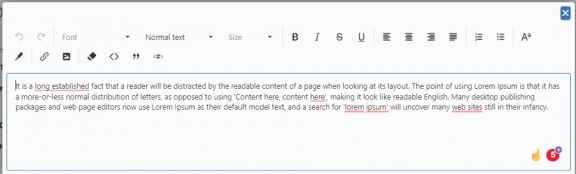
To keep notes about the project, go to the Notes radio group, click on the
button. The editor is shown and you can insert your notes.


4. Timesheet list
The timesheet list, is an administrative page for accessing the timesheet records. To access this page, select from the sidebar menu the Timesheet list option.

This page consists of the timesheet list displaying the following details:
- Registration date
- Timesheet code
- Representative’s code & name
- Status
By clicking on the
- Date range – The default value is the last 30 days
- Representative • Status
When a row of the list is selected, in the area on the right side of the page, the following KPIs are shown:
- Labor hours
- Billable hours
- Overtime
- Utilization percentage
The values of working hours, billable hours and overtime are depicted in a bar chart while the utilization percentage is depicted in a bullet chart.
Finally, by clicking on the
5. Timesheet approval
5.1 Approval process
To access this page, select from the sidebar menu the Timesheet approval > Approval process option.
The approval page consists of a list displaying all the timesheet records that need to be reviewed. These records can be approved or rejected. To filter out the listed records, click on the  button on the right of the page where the following parameters are available:
- Customer
- Project
Then you select the records you wish to review, by clicking the checkbox
. The available actions for approving or rejecting the selected record is shown when at least one record is selected.

5.1.1 Approve timesheet records
To proceed with approving timesheet records, select the timesheet records you wish and click on the
button. The timesheet list is automatically refreshed and the approved records are removed.

5.1.2 Approve timesheet records
To proceed with rejecting timesheet records, select the timesheet records you wish and click on the
button. A dialog box is shown in which you need to fill in the following:

- Rejection reasoning – Mandatory
Available options o Unauthorized work
o Incorrect time data o Incorrect project customer data o Insufficient budget o Management decision o Confidential
- Comments - Optional
When the aforementioned fields are filled in, to reject the records click on the
5.2 Rejection analysis
To access this page, select from the sidebar menu the Timesheet approval > Rejection analysis option. In this page, summarized information is provided, as well as, a list with detailed information about the rejected timesheet lines.
The summarized KPIs depicted in cards and a column chart. The KPIs are the following:
- Labor hours
- Billable hours
- Unauthorized labor hours
On the left of the card the unauthorized labor hours are displayed and on the right of the card the percentage of the rejected labor hours in relation to the total labor hours is displayed.
- Unauthorized billable hours
On the left of the card the unauthorized billable hours are displayed and on the right of the card the percentage of the rejected billable hours in relation to the total billable hours is displayed.
Additionally, the working and billable hours of the rejected timesheet records are depicted in a bar chart by rejection reasoning. By clicking on a bar of the chart, the timesheet records displayed in the list on the right of the page is automatically filtered out.
On the right of the page, a list with detailed information about the timesheet records grouped by date is shown providing the following details:
- Representative code – The representative who registered the record
- Project code & name
- Customer name
- Labor hours
- Billable hours
- Representative code – The representative who rejected the record
- Rejection reason
The overall page (KPIs, charts and timesheet list) can be filtered out by clicking on the
- Date – The default value is the last 12 months
- Customer
- Project
- Representative

6. Invoicing process
6.1 Pre-invoicing
All the approved timesheet records are available for pre-invoicing through the related page. To access this page, select from the sidebar menu the Invoicing process > Pre-invoicing option. This page consists of a list in which the approved timesheet records are listed and grouped by project, customer or contract.
The list can be filtered out by clicking on the
- Date – The default value is the current year
- Project
- Customer
- Document grouping
Through this parameter is defined the grouping method of the documents, both in the list and in the preinvoice document that will be created.
Available options o Project o Customer o Contract
In the list, the following information is displayed:
- Grouping row – The value in this row is based on the option assigned to the Document grouping parameter
- Date
- Timesheet code
- Representative
- Project code
- Project name
- Customer code
- Customer name
- Customer’s address
- Billable hours
- Service
To proceed with the pre-invoicing process, you need to select the records you wish by clicking the checkbox  in the related lines. When at least one record is selected the related
  action is shown on the top of the page. After executing this action, the related documents with the defined line grouping will be created and the list is automatically refreshed and the records are removed.

6.2 Invoicing
To access this page, select from the sidebar menu the Invoicing process > Invoicing option. All the pre-invoice documents created previously are listed in this page.
The list can be filtered out by clicking on the
- Date – The default value is the last 30 days
- Customer
- Branch
In the list the following columns are displayed:
- Issuance date
- Document code
- Document title
- Net value
- VAT value
- Total value
- Step
By clicking on the


6.3 Submission process
To access this page, select from the sidebar menu the Invoicing process > Submission process option. This page provides an overview of the timesheet records from the time being registered to the time being invoiced.
The content of the page can be filtered out by clicking on the
- Date – The default value is the last 30 days
- Customer
- Project
- Representative
On the left of the page, there is a summary showing the following KPIs:
- Labor hours
- Billable hours
- Orders’ quantity
- Orders’ net value
- Turnover
On the right of the page, there is a list of the timesheets showing the invoicing process grouped by date. In the list the first pane represents the timesheet showing the following information:
- Representative
- Project code & name
- Customer name
- Labor hours
- Billable hours
The second pane represents the pre-invoice document providing the following information:
- Pre-invoice document code
- Registration date
- Turnover
And the third pane represents the invoicing document showing the following:
- Document code
- Registration date

7. Documents
7.1 Pre-invoicing orders
To access this page, select from the sidebar menu the Invoicing process > Pre-invoicing orders option. This page consists of a list providing detailed information about the pre-invoiced timesheets. Additionally, you can preview their process or cancel them.
The content of the list can be filtered out by clicking on the
- Date – The default value is the last 30 days
- Customer
- Branch
The list displays the following columns:
- Registration date
- Document code
- Document title
- Net value
- VAT value
- Total value
- Step
By clicking on the
button, the list of the related to the selected line documents is shown. By clicking on the value of a line in the Timesheet column, the form of the timesheet opens.
When the progress of a pre-invoiced timesheet is available, the
is shown. By clicking on it, a popup screen is displayed, showing the progress.
When a timesheet pre-invoice can be cancelled the
is shown, By clicking on it, a dialog box is shown in
which you need to fill in the following:


- Series
- Reasoning
- Date
Finally, when a pre-invoiced timesheet is cancelled the
is displayed.


7.2 Invoices
To access this page, select from the sidebar menu the Invoicing process > Invoices option. This page consists of a list providing detailed information about the invoiced timesheets. Additionally, you can preview their process or cancel them.
The content of the list can be filtered out by clicking on the
- Date – The default value is the last 30 days
- Customer
- Branch
The list displays the following columns:
- Registration date
- Document code
- Document title
- Net value
- VAT value
- Total value
By clicking on the
When a timesheet invoice can be cancelled the
is shown, By clicking on it, a dialog box is shown in which
you need to fill in the following:

- Series
- Reasoning
- Date
When an invoiced timesheet is cancelled the
When the progress of a pre-invoiced timesheet is available, the
is shown. By clicking on it, a popup screen is displayed, showing the progress.


8. Working time analysis
8.1 By time period
To access this page, select from the sidebar menu the Invoicing process Working time analysis > By period option. This page consists of a list and two charts; a bubble and a bar chart. You can switch between them using the related radio group.

The overall page can be filtered out by clicking on the
- Date – The default value is the last 12 months
- Grouping
Available options
o Week o Month o Quarter
- Representative
In the list the following information is displayed as described below:
- Period
- Labor hours
- Billable hours
- Overtime
- Hours without project
- Utilization
The value of the utilization is depicted as a bullet chart in-line.
By clicking on the
- Date
- Representative
- Labor hours
- Billable hours
- Overtime
- Utilization

By clicking on the
- Workplace
- Status
- Project
- Customer
- Labor hours
- Billable hours
- Overtime

8.2 By representative
To access this page, select from the sidebar menu the Invoicing process Working time analysis > By representative option. This page consists of a list and two charts; a bubble and a bar chart. You can switch between them using the related radio group.
The overall page can be filtered out by clicking on the
- Date – The default value is the last 12 months
- Representative
In the list the following information is displayed as described below:
- Representative
- Labor hours
- Billable hours
- Overtime
- Hours without project
- Utilization
The value of the utilization is depicted as a bullet chart in-line. The utilization bullet chart is colored red when the percentage is smaller than 60%, when it is between 60% and 80% is colored yellow and when it is 80% and greater then it is colored green.
By clicking on the
The information provided is as follows:
- Date
- Labor hours
- Billable hours
- Overtime
- Utilization
By clicking on the
- Workplace
- Status
- Project
- Customer
- Labor hours
- Billable hours
- Overtime
8.3 By project
To access this page, select from the sidebar menu the Invoicing process Working time analysis > By project option. This page consists of a list and two charts; a bubble and a bar chart. You can switch between them using the related radio group.

The overall page can be filtered out by clicking on the
- Date – The default value is the last 12 months
- Project
In the list the following information is displayed as described below:
- Project
- Customer
- Labor hours
- Billable hours
- Turnover
- Turnover target
- Variance
- Variance percentage
The value of the variance percentage is depicted as a bullet chart in-line.
By clicking on the
- Date
- Representative
- Labor hours
- Billable hours
- Overtime

8.4 By geographical dimension
To access this page, select from the sidebar menu the Invoicing process Working time analysis > By geographical dimension option. This page consists of a map and several bullet charts.

The page can be filtered out by clicking on the
- Date – The default value is the last 12 months
- Address dimension
Available options o Geographical zone o District o City o Country
The bullet charts depict the following for each region:
- Labor hours
- Billable hours
- Turnover
When a bubble on the map is clicked the region is shown and when the
- Labor hours – Card
- Billable hours – Chard
These two KPIs are depicted as bar charts next to the cards.
- A detailed list with the timesheet records referring to the selected region. The columns displayed as below:
o Date o Representative o Project o Customer o Labor hours o Billable hours o Overtime

