ESWMS-RF-Technical-Reference-Guide
Entersoft Business Suite® | Entersoft WMS®
ESRF Technical Reference
Περιεχόμενα
- 1 Identity
- 2 Copyright
- 3 =
- 4 WMS architecture
- 5 Device characteristics
- 6 RF client application characteristics
- 7 RF communication
- 8 Application monitoring
- 9 RF application - workflow
- 10 Workflow engine
- 11 XAML
- 12 Views
- 13 Verbs
- 14 Services
- 15 Events
- 16 Filters
- 17 VIEW and DataContext (CTX)
- 18 How to
Identity
Document Version 1.0.0.0
Software Version Entersoft WMS Mobile Mobile (ESRF)
Last Update March 2021
Copyright
© Copyright 2021 Entersoft S.A. All rights reserved.
No part of this work may be reproduced, transmitted, stored, or used in any form or by any means, without the prior written permission of the publisher.
Regarding the present content …
- It may be altered at any time.
- It serves exclusively informative goals.
- No guarantee whatsoever is handed out for the possible existence of mistakes or the wrongful use or non-wanted results produced by the use of processes hereby followed and recommended.
=
WMS architecture

- Modern architecture
- Integrated but Stand-Alone
- Works with all Entersoft Business Suite Modules
- Adds Value to the EBS Investment
- Scalable to ‘000s Users
- State-of-the Art N-Tier Architecture
- Scale-up, Scale-out, Distributed
- On-premises, On-Cloud, Hybrid
- Robust, Reliable, Secure and Expandable
- Uniform & Consistent
Device characteristics
Devices & OSs:
- Windows CE 4.0+ and Windows Mobile 6+ (written with .Net compact framework 3.5)
- Android 4.1.x (API level 16) and onwards (written with Kotlin)
- Wi-Fi and http(s) protocol (Google protobuf)
- Keyboard or Touchscreen
- Barcode reader
- Camera (optional)
Printers
- Native printing Engine (performance, device specific features and tools)
- Printing stations sharing through LAN
- Zebra, Datamax, etc.
Barcode stacks – GS1 parser

A set of parameters and functions to parse and validate a GS1 barcode:

- ESGS1Config.xml: Definition of GS1 application identifiers (AI)
- GS128Parser.BarCodeDecode(input, session): Function to parse a GS1 barcode
- WMS_FNC1: GS1 variable length AI separator
- EAN13PREFIX: GS1 global unique ID per company
- GS1_BARCODE_ID: Default starting set of characters ]C1 for GS1 barcode
- DBG_SSCC_VALIDATION: Enable GS1 SSCC validation method
Barcode processing types (script) to read:
- Variable Weight materials
- Color/Size
- Lot/serial number
- Custom barcodes
RF client application characteristics
User interface
- It’s all about speed
- Quick response (use of Google protobuf as serialization format)
- Limited screen real estate
- As less user input as possible
- Minimal UI, no icons, basic colors
- Keyboard and/or touch screen
- Parametric per device type
- ESC
- Backspace
- Enter
- Numeric keys
- Function keys
- Search keys (default *)
Touch events
- Simulation gestures (esc, enter, search, scan)
- Action menus
Features of the application
Multilingual
Common workflow scenarios for all OSs
Versions for
Windows mobile, Android, emulator on windows desktop:


RF client application settings for Windows
- Customization per device type.
- Connection settings
- Hardware (Device type - OS)
- Appearance (themes)
- Keycodes (Keys)
- Login type
- Retain credentials
- Clean credentials
- Clean password
- Auto update RF client version on Windows Mobile devices thru Web API
- Download RF client version from mportal.entersoft.gr
RF client application settings for Android
- Touch mode
- Soft keyboard behavior
- Scanner settings
- Fast configuration by QR code / email.
- Download RF app version from mportal.entersoft.gr
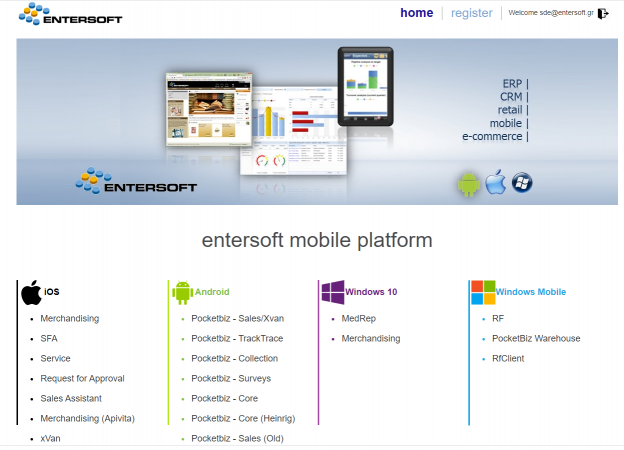
mportal.entersoft.gr
Entersoft's mobile apps, all in one place.

RF communication
Entersoft Web API
- RF communication through ES WEB API
- Connect with multiple app servers
- On heavy load
- Use of sticky session
- Connect with multiple app servers
- RF calls
- Init
- Server recognizes user and device type
- Do some checks
- Send keycodes & themes to RF client
- GetFirstView
- Initiates WF Engine or continues with the last (shows the last screen, continue work)
- OnVkeyPressed
- OnItemSelected
- Logout
- Init
- Server returns the whole view. Client just renders the view!
Application server components
- Entersoft framework - extend use of
- Backend services
- Automations
- PublicQueries
Application monitoring
Error logging
Event logging per user, device and event type (info, warnings, errors, exceptions) in folder: ESNoSync\RF\AppName\UseName
Activation of:
- Aggregate recording of the duration of requests every 12 hours
- Aggregate recording of services every 12 hours (eg Save, PQs)
- Recording information for requests/ services that lasted more than 5 seconds
Remote assistance – remote monitoring

RF application - workflow
Design principles
- No logic, just renderer
- Zero maintenance
- Wizard like
- Gathers info in each view
- Save at the end
- Loop if needed
- Just 4 view types:
- MenuView, MessageView, FieldView, SelectionListView


Application components
- Themes: The appearance of the application
- Modules:
- Keys: User interaction using virtual keys
- Config and Resources: Application parameters
- Views: Menus, messages, data entry views, search or reporting views
- Events: Manage when a key is pressed on the client, when a field value change
- Commands: Τrigger the execution of various actions (e.g. login, beep, ShowCamera, CameraScan)
- Custom functions used in the application, such as, in execution conditions, for object manipulation etc.:
- Scripts: e.g. WhoAmIInfo.vb, NewLotBarcode.vb, ValidateSSCC.vb
- Filters: e.g. AddDays.vb, ConvertUnits.vb
- Expressions: GetSite.vb, GetViewID.vb, NewGUID.vb
Themes
Themes for Windows mobile:
- Theme.json
- Dark.json
Themes for Android:
- theme_android.json
- Android_touch.json
Properties for:
- Margins
- AppStyle, TitleStyle
- SelectionKeyStyle
- FieldCaptionStyle
- FieldTextBoxStyle
- FieldTextBoxReadOnlyStyle
- HelpStyle, StatusStyle
- PageIndicatorStyle
- Specific / custom styles (used in the property Appearance)

Hex colors e.g. www.w3schools.com/colors/colors_picker.asp
Views

Keys
Common Keys (ESRF\Common):
- <Key VKey=“Enter”/>
- <Key VKey=“Esc”/>
- <Key VKey=“ExitView”/>
- <Key VKey=“PageUp”/>
- <Key VKey=“PageDown”/>
- <Key VKey=“PageLeft”/>
- <Key VKey=“PageRight”/>
- <Key VKey=“ArrowUp”/>
- <Key VKey=“ArrowDown”/>
- <Key VKey=“ArrowLeft”/>
- <Key VKey=“ArrowRight”/>
- <Key VKey=“Backspace”/>
- <Key VKey=“Selection”/>
- <Key VKey=“SelectionAlt”/>
- <Key VKey=“FK80”/> (esc)
- <Key VKey=“FK81”/> (F2)
Application Keys (ESRF\WMS):
- <Key VKey="FK1" KeyCode="112" KeyText="F1" CommandText="~Αλλαγή" />
- <Key VKey="FK2" KeyCode="113" KeyText="F2" CommandText="~Νέο Είδος" />
- <Key VKey="FK3" KeyCode="114" KeyText="F3" CommandText="~Αναζήτηση" />
- <Key VKey="FK4" KeyCode="112" KeyText="F1" CommandText="~Αλλαγή ΜΜ" />
- <Key VKey="FK5" KeyCode="116" KeyText="F5" CommandText="~Ανανέωση" />
- <Key VKey="FK6" KeyCode="112" KeyText="F1" CommandText="~Προσθ.ποσ." />
- <Key VKey="FK7" KeyCode="113" KeyText="F2" CommandText="~Νέο απόθ." />
- <Key VKey="FK8" KeyCode="112" KeyText="F1" CommandText="~Αλλαγή ΜΜ" />
- <Key VKey="FK9" KeyCode="113" KeyText="F2" CommandText="~Τυπ.Παλ." />
- <Key VKey="FK10" KeyCode="121" KeyText="F10" CommandText="~Νέα Lot" />
- <Key VKey="FK13" KeyCode="112" KeyText="F1" CommandText="~ΔΣΜ" />
- <Key VKey="FK14" KeyCode="113" KeyText="F2" CommandText="~ΑΚΑΤ" />
- <Key VKey="FK15" KeyCode="116" KeyText="F5" CommandText="~Δηλ.ΚΟΛΑ" />
- <Key VKey="FK16" KeyCode="40" KeyText="" CommandText="~(↓)Μείωση" />
- <Key VKey="FK17" KeyCode="38" KeyText="" CommandText="~(↑)Αύξηση" />
- <Key VKey="FK18" KeyCode="113" KeyText="F2" CommandText="~Περιέκτες" />
RF application file structure
RF application file structure in the application server:
ESRF\Common: Common library that all applications have access to the following objects:
Themes (default themes per device type)
Modules
ES (common for all applications)
Keys.xaml & Keycodes.xaml
Views.xaml
Resources_Init.xaml
Config_Init.xaml
Commands.xaml
Remote (enables remote monitoring)
Debug (enables F11 debug)
ESRF\{RFAppName}
WF.xaml (+ other included xamls)
Config.xaml
Keys.xaml (per device type)
Theme.json (per device type)
Scripts folder
Filters folder
Expressions folder
CSRF\{RFAppName}
Themes
Modules
Scripts
Common modules
Common modules in folder ESRF\Common\Modules\ES:
- Keys.xaml
- Key VKey=Enter/>
- Key VKey=Esc/>
- Key VKey=ExitView/>
- Key VKey=PageUp/>
- Key VKey=PageDown/>
- Key VKey=PageLeft/>
- Key VKey=PageRight/>
- Key VKey=ArrowUp/>
- Key VKey=ArrowDown/>
- Key VKey=ArrowLeft/>
- Key VKey=ArrowRight/>
- Key VKey=Backspace/>
- Key VKey=Selection/>
- Key VKey=SelectionAlt/>
- Key VKey=FK80/> (esc)
- Key VKey=FK81/> (F2)
- Keycodes.xaml
- Set Property=Keys.Enter.KeyCode Value=13/>
- Set Property=Keys.Esc.KeyCode Value=27/>
- Set Property=Keys.ExitView.KeyCode Value=27/>
- Set Property=Keys.PageUp.KeyCode Value=38/>
- Set Property=Keys.PageDown.KeyCode Value=40/>
- Set Property=Keys.PageLeft.KeyCode Value=37/>
- Set Property=Keys.PageRight.KeyCode Value=39/>
- Set Property=Keys.ArrowUp.KeyCode Value=38/>
- Set Property=Keys.ArrowDown.KeyCode Value=40/>
- Set Property=Keys.ArrowLeft.KeyCode Value=37/>
- Set Property=Keys.ArrowRight.KeyCode Value=39/>
- Set Property=Keys.Backspace.KeyCode Value=8/>
- Set Property=Keys.Selection.KeyCode Value=13/>
- Set Property=Keys.SelectionAlt.KeyCode Value=97/>
- Set Property=Keys.FK80.KeyCode Value=27/>
- Set Property=Keys.FK81.KeyCode Value=113/>
- Views.xaml
- <Include Source=ActiveSessionsView/>
- <Include Source=InitErrorView/>
- <Include Source=ErrorView/>
- <Include Source=WarningView/>
- <Include Source=NoDataView/>
- <Include Source=InfoView/>
- <Include Source=OKCancelView/>
- <Include Source=YesNoView/>
- <Include Source=YesNoCancelView/>
- <Include Source=SystemInfoView/>)
- Commands.xaml
- Login
- Beep
- Undo
- ViewInfo
- CmdToggleSip
- CmdPing
- CmdServerPing
EBS file structure
Some services running on the RF application use files located on the application server file structure, such as:
- Public queries in folder: ESPublicQueries\ESWMMobile
- Scroller commands in folder:ESScrollerCommands\ESWMMobile
- Shadowing with the corresponding files in CS folders:
- CSPublicQueries\ESWMMobile
- CSScrollerCommands\ESWMMobile
Workflow engine
Workflow execution logic
One workflow engine is created per RF connection (userID and appID).
At first:
- Server recognizes userID and appID
- Do some checks
- Initiates WF Engine or continues with the existing
When new WF engine is started the following objects are loaded and are available during workflow execution:
- Workflow engine objects (commands, services etc.)
- Send keycodes & themes to RF client
- Application and CACHE variables
- All objects from ESRF\Common
- Themes (per device type)
- Modules (Config, Keys, Keycodes, Views, Resources, Commands, Scripts)
- All objects from ESRF\[RFAppName]
- All objects from CSRF\[RFAppName]
The engine reads the files (themes, keys, etc.) with the corresponding device type as suffix, otherwise reads the files without suffix, for example Keys.xaml, Keys.Motorola.xaml, Keys.Android.xaml
and starts then execution of the workflow that is defined in WF.xaml of the selected app [RFAPPName]
WF.xaml
- Executes workflow which is defined in WF.xaml
- WF.xaml :
- It’ s the main file of the application.
- We define in xaml:
- Keys
- Config / Resources
- Commands
- Events
- Views
- Each View is appeared sequentially
- Engine keeps views in a stack

Customization - files shadowing
Shadowing takes place between files with the same name which are in different folders (ES – CS).
If file with the same name is created in the folder CSRF\WMS then it replaces the corresponding file in the folder ESRF\WMS during execution of the workflow.
For example, file CSRF\WMS\Config.xaml will be executed instead of file ESRF\WMS\Config.xaml.
Customization – objects conflict resolution
All objects in files under subfolders are loaded and merged with the following order:
- The objects from files with suffix _Init in folder CSRF\WMS\Modules\MyFolder. For example, Config_Init.xaml, Views_Init.xaml.
- The objects from files in folders ESRF\WMS\ (and ESRF\Common\Modules). For example,
Config.xaml, View.xaml, Keys.xaml
The objects from files in folder CSRF\WMS\Modules\MyFolder. For example,
Config.xaml, View.xaml, Keys.xaml

* The bold prevails.
XAML
XAML dev environment
- Install Visual Studio 2019 Community (https://visualstudio.microsoft.com/thank-you-downloading-visual-studio/?sku=Community&rel=16) by selecting the .NET desktop environment. Will need to Login with any Hotmail / outlook.com account.
- Open .vproj file from the application folder: ESRF\WMS\WMS.vproj
Debugging
- F9: To get the ViewID. Custom views have an asterisk * in front of the ViewID.
- F11: To enable debug mode
- Config: <Set Property="DebugEnabled" Value="True" />

WF.xaml – Behavior


Various
- <Include Source="Staging" />: Include the XAML statements of the external xaml file.
- <LocalInclude Id="CheckLotExpiration">: Define local include in xaml file for reusing XAML statements.

- <Include Id="CheckLotExpiration" />: Reference to a specific local include.
- Block: Organize XAML statements into conditionally executable blocks
- Property: Condition

Views
MenuView
- MenuView properties:
- Id, Title, TitleLines, HelpText, HelpLine, StatusLines
- Appearance
- MenuView.MenuItem:
- Text
- Visible
- ClientCommandId: If defined this command will be executed
- MenuView.Events
- OnVKeyPressed


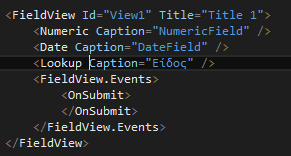
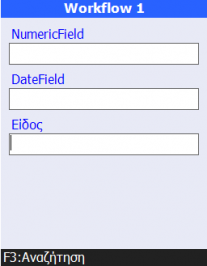
FieldView
FieldView properties:
Id, Title, TitleLines, HelpText, HelpLine, StatusLines
Appearance, DefaultCaptionPosition (Top, Left)
FieldView.Fields:
Label
Text
Numeric
Date
Lookup
FieldView.Events
OnSubmit
OnVKeyPressed

FieldView.Fields.Label
- Properties:
- Id
- Caption
- Text
- Visible

FieldView.Fields.Text
- Properties:
- Id, Caption, Text, HelpText, MaxLength
- Visible: Allows you to display or hide the field.
- Blocking: It is mandatory to fill or set the field value.
- Editable: The user is allowed to fill a value to the field.
- Events:
- OnVKeyPressed
- OnValueChanged

FieldView.Fields.Numeric
- Properties:
- Id, Caption, Text, HelpText
- Visible: Allows you to display or hide the field.
- Blocking: It is mandatory to fill or set the field value.
- Editable: The user is allowed to fill a value to the field.
- ControlType (Decimal or Integer)
- Events:
- OnVKeyPressed
- OnValueChanged

FieldView.Fields.Date
- Properties:
- Id, Caption, Text, HelpText
- Visible: Allows you to display or hide the field.
- Blocking: It is mandatory to fill or set the field value.
- Editable: The user is allowed to fill a value to the field.
- Events
- OnVKeyPressed
- OnValueChanged

FieldView.Fields.LookUp
- Properties:
- Id, Caption, Text, HelpText
- Visible: Allows you to display or hide the field.
- Blocking: It is mandatory to fill or set the field value.
- Editable: The user is allowed to fill a value to the field.
- ValueMember: The column of the public query that contains the value we want
- VKey: The Vkey that activates the search, e.g. the execution of PublicQuery. Without VKey, the list opens automatically when the field gets the focus.
- Hidden properties:
- Value: The value of the column in ValueMember
- SelectedItem: The selected row of ListView
- Lookup.ListDataContext
- ItemsSource: Is the data source of ListView
- CtrlValue: The non-validated and temporary value of field ([VIEW.StorageLocation.CtrlValue])
- Lookup.ListView
- The display of the contents of ItemsSource (e.g. the results of PublicQuery)
- ITEM: <Column Text="[ITEM.StorageLocation_Code][N][ITEM.StorageLocation_Description]"/>
- Lookup.Events
- OnVKeyPressed
- ExitView

SelectionListView
- Properties:
- Id, Title, TitleLines, HelpText, HelpLine, StatusLines, Appearance
- Style : SingleColumn, CardView, CardViewSuppressNulls, SingleCard, SingleCardSuppressNulls
- AutoSelectSingleItem
- NoDataMessage
- SelectionListView.ItemsSource
- Is the data source of the SelectionListView.Columns
- SelectionListView.Columns
- Column Id, Caption, Text, Visible
- ITEM: <Column Id="ContainerType" Text="[ITEM.Code] - [ITEM.Description]" Visible="[VIEW.ContainerType]" />
- SelectionListView.Events
- OnSubmit
- <ExitView /> or <ExitView ExitCode = “OK” />
- OnVKeyPressed
- OnSubmit

MessageView
- Properties
- Id, Title, TitleLines, HelpText, HelpLine, StatusLines, Appearance
- Message
- InitClientCommandId
- Answers
- VKey
- Text
- ExitCode: The ExitCode will be checked to decide the continuation of workflow.
- Visible
- Events
- OnVKeyPressed


Verbs
Error Message
Properties: Message, Condition, Title
Syntax:
<Error Message = "~no balance" Condition="[CTX.SelectedItem.HasBalance|NOT]"/>
In fact, a MessageView with Id “ErrorView” is executed when an error occurs.
EXIT.Message
<Invoke Service="CTX.Action.Save">
<ELSE>
<Set Property="EXIT.Message" Value="~Απέτυχε η αποθήκευση[N][EXIT.Message]" />
<Error Exit="[EXIT]" />
</ELSE>
</Invoke>

Warning Message
Properties: Message, Condition, Title
Syntax:
<Warning Message = "~no balance" Condition="[CTX.SelectedItem.HasBalance|NOT]"/>
- In fact, a MessageView with Id “WarningView” when a warning is displayed.
Invoke service
- Properties:
- Service: The service to be executed
- Result: The returned objects from the execution of the service
- Condition: Execution condition
- Invoke.Params: The execution parameters of the service
- Results handling:
- OK: When the execution of the service returns results / objects
- NO_DATA: When the execution of the service does not return results / objects
- Exception handling:
- ELSE: When an exception occurs
ShowNext
- Displays a new view which is added to the stack (push a view at the top of the stack).
- Properties:
- View
- Condition
- DataContext
- Properties:
- Results handling:
- <OK>: default exitcode
- <NO_SELECTION>
- <YES>, <NO> answers from message views
- <When ExitCode="custom ExitCode">
Show an external view:

Show “inplace” view:

GoBackTo
- Displays an existing view in the stack (pop from the top of the stack) and removes the subsequent views.
- Properties: View, DataContext, Condition, ReuseDataContext
Show an external view that already exists is the stack:
Remains to the same view but with different datacontext:
ExitEvent
- Stops the execution of the event.
- Properties: Condition

Freeze
- The workflow remains on the same view

Set Property
- Used to create object properties, to assign values to objects, to parameters, etc.
- Syntax: <Set Property = “NameOfProperty” Value = “ValueOfProperty” Condition = “assignment condition” />
Use of “[Object]”, example:
<Set Property = “MyValue“ Value = “123” />
<Set Property = “MyObject“ Value = “MyValue” /> : The MyObject has value the text “MyValue“
<Set Property = “MyObject“ Value = “[MyValue]” /> : The MyObject has the value of the object MyValue which is “123”
Services
WMS.ResolveItemInfo
- Executes the barcode pre-processing and post-processing mechanism and returns an object with the identified item and the values assigned to the corresponding columns.
- Invoke.Params : ItemCode

- The WMS.ResolveItemInfo service returns the following columns:
GID, Code, ItemCode, Description, ItemDescription, fItemControlPolicyGID, AssemblyType, ItemType,
fItemMUGID, ItemMUCode, fMainMUGID, fAltMUGID, fWeightMUGID, ItemWeightMUCode, WeightReservedRelation, fVolumeMUGID, ItemVolumeMUCode, VolumeReservedRelation,
fServiceMUGID, ServiceMUCode, Quantity, QtyBaseMU, QtyAltMU, Weight, Volume,
ColorMgmt, SizeMgmt, LotMgmt, SerialNumberMgmt, StockDim1Mgmt, StockDim2Mgmt, LotCharacteristicsMgmt, fColorCode, fSizeCode, fStockDim1Code, fStockDim2Code, RequiresBCProcessing, fBCProcessingTypeCode, fLotGID, LotCode, LotBarCode, fSerialNumberGID, SerialNumberCode, SerialNumberBarCode, LotExpirationDate, LotProductionDate, LotLimitOrderDate, fLotTableField1Code, fLotTableField2Code, fLotTableField3Code, fLotTableField4Code, fLotTableField5Code, fLotTableField6Code,
LotStringField1, LotStringField2, LotStringField3, LotStringField4, LotStringField5, LotStringField6,
LotNumericField1, LotNumericField2, LotNumericField3, LotNumericField4, LotNumericField5, LotNumericField6,
LotNumericField7, LotNumericField8, LotNumericField9, LotNumericField10, LotNumericField11, LotNumericField12, NumericField1, NumericField2, NumericField3, NumericField4, NumericField5, NumericField6, NumericField7, NumericField8, NumericField9, NumericField10, NumericField11, NumericField12
WMS.BarcodeDecode
Returns an object with all application IDs that were identified by barcode processing. The application IDs are defined in file ESConfig\ESGS1Config.xml.
Invoke.Params : Barcode

PQ.ESWMMobile (PublicQuery)
Executes a PublicQuery located on the application server in the subfolder: ESPublicQueries\ESWMMobile\[PublicQueryName]

WMS.FilterPQbyItemResolver
- Filters a PublicQuery results with the corresponding columns of ItemResolver.
- Invoke.Params:
- PQname
- PQparams
- ItemResolver
- ignoreMU
- joinMode: Default inner, Mem, PQ, Both
- joinType: Equal, MemNullOrEqual, PQNullOrEqual, BothNullOrEqual
- orderbyList
- fromReplenishment
- columnsSource


WMS.ExecuteScrollerCommand
Executes a ScrollerCommand located on the application server in the subfolder: ESScrollerCommands\ESWMMobile\DummyFilter\[ScrollerCommandName]

WMS.Print
Executes the printing mechanism for a specific StorageLocation, ActionType and Action. We must set the scroller Params that are defined in the specific ESGOReport.

WMS.SCRIPT
Executes a specific script with its parameters.
COPY
Copies specific columns from one object to another

GroupBy
Groups the columns of one object and copies the result to another object

WMS.NewAction
- A set of services to create, update, delete, discard an action or actionitem.
- Header of action:
- WMS.NewAction : Create new action
- Properties: ActionTypeInternationalID, TransportMode (From, To, Both)
- Results: VIEW.Action
- VIEW.Action.Update : Update existing action
- Properties: Data, TransportMode
- VIEW.Action.Save : Save action
- VIEW.Action.Delete : Delete action
- VIEW.Action.Discard : Discard action from cache
- VIEW.Action.Complete : Change the state of the action to complete.
- WMS.NewAction : Create new action
- ActionItems of specific action:
- VIEW.Action.NewItem : Insert new actionitem
- Properties: TransportMode
- Results: VIEW.ActionItem
- VIEW.ActionItem.Update : Update existing actionitem
- Properties: Data, TransportMode
- VIEW.ActionItem.Action.Save : Save actionitem
- VIEW.ActionItem.Delete : Delete actionitem
- VIEW.ActionItem.Discard : Discard actionitem from cache
- VIEW.Action.NewItem : Insert new actionitem
- Properties:
- DiscardOnException : Auto discard the action from cache when exception occurs
- CreateRelation : Creates new relation in item mu relation
Events
Events determine what happens when the RF workflow status changes, either on the client or on the server. For example, there are events that manage when a key is pressed on the client, but there are also events that manage when a field value change.
The engine automatically adds events that we can override.
- OnAppStart: Is triggered at startup (WF.xaml)
- OnVKeyPressed: Is triggered by user interaction
- OnValueChanged: Is triggered when a field value is changed
- OnSubmit: This event occurs when the focus is changed from the last field of a view
They apply to the following objects:
OnAppStart
Is triggered at startup (WF.xaml). Used to initialize parameters / objects.

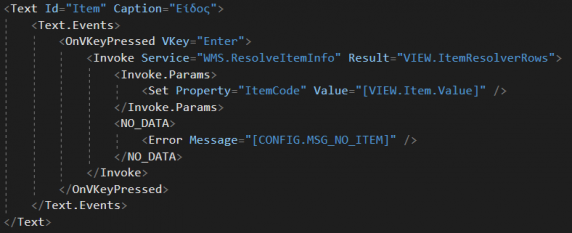
OnVKeyPressed
Is triggered when a virtual key (VKey) is pressed by user.
The event is defined in fields, views and in APP level. It will be executed with the following priority.
First the event defined in the field, then in the fieldview and finally in the APP object, if the execution conditions are evaluated.
Properties:
VKey, Vkeys: <OnVKeyPressed VKeys="Esc,ExitView">
Condition
ClientCommandId: If defined this command will be executed otherwise the XAML statements contained in the event will be executed.
ValueChanged (True, False): Will be executed only if the value of the focused field has changed.
The engine adds some OnVKeyPressed automatically.
Field event:
View event:

OnAppStart event:



OnValueChanged
Is triggered when a field value is changed.


OnSubmit
This event occurs when the focus is changed from the last field of the current view and either a new view will appear, or an action like save will be performed.

Filters
Filters are used internally when evaluating an expression.
They are used: in conditions, in visibility, to display info, to assign values etc.

The evaluation order of an expressions is left to right and follows the Reverse Polish Notation.

VIEW and DataContext (CTX)
VIEW
The VIEW is an object that contains the properties and the fields of the current view.
Properties of a view:
- VIEW.Fields: The fields of a fieldview.
- VIEW.FieldName.Value: The current value of the field (dirty value).
- VIEW.Obj.ColumnsSource: The caption and Id for every column of an object.
- VIEW.Obj.ItemsSource: The data rows of an object.
- VIEW.Obj.ItemsSource|First: The first data row of an object.
- VIEW.Obj.SingleItem: When the object contains one data row.
CTX
CTX is the data context of an object.
- Used to transfer objects to the subsequent views through <ShowNext.DataContext>
- CTX.FieldName.Value : Contains the previous value of the field
- When the field value (VIEW.FieldName.Value ) is validated it is copied to CTX.FieldName.Value (auto binding)
- CTX.Obj.SelectedItem : The selected item of a LookUp.ListView.
How to
Display custom info from a PublicQuery
The View is an object that contains the properties and the fields of current view.
Steps:
- Create custom publicquery or modify the existing one to get the requested columns
- Define the query parameters
- At the appropriate point in the workflow should be defined the execution of publicquery to get the results
- Save the result to an object for next use

Pass the object containing the results to the next view

Display the results of publicquery on the view

Add OnVKeyPressed event to a field or a view
Steps:
- Add OnVKeyPressed event to a specific field or view:

Create a SelectionListView that will be displayed when the VKey is pressed by the user:

Enable remote assistance – remote monitoring
- Create or update the file CSRF\WMS\Modules\MyModuleName\Config.xaml and set the followings:
<RFInclude xmlns="http://schemas.entersoft.gr/rf%22>
<!-- Enable VKey FK95 for remote monitoring -->
<Set Property="Keys.FK95.CommandText" Value="Select RF" />
<Set Property="Keys.FK95.KeyCode" Value="119"/>
<Set Property="Keys.FK95.KeyText" Value="F8"/>
<!-- Enable VKey FK96 to ask for remote assistance -->
<Set Property="Keys.FK96.CommandText" Value="SOS" />
<Set Property="Keys.FK96.KeyCode" Value="118"/>
<Set Property="Keys.FK96.KeyText" Value="F7"/>
<!-- Enable VKey FK97 to disconnect for remote monitoring -->
<Set Property="Keys.FK97.CommandText" Value="Disconnect" />
<Set Property="Keys.FK97.KeyCode" Value="119"/>
<Set Property="Keys.FK97.KeyText" Value="F8"/>
<!-- Disable VKey FK44 -->
<Set Property="Keys.FK44.CommandText" Value="" />
<Set Property="Keys.FK44.KeyCode" Value=""/>
<Set Property="Keys.FK44.KeyText" Value=""/>
</RFInclude>
Create or update the file CSRF\WMS\Modules\MyModuleName\Events.xaml and set the followings:
<RFInclude xmlns="http://schemas.entersoft.gr/rf%22>
<OnAppStart>
<!-- Set the administrators userIDs that have remote access to the devices -->
<Set Property="CACHE.RF.IsAdmin" Value="[CACHE.RF.UserID|EQ;admin;admin1]"/>
</OnAppStart>
</RFInclude>
Users should be re-login to the devices and the following VKeys will be activated:
- F7: to ask remote help (SOS) and disconnect from remote help.
- F8:
a) help the remote user who requested help
disconnect from remote help
monitor the workflow of the remote user
ADMIN REMOTE USER


Αn eye icon appears to the administrator user during monitoring of the remote workflow:


Αn SOS icon appears to the remote user when asks for help and a life vest icon is blinking to administrators:


The administrator with F8 has the ability to select the remote user and take control of the remote workflow.

