MOBILE - xVAN User Guide EN
Περιεχόμενα
- 1 Introduction
- 2 Work environment
- 3 Main entities
- 4 Appointments management
- 5 xVan activities
- 5.1 Warehouse
- 5.2 Sales & Returns
- 5.2.1 Ad hoc sales
- 5.2.2 Ad hoc returns
- 5.2.3 Sales order fulfillment
- 5.2.4 Invoice in Cash
- 5.2.5 Credit control
- 5.2.6 Online business policy
- 5.2.7 Marketing programs
- 5.2.8 Targets calculation
- 5.2.9 Condition’s acceptance-rejection
- 5.2.10 Applying rewards
- 5.2.11 Program’s progress preview
- 5.2.12 Configuration info
- 5.3 Stock transfers
- 6 Merchandizing activities
- 7 Other activities
- 8 Reporting
- 9 Systems communication
- 10 Tools & Settings
- 11 EBS application’s configuration
Introduction
The purpose of this manual is to provide basic information regarding the use & configuration of Entersoft Mobile xVan application (ESxVan). In brief, the individual objectives are:
The familiarization of the user with the ESxVan work environment
The provision of useful information, regarding fundamental daily tasks, to the ESxVan user
The guidance of the system administrator in configuration issues of the Entersoft Business Suite (EBS) application that are related directly with the operation of the ESxVan application
The Prerequisites for the use of the ESxVan application and of this manual are:
- the knowledge of all necessary setup & adjustment actions for IIS & Application server (Entersoft Business Suite version 4.10.0.0 or later)
- the knowledge of the environment & usage of each mobile device
- the right setting of all required equipment
Symbols in use
![C:\Documents and Settings\mat.ES-ENTERSOFT\Local Settings\Temporary Internet Files\Content.IE5\0UYK37R9\MC900433941[1].png](/wiki/%CE%91%CF%81%CF%87%CE%B5%CE%AF%CE%BF:MOB-xVANUserGuide_EN-image2.png)
|
Entersoft Business Suite application |
|---|---|

|
A connection with back-office is required |

|
An Internet connection is required |
Work environment
This section refers to the main elements of the ESMobile application work environment. Firstly, a short description of the main workplace is given, while later on the common characteristics of display & investigation screens are provided.
Calendar
When entering the ESMobile application, the workspace is automatically occupied by a calendar screen where the scheduled appointments are shown in the form of list or tags but also as points on the map. Firstly, the appointments of the current date appear though, through the keys “Week” & “Month”, the option of viewing the current week-month activities is given respectively. Pressing button “Today”, results to direct return to current date. From the calendar screen, via the main menu, the navigation to other application screens is carried out.


Investigation screen
The investigation screens show the entries of an entity in the form of a list. The upper part of the screen is occupied by the area where the main & additional search-filtering criteria are defined (search panel).
When focusing on a list entry the transition to the dashboard or data entry screen, of the specific entry, occurs.
Dashboard screen
A dashboard screen enables the ergonomic display of information and actions available for the selected entry. It can show data from the current entry but also from other, connected to current, entities. Data are displayed for information purposes only, meaning that they cannot be edited by the user. The upper area of the screen displays the individual tab pages and the back button. At the lower part of the screen, the buttons for several execution actions are available.

Data entry screen
Data entry screens are used for editing or reviewing the data of a specific entry. The user interface of data entry screens differs depending on the entity it may concern.

Main entities
In this section the main entities are described, meaning the persons (customers & contacts, competitors, etc.) and the items that are necessary for the execution of the ESxVan application several processes. It should be noted that, the full administration of the main entities takes place in back-office and any data changes, form the mobile user, is prohibited.
Customers & Contacts
Access to the customers list is provided via the main menu entries Customers or Points of sales. By selecting these entries, the complete customers list appears, ordered alphabetically by name. The search of a specific customer can be conducted either by using his name or by using other identification data (telephone, address, profession, etc.) while to distinguish the persons that are already customers based on ABC evaluation a specific color marking is used ( A
A  B
B  C). When focusing on a specific customer, further information regarding his activity (open tasks, appointments-documents history, etc.) or his financial data (ledger, open notes, etc.) is provided, while at the same time, the option for direct execution of several actions (e.g. add new appointment or photo shoot) is given. Furthermore, information regarding customer’s financial data is provided -via an online connection to the server-through the various options of button
  “Online”. Finally, via buttons
  “Attachments” &
  “Dropbox”, the ability to display the attached documents screen & go to Dropbox is respectively given.

Access to the Contacts list is provided via the relevant entry of the main menu (menu: Customers & Sales/ Persons). By selecting this entry, the complete contact persons list appears, ordered alphabetically by name. When focusing on a specific contact person, the options of using alternative correspondence methods (e.g. via email) or getting further information (e.g. related customers) are provided.
![C:\Users\smp\AppData\Local\Microsoft\Windows\Temporary Internet Files\Content.IE5\5ERD3D13\MCj04421290000[1].png](/wiki/%CE%91%CF%81%CF%87%CE%B5%CE%AF%CE%BF:MOB-xVANUserGuide_EN-image29.png) Note that…
Note that…
Based on the default configuration, the customer assignment process is based on the sales-customer relationship. Customers available to the device are those that are directly assigned to the mobile salesperson-user and those that have scheduled activities assigned to the mobile resource-user. Alternatively, the ability to configure the customer assignment process on a territory basis is also provided (see section EBS application’s configuration/ Mobile user/ Territories)
For further information regarding customer entity configuration, see section EBS application’s configuration/ Main entities/ Customers.
New customer
Through the entry “New” of the main menu (menu: Customers & Sales/ New), the ability to add a new active or prospect customer is provided. While saving the new customer, data referring to the longitude & latitude of his address are autocompleted based on the current location of the mobile user. Especially when saving a prospect customer, a new lead, referring to this customer and assigned to the current salesperson-user, is also created.
Data change request
Through the ESxVan application the ability to record changes referring to customers’ identification or communication data is provided. The mobile user is responsible for recording the changes and for sending them to back-office, while back-office authorized users undertake the necessary approval actions that follow.
Selecting form customers list a specific customer and pressing button  “View”, the customer’s data entry screen appears. By focusing on the data to be changed, entering the new value and pressing button “Save modification” a new data change request, including the specific changes, is automatically generated.
Note that…
The functionality of data change request is available to the entities Customer, Point of sales, Prospect customer and Contact person.
All fields having data change request functionality activated are marked with the icon
 .
.

The overview of data changes recorded by the mobile user as well as their current status is provided via the main menu entry “Data change requests” (menu: My tools/ Internal notes).

![C:\Documents and Settings\mat.ES-ENTERSOFT\Local Settings\Temporary Internet Files\Content.IE5\0UYK37R9\MC900433941[1].png](/images/thumb/c/c9/MOB-xVANUserGuide_EN-image2.png/18px-MOB-xVANUserGuide_EN-image2.png) Data change approval
Data change approval
By selecting the option “Requests for data modification” (menu: Marketing/ Merchandise/ Reports) a list of the change requests to be approved appears. In the stage of approval, which is always conducted by back-office authorized users, the ability to approve or reject the changes is provided. Selecting several changes and pressing button “Update entries” results to updating customer details and marking the selected changes as “Completed”, while pressing the button “Reject changes” results to marking the selected changes as “Canceled”.
![MC900433941[1]](/images/thumb/c/c9/MOB-xVANUserGuide_EN-image2.png/19px-MOB-xVANUserGuide_EN-image2.png) Bulk customers assignment
Bulk customers assignment
 Especially in case when the customer assignment process is based on the sales-customer relationship, and to facilitate the process of assignment or redistribution of customers list, the customers and POS can be mass assigned to a specific salesperson. This process is performed via the option “Representatives by business address” (menu: Marketing/Merchandise/Reports). Initially, a list appears, with the POS and the related salespersons and, in second level, the pending tasks for each POS. By focusing on specific POSs and selection the option “Update representative customer/POS”, the salesperson registration screen appears enabling at the same time the reassignment or the cancelation of the pending tasks.
Other persons
Further than the customers assigned to the mobile user, available to the device are also persons characterized as distributors or competitors.
Access to the Distributors or Competitors list is provided via the relevant entries of the main menu (menu: Customers & Sales/ Persons). By selecting these entries, the complete persons list appears, ordered alphabetically by name. When focusing on a specific person, the options of using alternative correspondence methods (e.g. via email) or direct executing several actions (e.g. add new task) are provided.
Note that...
Based on the default configuration, available to the device are all persons that are marked as transporters or competitors.
Items catalogue
Access to the Items catalogue is provided via the relevant entry of the main menu (menu: Warehouse/ Items & Prices). By selecting this entry, the complete list of items appears, ordered alphabetically by item’s description. The search of a specific item can be conducted either by using its code or by using other identification data (description, manufacturer, grouping factors, etc.)
When focusing on a specific item, the option of getting further information regarding either its additional characteristics (technical specifications, measurement units, etc.) or its stock availability is provided. Furthermore, information regarding item’s transaction data is provided -via an online connection to the server- through the various options of button “Online”. Finally, via buttons “Attachments” & “Dropbox”, the ability to display the attached documents screen & go to Dropbox is respectively given.
Furthermore, through the menu entry Items presentation, the option of presenting inventory items in form of a photo-gallery is provided. By selecting this entry, the complete list of items appears, thought by focusing on a specific grouping factor, the catalogue adjusts accordingly. Finally, focusing on a specific item, a screen with further information, related to the focused item, appears.

Note that...
Based on the default configuration, items available to the device are those that both their grouping factors and the items themselves are characterized as available on mobiles. Especially in case when the customer assignment process is configured on a territory basis, the ability to further limit the items list to those matching the mobile resource-user position is given.
Through the entry “Photos receipt” of the “Sync” menu, the option of downloading -via an online connection to the server- items image files, is provided.
For further information regarding item entity configuration, see section EBS application’s configuration/ Main entities/ Inventory items & Catalogue items.
Appointments management
This section describes the ESxVan application actions related to managing user’s daily operations as well as the available, for operations execution, tools. The several actions are usually performed form calendar screen and within a selected appointment while the mobile user has also the ability to perform them from customer or point of sales screens.
Shift
The shift entity provides the ability to include all activities performed by the mobile user, within a specific time frame, under the same “folder” giving at the same time the ability to post receiving – delivering information regarding the assigned to the mobile user cash & vehicle. By selecting the entry “Start shift” of the main menu (menu: Home/ Current shift), the data entry screen of a new shift appears with pre-completed the data referring to starting date-time & vehicle. The mobile user fills in information regarding the cash & vehicle receiving and, by pressing button “Save”, completes the shift start process. Note that, the shift start process cannot be performed while the current shift is still “active”. When completing the daily operations and by selecting the menu entry “End shift”, the data entry screen of the current shift appears in order the information regarding the cash & vehicle delivering to be defined. The mobile user fills in this information and by pressing button “Save”, completes the shift end process.
Note that...
Based on the default configuration, the shift entity is used as a simple recording tool. Differentiation of this setting is provided via the mobile parameter “ShiftFunctionality”. Selecting the options 1 or 2 results to auto activating, when entering the application, the shift start process. Especially selecting option 2 also results to the auto activation of several checks related to invoicing and data synchronization processes.
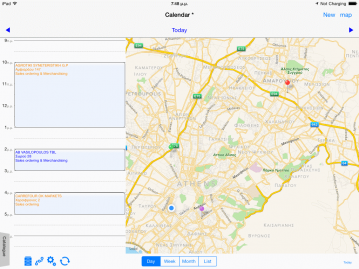 Calendar

The calendar screen displays all scheduled, in back-office, appointments giving at the same time the ability to the mobile user to add new appointments either ad hoc (button: “New”) or based on predefined visit plan (button: “Plan”). When focusing on a specific appointment, further information regarding customer’s activity (open tasks, appointments-documents history, etc.) or financial data (ledger, open notes, etc.) is provided. At the same time, through buttons  “Start”,
  “Complete” or
  “Cancel”, the ability of direct handling the appointment is provided.
Furthermore, information regarding customer’s financial data is provided through the various options of button “Online”. Via button “View”, the appointment’s data entry screen appears, though via button  “Actions” the option for direct execution of several actions (e.g. add new appointment or new invoice) is given. Finally, via buttons “Attachments” & “Dropbox”, the ability to display the attached documents screen & go to Dropbox is respectively given.
Note that…
Based on the default configuration, available to the device are all tasks referring to the mobile user either as the assigned to resource or as a participant. Also available to the device, only for informative reasons, are all closed tasks related to mobile user’s customers list regardless the “assigned to” resource. Especially in case when the customer assignment process is configured on a territory basis, available to the device are only the tasks related to customers within the mobile user’s territory.
Based on the default configuration, available to calendar screen are only open appointments. Differentiation of this setting is provided by setting the mobile parameter “Calendar_show_closed_tasks” to 1-Yes.
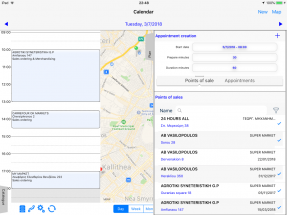 Bulk appointments generation

By pressing in calendar screen, the button “New”, either the points of sales list or the appointments list is provided. At first, the appointments generation data (start date-time, duration & preparation minutes) are defined and then, selecting specific records and pressing the button  “Add”, the relevant appointments are generated. To properly place the appointments in calendar screen, both company working hours & holidays and already existing appointments are taken under consideration.
Visit plan
 The visit plan is a scheduling tool used to plan the appointments that must be carried out by the mobile user. The formation of the visit plan is implemented in back-office while ESxVan application gives the mobile user the ability to make several changes to the predefined planning information.
 Plan formation
The visit plan formation is implemented in back-office via the task type SVPL-Regular visit plan (menu: Sales/ Activities/ Reports/ X-van visit plans). The visit plan details define the starting date, the assigned resource-user and detailed information regarding the appointments to be implemented (section: Visits)
Note that...
Based on the default configuration, available to the device are all visit plans assigned to the mobile resource-user with status in progress. Furthermore, from the scheduled appointments, available to the device are those referring to the mobile user’s customers list.
Plan execution
By pressing, in calendar screen, the button “Plan”, a list with the scheduled visits referring to current day is provided. Selecting specific visits and pressing the button “Select” results to auto insertion of the relevant appointments.
Note that...
Based on the default configuration, the functionality of auto inserting visit plan appointments is deactivated. Differentiation of this setting is provided -on a customization level- by assigning the command VisitCalendarListForm on button “Plan” of “Calendar” screen (button: SVisitPlanCommand)
Via the entry “Visit plan” of the main menu (menu: My Tools/ Visits management), an overview of the current visit plans is provided. Focusing on a specific visit plan, the mobile user has the ability to change the planning information or even more to add new visits to the plan.
Budget allocation
 Through the budget allocation process the ability to define the budgeted turnover per appointment is provided.
By selecting the entry “Budget allocation” of the main menu (menu: My Tools/ Visits management), a list of the open appointments is provided while at the same time, pressing the button “Cycle”, the periods-amounts of current budget is given. The allocation of budgeted turnover per appointment is accomplished by selecting a period, defining the preferable amount, selecting one or more of the listed appointments and pressing the button  “Accept”.
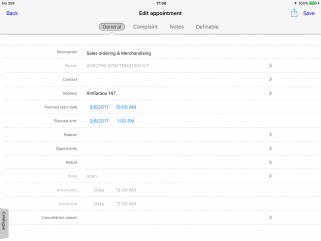 Appointment’s participants

From appointment’s data entry screen and by selecting the option “New participant” of “Actions” button, a list with the available recourses is provided. Selecting specific resources and pressing the button “Add”, current appointment’s participants are declared. Access to appointment’s participants is provided through the relevant entry of  “Info” button in appointment’s dashboard screen.
Attached documents
From the attached documents management screen, the ability of downloading attachments from back-office, of attaching files on the device and of previewing the contents of an attachment from the device is provided. The attached documents functionality is available for the entities: Item, Person, Task, Document & Expense list.
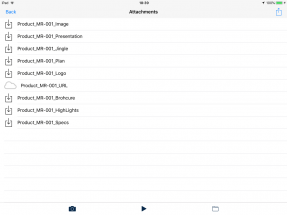
 Attachments downloading

Access to the full, regardless entity, attached documents list is provided via the relevant option of “Sync” menu. Furthermore, through button “Attachments” of entity’s dashboard screen e.g. entity Item), the list of all attached documents related to the current record is given. Pressing the “Actions” button of the attached documents screen, regardless the menu option used to activate the screen, the attachments from back-office downloading process is activated. When the downloading process is completed, the icon marking the documents to be downloaded (icon  ) is automatically replaced with an icon related to the type of each document. The icons used to indicate the various document types are:

|
DOC | 
|

|
WAV | |
|---|---|---|---|---|---|

|
XLS | 
|
HTML | 
|
Other |

|
PPT | 
|
JPG or PNG | 
|
Not stored (e.g. URL address) |
File attaching
Using the  or
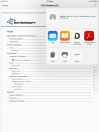
or  buttons on the attached documents screen, the ability to attach image or sound files is given. Alternatively, the ability to attach a file through the context of another application is also provided. In this case, we activate at first the preferable application (e.g. Acrobat application), we focus on the document to be attached and select the option “Open in…” of “Actions” button. Then, by selecting the ESMobile application’s representative icon, a list with the available in ESMobile application entities is displayed. Finally, by focusing on a specific entity, a list of its detailed records is displayed from which we select the record to be related with the attachment file.
 Attachment previewing

By focusing on a specific record of the attached documents management screen, a preview screen, relevant to the document’s type appears. By pressing the “Actions” button of this screen, the ability either to send the document via e-mail or to preview it through the context of another application (e.g. Acrobat application), is provided.
Messages
The messages are a mean for immediate notification of the device user about issues that concern either himself (concerns “Representative”) or specific customers (concerns “Promotion” or “Point of sales”)
Message formation
 The message formation is implemented in back-office via the task type MES-Message (menu: Marketing/ Merchandise/ Reports). The message details define the duration, the recipients, for messages referring to customers (section: Point of sales), or the resources-users, for messages referring to device users (section: Representatives) and the content of the message (section: Notes).
Message to user
When entering the ESxVan application, a list of all unread messages referring to the specific resource-user appears. When focusing on a specific message and by pressing the button “Read it”, the message is characterized as “read”.
Message to customer
Access to unread messages referring to a customer is provided via the calendar screen and within a selected appointment (page: General-Pending actions). When focusing on a specific message and via button “Actions” the option to mark the message as “Read” is provided.
Note that…
Based on the default configuration, available to the device are all messages with status completed and with dates of effect within the current date.
The preferable view of user’s message list can be defined on a customization level. To activate this option, the relevant command must be defined in the mobile parameter “MessageOnLoginCommand”.
Next appointment
Through the entry “Next appointment” of the main menu, a phonetic reminding to the mobile user, about next appointment’s detail (customer & time), takes place. In case a task is also scheduled within the context of next appointment, the user is informed accordingly.
Nearby customers
Through the entry “Customers near me” of the main menu, all customers within a 10 km distance from user’s location are shown in form of a list or points on the map. By editing a preferable distance in field “Radius”, an increase or decrease of the radius is obtained.
 Configuration info
Calendar screen
The ability to configure the calendar screen elements is provided. Specifically, the configurable elements are:
Bulk appointments generation screen width, with valid values from 0 to 1, where 1 corresponds to 100% of the screen width (property: VisitPlanTrayWidth)
Time frame pages and map, with the ability to show or hide them (properties: DisableMap, DisableDayTab, DisableWeekTab, DisableMonthTab & DisableListTab
Default page, with options 0-Day, 1-Week, 2-Month & 3-List (property: DefaultTab)
The properties above are declared in a specific file placed in Settings area of the calendar screen form (file: CalendarTaskSettings)
Company parameters
- The preferable, for budget allocation process, budget type & scenario are respectively defined in company parameters “Merchandising: Sales representative Budget sheet type” & “Merchandising: Sales representative Budget scenario”.
Mobile parameters
- Available to calendar screen are only open appointments. Differentiation of this setting is provided via mobile parameter “Calendar_show_closed_tasks”.
- The definition of company’s working hours, for use in appointments bulk generation processes, is performed via the mobile parameters “StartWorkingTime” & “EndWorkingTime”.
- The morning zone of calendar screen is displayed as non-greyed. The morning zone definition time limits is performed via the mobile parameters “MorningZoneStartTime” & “MorningZoneEndTime”.
- The preferable shift functionality is defined in mobile parameter “ShiftFunctionality”. The available options are: 0-No, 1-Display on login or 2-Full control.
- To deactivate the options of generating tasks or documents through customer or address dashboard screens, the mobile parameter “Appointment_is_Container” should be set to 1-Yes.
- The preferable number of days, for allowing interventions in old appointments, is defined in the mobile parameter “App_Days_Edit_Allowed”. By setting the value 0, the check is completely deactivated.
- To activate the bulk appointments generation process, the mobile parameter “Appointment_creator_enable” should be set to 1-Yes.
- To deactivate the selection mode of visit plan execution process, the mobile parameter “VisitPlanSelectionEnabled” should be set to 0-No.
- The budget allocation process stores the target-turnover at appointment’s field “Number-1”. Differentiation of this setting is provided through the mobile parameter “AppointmentTargetFieldName”.
xVan activities
This section describes the ESxVan application actions that are related with stock transfers form & to the warehouse assigned to the mobile user.
Warehouse
 The mobile warehouse (van warehouse) matches the actual place (vehicle) that all stock transfers are conducted. The vehicle definition, the vehicle connection with a specific van warehouse and the assignment of van warehouse to a mobile user are always conducted in back-office. The exception is if, for any reason, an immediate change of the van warehouse, via ESxVan application, is required (e.g. vehicle breakdown in time beyond the back-office operating hours). In such a case, the conveyance change process performed by the mobile user results to the replacement of the current van warehouse with the one connected to the new vehicle (see section Conveyance change).
The provisioning of the van warehouse with an initial stock is performed by back-office and through the data initialization process, while current stock updating is performed through the sales & stock transfer documents issued by the mobile user. Access to information concerning the van warehouse stock availability is provided via the main menu entry “Current balance”.
Note that...
All ESxVan application points stating the current stock (e.g. item investigation lists), take in account the van warehouse current stock.
Sales & Returns
Through ESxVan application full management of sales documents (issuing, printing & canceling) is available. The several sales documents issuing actions are performed either form calendar screen and within a selected appointment or from point of sales screen. Especially in case of sales order fulfillment, document issuing is provided within the relevant sales order.
Note that...
Based on the default configuration, for sales & return document issuing, document type 6-Invoice-Delivery Note & 2-Return note is used respectively. For differentiating this setting -on a customization level- the activation of a relevant button in “Calendar” screen is needed. The available buttons are: “Shipment” for document type 7-Delivery note, “Invoicing” for document type 10-Invoice for Delivery note and “Return credit note” for document type 3-Credit Note-Return note.
Ad hoc sales
By selecting the option “Invoicing-Send” of button “Actions”, the data entry screen of a new sales document appears with data referring to series-number & customer-address pre-completed. The line items selection is provided from page “Contents” and by using one of the available item investigation buttons.
|
|
Presents the items catalogue in a simple list form or in a photo-gallery form. The list reduced to items specified as “Available on mobile orders”, thus, in case stock availability check is set as prohibitive, the list is also reduced based on van warehouse stock availability. Note that, through special configuration, further reductions of the list can be implemented (see section Sales ordering/ Items list reduction). | 
|
|---|---|---|

|
Presents the items sold to current customer during the period of the last 12months. | |

|
Presents the pending orders available to the device, referring to current customer. | |

|
Presents the list of all offer agreements that are available to the device. Note that, the list includes all offer agreements with valid issuing date (see section Offer agreements) and all marketing programs with open rewards (see section Sales & Returns/ Marketing programs) | |

|
Displays the item’s barcode scanning area. |

When focusing on a specific line item and by using the available buttons, the options of line editing or of getting further information -via an online connection to the server- are provided.
|
|
Increase & Decrease the quantity of the line. Otherwise, by focusing on column “Quantity”, the numeric keyboard appears and the line quantity can be edited directy. Note that, through special configuration, the functionality of increase-decrease quantity based on a standard step is provided. (see section EBS application’s configuration/ Main entities/ Inventory items). | 
|
|---|---|---|

|
Line deletion | |

|
Presents the focused line’s detail view screen. Through this screen, the ability to edit all line’s data is given. | |

|
Presents -via an online connection to the server- the total stock availabily of the focused item. Note that, in case the line’s quantity exeeds the van warehouse availability, the button turns to red.
|
|

|
Converts the focused line to a “gift” line by auto applying 100% discount. Note that, based on the default configuration, the discount is applied to column “Discount-3”. Differentiation of this setting is provided -on a customization level- via the mobile parameter “Doc_GiftDiscount_Field”. | |

|
Presents a screen that analyzes the line quantity in quantity per color & size. Note that, for items with color-size dimensions the quantity can be expressed by using “sortiment” measurement units. (see section Sortiment Mgmt.) |


Through the options of button “Actions”, the ability to mass update discount or to enforce -via an online connection to the server- the agreed with the customer commercial & credit control policy is given (see section Sales & Returns/ Online business policy). Furthermore, information regarding customer’s financial data is provided through the various options of button “Online”. Finally, when document details data entry is completed, pressing button  “Save” results to issuing – printing the document and to reducing van warehouse stock with the relevant quantity. When saving the document, and if the functionality of signature attachment is activated, the signature screen appears. By pressing button “Save” on this screen, the customer’s signature is added to document attachments.
Saving the customer’s signature indicates the finalization of the document and, after sending it to back-office, any change from the mobile user is prohibited. If for any reason the cancelation of a sales document is required, the process of issuing the relevant cancelation note is activated by focusing on the specific document and selecting the option “Cancel” of button “Actions”.
Ad hoc returns
By selecting the option “Return” of button “Actions”, the data entry screen of a new document appears with data referring to series-number & customer-address pre-completed. Concerning the available actions of line editing and returns document management (issuing, printing & canceling) the same applies as described above in section “Ad hoc sales”.
Damaged goods
Especially in case the customer returns a number of damaged goods, the line referring to the quantity of these items must be characterized as “Damaged”. By this characterization, when saving the returns document, a delivery note from van warehouse to disposition warehouse, is automatically issued.

Sales order fulfillment
Access to sales orders list is provided either via the appointment or point of sales dashboard screen (page: History-Orders). When focusing on a specific order, and by selecting the option “Invoice” of button “Actions”, the data entry screen of a new document appears with data referring to series-number & customer-address pre-completed which also includes all the items-quantities listed in the selected order. Concerning the available actions of line editing and sales document management (issuing, printing & canceling) the same applies as described above in section “Ad hoc sales”.
Invoice in Cash
Via the Invoice in Cash functionality, the ability of simultaneous issuing of a sales document and its related receipt note is provided. The characterization of an invoice as “In Cash”, can be performed either by selection a zero credit days payment method or by directly activating the header’s relevant field. Since a document is masked as “In cash”, in order to be de-marked, the selection of a “On credit” payment method is required.
When an invoice is characterized as “In Cash”, while saving the invoice, the receipt note screen appears having the page “Contents” pre-completed with the amount to be collected, giving the ability to the user only of increasing this amount. Especially in case when the invoiced amount exceeds the limit of in cash invoice or the collection amount exceeds the per customer daily limit of collections in cash, a warning message appears, and the collection type is automatically converted to a day transfer note.
Saving the receipt note indicates the finalization of the Invoice in Cash process, thus any change from the mobile user to the specific invoice is prohibited. In case the relevant receipt note is not issued, the invoice remains open and, until its cancelation or the issuing of a receipt note, the billing of the specific customer is prohibited. Furthermore, the cancelation of the invoice in cash results simultaneously to the cancelation of its related receipt note.
Note that…
In order Invoice in Cash process to be feasible, document type must have the “Credit policy” check activated.
Setting mobile parameter “Doc_CollectionInCash_AutoHide” to 1-Yes, activates the feature of not displaying the data entry screen of auto issued cash receipt, while at the same time deactivates the cash receipt printing & singing process.
Credit control
The credit control process examines the customer’s “reliability” in relation to the agreed terms of settling his debts, while also giving immediate information about his “overdue” amounts. The credit limits and checking rules are defined in back-office via the entity Credit policy (menu: Customization/Trade Accounts).
The based on local data credit control process is activated automatically when saving a document. If a term of the agreed policy is not met, a relevant message appears giving the user info regarding the problem. The following parameters are examined:
- Any delay on payment of invoices or credit notes. To activate these checks, the related term should be defined as prohibitive.
- Any credit margin excess. To activate this check, the balance limit check should be defined as prohibitive.
Especially in case of credit margin excess, the following options are provided:
- To generate a credit excess request. The mobile user is responsible for correct completing the request and for sending it to back-office, while back-office authorized users undertake the necessary approval or rejection actions that follow. Note that, in the calculation of customer’s credit margin, all approved requests are also included.
- To generate a cash receipt with the excess amount and automatically linked it with the relevant invoice. Note that, in case the invoiced amount exceeds the limit of in cash invoice or the collection amount exceeds the per customer daily limit for collections in cash, the cash receipt generation process is terminated while displaying a relevant error message.
Note that…
In order credit control process to be feasible, document type & customer must have the “Credit policy” check activated.
Based on the default configuration, the credit checks activated when saving a document, are using the local data. Differentiation of this behavior is provided through activating the document’s type field “Auto apply online business policy”.
The ability of issuing ad hoc credit excess request is given by activating the relevant button in “Calendar” screen.
Online business policy
As mentioned above, the available in local data business policy is a subset of the business policy defined in back-office. The action of applying online business policy covers cases that require, when issuing a sales document from the device, the absolute accuracy of commercial & credit policy data.
From the sales document data entry screen, and by selecting the option “Apply business policy” of “Actions” button, the ability to enforce -via an online connection to the server- the agreed with the customer commercial & credit policy, is given.
 At first, credit check is activated and if a term of the agreed policy is not met, a relevant message appears giving the user info regarding the problem. Based on the default configuration, online credit checks do not differ to those performed on a local basis. However, the online credit policy provides the ability -on a customization level- either to differentiate the credit rules or to extent the checks using also the user definable balance limits. Then, and if no credit control problem is found, the process of applying the agreed with the customer commercial policy is activated. The first step is to send the document’s detailed data to back-office where, based on these data, an overall view of the document is performed enforcing both the pricing policy (pricelist & discounts) and the commercial policy’s “fulfilled” terms. In next step, the document’s overall view is send form back-office to device and is displayed on a preview screen. Note that, in case the sales document includes a composite item, applying online business policy is mandatory and results to the explosion of item’s main BOM.
Finally, by pressing the “Save” button of document’s preview screen, the ability to accept or cancel the commercial policy results is provided. The accept option indicates the finalization of the document’s issuing process and any change from the mobile user to the specific document is prohibited, while the cancel option results in closing the preview screen and return to sales document data entry screen.
Note that…
When applying the online business policy process, all named fields of the current document are sent to & received from back-office. The ability to extent these data -on a customization level- with header’s or line’s user definable fields, is provided (see manual MOB-ImplementationGuide, section Ideas & Solutions/ Online business policy)
By activating the document’s type field “Auto apply online business policy”, the ability to auto apply the online business policy, while saving a document, is provided. The ESMobile application provides also the ability to configure the auto activation of online business policy process either on a point of sales basis or on a conditional basis (see manual MOB-ImplementationGuide section Ideas & Solutions/ Online business policy)
To differentiate the credit rules -on a customization level- the declaration of the preferable rules in a GetDataCommand type command, is required. The command’s name must be defined in mobile parameter “Doc_CustomCreditControl”.
Marketing programs
The marketing program is a sales promotion tool that describes in detail both the conditions – rewards composing the program and valid period of the program. The formation of marketing programs is implemented in back-office and become available to the mobile user via the tab page “Marketing programs” of calendar screen.
Program formation
The program formation is implemented in back-office via the task type LTMP-Marketing program (menu: Marketing/ Trade promotion programs/ New). At first, the basic identification data (fields: Description, Acceptance & operation periods) and elements determining the reward’s valid period (fields: |Reward period type, Reward end time) are defined. Next, via the option “Condition & reward creation” of the “More…” menu, the specific conditions-rewards are defined. The condition-reward elements vary depending on the choices made on the condition-reward syntax screen.
- POS category. The points of sales that the specific condition-reward refers to. It should be defined only when there is a need to differentiate the condition-reward on a point of sales level.
- Condition type. The algorithm calculating the conditional targets achievement. The available options are:

|
Based on totals sales quantity. A target based on the total quantity of sales. |
|---|---|

|
Based on monthly sales quantity. A target based on the monthly total quantity of sales for a given number of months. To differentiate the target after a specific month, the fields “Month to change target” and “Percentage to change target” should be filled. Note that, the acceptance of a condition of this type causes the automatic creation of a number of conditions (equal to the number of months of the original condition). If a target increase is defined, it is applied to the conditions after the desired month. |

|
Based on % of successful visits (sales qty). A target based on the percentage of the successful visits (based on sales quantity). The decision for a visit to be considered as successful) is made by comparing the total sales quantity during this visit against a given limit, the “Quantitative target per visit”. Using the field “Lower limit of number of visits”, the minimum number of visits that trigger the activation of the conditions is defined. |
|
e.g. 75% of the visits should have at least a sales quantity of 10 pcs. e.g. at least 12 visits and 75% of those should have at least a sales quantity of 10 pcs. | |

|
Based on % of successful visits (stock). A target based upon the percentage of the successful visits (based on the stock quantity). A visit is considered as successful if the stock quantity left after the end of the visit (based on the count task and the sales documents) is more than a defined threshold, the “Quantitative visit limit”. Using the field “Lower limit of number of visits”, the minimum number of visits that trigger the activation of the conditions is defined. |

|
Based on sell out quantity. A target based on the sell-out quantity. The sell-out quantity for a period is the difference between the last count before the start of the program and the last count during the program, increased by the total sales quantity between the dates of these two count tasks. |
Note that, as operational duration of a condition –for all algorithm types- is considered the period from the acceptance of the condition for each POS until the end date of the program
 Type of the item of the condition. It is the level for the concentration of the quantities with 2 available choices: “Item hierarchy” and “Catalogue item”.
- Reward type. The format of the reward, with 3 available choices: “Discount value”, “Item offer” & “Free item”. In case of the last 2 options, the type of the item of the reward has 3 available options: “Item hierarchy”, “Catalogue item”, “Inventory item”.

A condition can be related to one or more rewards, of the same type or of different types. Note that, in case of more than one rewards for the same condition, using the field “Target” the reward scenario can be defined as “one-level” type or “Scale” type. In the first case, when the target is achieved, all the related rewards become eligible. In the second case, each reward becomes eligible when its own target is achieved.
Finally, using the option “Create a program for each POS”, the program is published to the potentially participant points of sales. This concludes the phase of composing a marketing program.
Note that…
The including of a POS in a specific POS category is performed (inside the menu “Marketing programs”) by the action “Assigning category to POS”. Necessary requirements for this feature are:
(a) the POS should have been characterized as “Distribution point” and
(b) company parameter “Category code for person addresses” should be valued “LTMP_POS_category”
The capability to define multiple rewards for the same condition Is facilitated (inside the menu “More”) using the actions:
(a) “Copy reward” to create a new reward of the same type with the selected reward
(b) “Additional reward” to create new reward (of any type) for the selected condition
To facilitate the process of creating conditions/rewards, the feature “Copy from other programs” exists.
Targets calculation
This process is performed in the server at regular intervals, to bring actual quantities of a program up to date. The condition fields “Actual” and “State” are updated. The condition state can receive the following values:
| 0-To be accepted |
The opening state of a condition. The condition does not participate to the progress calculation. All rewards are in state 0-Open. |
|---|---|
| 1-Accepted |
Transition to this state is performed in the mobile device when the client accepts to participate in the condition. The condition participates to the progress calculation and this state remains as long as the actual client data are below the target or the program is not finished. All rewards are in state 0-Open. |
| 2-Success |
The progress calculation sets the condition to this state, when even one of the targets is achieved. Its rewards can have one of the following states: 0-Open, 1-Eligible, 2-Given, 3-Failed. |
| 3-Failed |
The progress calculation sets the condition to this state, when none of the condition targets is achieved All rewards are in state 3-Failed. |
| 4-Rejected |
Transition to this state is performed in the mobile device when the client declines participating to the condition. The condition does not participate to the progress calculation. All rewards are in state 0-Open. |
Note that…
For a condition to participate to the progress calculation, it should have been accepted and its program should be active.
In case the calculation should be performed in the level of the catalogue item, the value “1” (yes) should be assigned to the related company parameter “CountCatalogueItems”.
The progress calculation is performed by scheduling the scroller/command pair “Campaign \ POS programs targets update”
Condition’s acceptance-rejection
Inside the mobile device, access to the marketing conditions is made inside the calendar dashboard for a specific appointment or inside the POS list dashboard for a specific POS. The list of the conditions available to the current POS is presented in the tab “Related actions”. The search criteria include the state of the condition, the program, the dates etc. The state of the condition is also denoted by color labeling:  To be accepted,
  Accepted,
  Rejected,
  Eligible &
  Failed.
Selecting a specific condition and pressing its image, the list of its related rewards is presented. The state of each reward is denoted by color labeling:  Open,
Open,  Eligible,
  Given &
  failed
Selecting an open condition and pressing the button  ”Accept”, the condition is activated, and the condition start date of operation is set “today”. Pressing the button
  ”Reject” the condition is deactivated. Consequently, the actions “Acceptance” and “Rejection” are available until achieving at least one of the targets of the condition or until the end date of the program.

Note that…
The default customization makes all the active marketing programs available to all mobile devices.
Applying rewards
The rewards of type “Discount value” and “Item offer” are incorporated inside an invoice. The rewards of type “Free item” are incorporated inside an invoice or can be included in a separated gift document. In any case, inside a document pressing the button “Offers”, a list of the marketing programs that contain at least one eligible reward is presented. Selecting a specific program, a list of its eligible rewards is presented. The device user can select the desired rewards and press the button “Accept”. The reward giving process starts for the current document. The available selections and the process results differentiate depending on the type of the selected reward.
| Discount value | The amount of the reward reduces proportionately the values of the existing lines of the current invoice and updates the column “Discount value-3” of each line. The invoice lines that origin from another marketing program are unaffected. There is no possibility to select more than one reward of this type inside the same invoice; another invoice should be used for the second reward. |
|---|---|
| Item offer | The reward is automatically inserted as a line of the invoice, with quantity and net value the defined in the reward and Discount vallue-3 is calculated. If the reward refers to a catalogue item or to an item category, the user should first select a specific inventory item. |
| Free item | The line is inserted as a document line with quantity the one defined in the reward and 100% discount. If the reward refers to a catalogue item or to an item category, the user should first select a specific inventory item. |

With the same process, all marketing programs should be processed and, upon saving the document, the reward lines receive State 2 (given).
Note that…
The editing by the user of the document lines, which originate from a marketing program reward is not allowed. Deleting lines, which originate from a marketing program reward is performed only by the option “Cancel offers”, inside the menu
 “Actions”.
The preferable method of applying Free item rewards is defined via the mobile parameter "Doc_AllowFreeProductRewards". The available options are:
Selecting the value 0-No, free item rewards are available only in Gift documents. In this case, free item rewards can be applied only through the registration of an ad hoc gift document.
Selecting the value 1-Yes, free item rewards are available either to Gift documents or to Invoices. In this case, free item rewards can be applied in the current Invoice. Note that, the ability -on a customization level- to auto generating a Gift document form the current Invoice, is also provided (see manual MOB-ImplementationGuide, section Ideas & Solutions/ DocForm/ Document’s split)
 Program’s progress preview

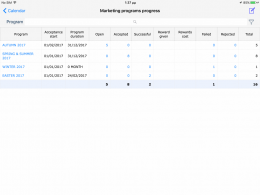
In the mobile device, the progress of the programs can be reviewed in the “Marketing programs” option of the “Statistics” menu. This report initially provides a summary view of the programs. By selecting a specific program, detailed info is presented, even for a specific POS or a specific condition/reward.
Configuration info
Company parameters
- The preferable number of days for downloading to mobile device historical sales documents is defined in the company parameter “Days limit for forwarding documents to mobiles”.
- Based on the default configuration, the rewards applying process updates the field “Discount value-3”. Differentiation of this setting is provided through the company parameter “Document field line for the value discount due to marketing programs”.
Mobile parameters
- The field “Family” is used as the default document lines grouping factor. Differentiation of this setting is provided through the mobile parameter “Doc_GroupField”.
- The preferable size for the numeric keyboard can be set through the mobile parameter “NumericKeyboardSizeFactor” (suggested values from 1.1 to 1.8)
- To enforce the closing of numeric keyboard only by using “OK” or “Cancel” buttons the mobile parameter “ModalNumericKeyboard” should be set to 1-Yes.
- To activate the feature of displaying, in color-size screen, information regarding current balance per color-size, the mobile parameter “Doc_DimensionalGrid_ShowBalance” should be set to 1-Yes.
- To activate the feature of displaying, in color-size screen, information regarding color & size description, the mobile parameter “Doc_DimensionalGrid_ShowDescription” should be set to 1-Yes.
- The customer & item discounts are assigned by default to document’s line fields Discount-1 & Discount-2. Differentiation of this setting is provided respectively through the mobile parameters “Doc_TradeAccountDiscountField” & “Doc_ItemDiscountField”.
- To enable document line fields referring to price & discounts, the mobile parameters “Doc_AllowEditPrice” & “Doc_AllowEditDiscount1,2 or 3” should be set to 1-Yes.
- The mash update discount process updates the document line field “Discount-3”. Differentiation of this setting is provided through the mobile parameter “Doc_AssignDiscount_Field”.
- The preferable limit for invoices in cash is defined in mobile parameter “Doc_LimitForCashCollection”.
- The preferable daily limit for collections in cash is defined in mobile parameter “CollectionLimitPerCustomer”.
- The ability to manually characterize an invoice as “In Cash” is provided through the mobile parameter “Doc_InvoiceInCashEditable”. The available options are: 0-No, 1-Yes or 2-Only on no delay in payments.
- The preferable duration in days for credit control excess requests is defined in the mobile parameter “cce_duration_days”.
- The preferable level of control for applying online business policy, when saving a document including composite items is defined in the mobile parameter “Doc_AllowSaveSet_WithoutOnlineCommercialPolicy”. The available options are: 0-No, 1-Warning or 2-Error.
- The preferable level of editing control after the enforcement of online business policy is defined in the mobile parameter “Doc_CommercialPolicy_Editable”. The available options are: 0-No, 1-Yes or 2-Only offer actions.
- To set document cancelation process as password protected, the mobile parameter “Doc_CancelPermissionRequest” should be set to 1-Yes.
Documents
- In order the document issue-print & cancel processes to be feasible in ESxVan application, document series must be defined on a device level and document types & series must be properly configured. (see section EBS application’s configuration/ Document types & series)
Stock transfers
Through ESxVan application full management of documents transferring stock from-to van warehouse (issuing, printing & canceling) is available.
Stock receipts
Van warehouse stocks receipts are always based on a delivery note prepared in back-office and are used to cover stock replenishment needs of the van warehouse.
Delivery note
Stock deliveries to van warehouse are implemented via issuing in back-office a document that uses the delivery note to branch document type. The delivery note defines the origin & destination warehouses as well as the specific items-quantities to be sent. Beware that, in order a delivery note to be available to the device, the van warehouse must be declared as its destination warehouse.
Note that...
Based on the default configuration, available to the device for the process of stock replenishment are the printed delivery notes that their issuing date-time exceeds the date-time of the last synchronization.
Stock receipt note
By selecting the entry “Receipt” of the main menu, the list of delivery notes issued by back-office and referring to van warehouse is provided. When focusing on a specific note, a preview of the items-quantities sent is given. By selecting the option “Receipt” of button “Actions”, the data entry screen of a new stock receipt note appears with data referring to series-number & origin-destination WH pre-completed which also includes all the items-quantities listed in the selected delivery note. Pressing button “Save” results to issuing the receipt note and to increasing van warehouse stock with the relevant quantity. If for any reason the cancelation of a stock transfer document is required, the process of issuing the relevant cancelation note is activated by focusing on the specific document and selecting the option “Cancel” of button “Actions”.
Branch order fulfillment
The branch order fulfillment process provides the ability to transfer stock, based on a specific order, form the van warehouse to company’s other warehouses.
Stock transfer order
Stock transfer orders are implemented via issuing in back-office a document that uses the intra-warehouse transfer order document type. The intra-transfer order defines the origin & destination warehouses as well as the specific items-quantities to be transferred. Beware that, in order an intra-transfer order to be available to the device, the van warehouse must be declared as the origin warehouse.
Note that...
Based on the default configuration, available to the device, for the process of WH order fulfillment, are the printed intra-transfer orders.
Delivery note
By selecting the entry “Service orders” of the main menu (menu: Warehouse/ Delivery), the list of intra-transfer orders issued by back-office and referring to van warehouse is provided. When focusing on a specific order, a preview of items & quantities to be delivered is given. By selecting the option “Delivery” of button “Actions”, the data entry screen of a new stock delivery note appears with data referring to series-number & origin-destination WH pre-completed which also includes all the items-quantities listed in the selected intra-transfer order. Pressing button “Save” results to issuing the delivery note and to reducing van warehouse stock with the relevant quantity.
Ad hoc delivery
By selecting the entry “Total stock delivery” of the main menu (menu: Warehouse/ Delivery), the data entry screen of a new stock delivery note appears with data referring to series-number & origin-destination WH pre-completed which also includes all the items that have stock in the van warehouse. Otherwise, via the entry “Partial stock delivery”, the ability to selectively add items-quantities to the stock delivery note is provided. Pressing button “Save” results to issuing the delivery note and to reducing van warehouse stock with the relevant quantity.
If for any reason the cancelation of a stock transfer document is required, the process of issuing the relevant cancelation note is activated by focusing on the specific document and selecting the option “Cancel” of button “Actions”.
Conveyance change
By selecting the entry “Change conveyance” of the main menu (menu: Warehouse/ Delivery), a data entry screen for the new vehicle definition appears. Defining the new vehicle and pressing the button “Save” results to the issuing of an intra-warehouse transfer note that transfers all van warehouse stock and, at the same time, to the replacement of the current van warehouse with the one referring to the new vehicle. Especially in case there is an open shift, the whole process precedes the ending of this shift and the starting of a new one referring to the new vehicle.

Note that...
In order back-office to be informed about the conveyance change, the execution of synchronization process is mandatory. This process results to the addition of an entry -in device page “Vehicles”- that refers to the new vehicle and expires at end of the current date.
Configuration info
Company parameters
- For the stock replenishment process, document type IWB-Intra-warehouse transfers ΤΟ Branch is used. Differentiation of this setting is provided through the relevant company parameter.
- For the branch order fulfillment process, document type IWOR-Intra-warehouse transfer Order is used. Based on the default configuration, this setting cannot be changed.
- For the conveyance change process, document type ITN-Intra-warehouse transfer Note is used. Based on the default configuration, this setting cannot be changed.
Mobile parameters
- The preferable number of days for downloading to mobile device historical stock documents is defined in the mobile parameter “Sync_ShiftDaysLimit”.
- To set document cancelation process as password protected, the mobile parameter “Doc_CancelPermissionRequest” should be set to 1-Yes.
Documents
- In order the document issue-print & cancel processes to be feasible in ESxVan application, document series must be defined on a device level and document types & series must be properly configured. (see section EBS application’s configuration/ Document types & series)
Merchandizing activities
This section describes the ESxVan application actions that are related with supportive and promotional sales activities. The merchandizing activities management is provided via the calendar screen and within a selected appointment.
 Company presence

The recording of company products presence in the various points of sales is provided via the actions Merchandize, for recording presence as a quantity and Shelf share, for recording the presence as a percentage.
Merchandizing plan
The products quantity counting is usually performed based on a predefined plan, while the mobile user has also the ability to perform ad hoc counting. The formation of a merchandizing plan is implemented in back-office via the task type MCHPL-Merchandising plan (menu: Marketing/ Merchandise/ New action). The merchandizing plan details define the process duration, the points of sales to participate (section: Recipients) and the items to be counted (section: Items).
Note that...
Based on the default configuration, available to the device are all merchandizing plans with status in progress and with dates of effect within the current date.
Products counting
Access to merchandizing plans is provided via the calendar screen and within a selected appointment (page: General-Pending actions). Furthermore, via the option “Merchandizing” of button “Actions”, the ability to perform ad hoc recordings is given.
 When the counting’s data entry screen appears, regardless the menu option used to activate it, page “General” is pre-completed with data referring to customer-address and to starting date-time. Especially in case the recording is based on a specific mechanizing plan, the page “Contents” is also pre-completed with the items to be counted. From the “Contents” page and by using the buttons
  “Items list” or “Barcode”, the counted quantity per item recording is performed. Via the “View” &
  “Delete” buttons, the focused line details presentation & the deletion of the line is performed respectively, though via the “Attachments” button, the ability to display the attached documents screen is given. Finally, when task details data entry is completed, pressing button “Close” results to the saving of the task and in parallel, if selected, to the changing of its status as completed. Especially in case quantities to be order are defined, when saving the task and by selecting the option “Document creation”, a new sales order is automatically issued. When saving the task, and if the functionality of signature attachment is activated, the signature screen appears. By pressing button “Save” on this screen, the customer’s signature is added to task attachments.
 By selecting from the calendar screen and within a selected appointment, the option “Shelf share” of button “Actions”, the data entry screen of a new task appears with data referring to customer-address and starting date-time pre-completed. From the “Contents” page and by using the button “Item groups”, the share percentage per group recording is performed. Via the “View” & “Delete” buttons, the focused line details presentation & the deletion of the line is performed respectively, though via the “Attachments” button, the ability to display the attached documents screen is given. Finally, when task details data entry is completed, pressing button “Close” results to the saving of the task and in parallel, if selected, to the changing of its status as completed.
Competitors presence
 The recording of competitors’ products presence is provided via the action Competition. By selecting from the calendar screen and within a selected appointment, the option “Competition” of button “Actions”, the data entry screen of a new task appears with data referring to customer-address and starting date-time pre-completed.
From the “Contents” page and by using the buttons “Items list” or  “Item”, the counted quantity per competitor & item recording is performed. Via the “View” & “Delete” buttons, the focused line details presentation & the deletion of the line is performed respectively, though via the “Attachments” button, the ability to display the attached documents screen is given. Finally, when task details data entry is completed, pressing button “Close” results to the saving of the task and in parallel, if selected, to the changing of its status as completed.
Promotional material
The recording of tasks related to promotional material management is provided via the actions of Installation at material deliveries and Deinstallation at materials withdrawal. The installation or deinstallation actions performed by the mobile user are always based on a predefined plan.
 Installation plan
The formation of an installation plan is implemented in back-office via the task type InstPlan-Installation plan (menu: Marketing/ Merchandise/ New action). The installation plan details define the process duration, the points of sales to participate (section: Recipients) as well as detailed information (quantity & scheduled deinstallation date) regarding the items to be installed (section: Items). When the installation plan formation is completed and in order to transform it to specific installation tasks, the action Create plan must be performed. This process results to the creation of a new installation task per plan recipient.
Note that...
Based on the default configuration, available to the device are all installation tasks assigned to the mobile resource-user, with status open or in progress and with dates of effect within the current date.
Deinstallation order
 The materials withdrawal planning process is implemented in back-office via the task type DeINST-DeInstallation. By selecting the option “Deinstallation order” (menu: Marketing/ Merchandise/ Reports) a list of the materials to be withdrawn appears. To create the necessary deinstallation tasks, after selecting specific entries, the action Create deinstallation must be performed. This process results to the creation of a new deinstallation task per point of sales & deinstallation date.
Note that...
The list of materials to be withdrawn includes the installation task items with status completed for which the deinstallation date is defined.
A prerequisite for the auto creation of deinstallation tasks is the direct assignment of specific customers to the mobile salesperson-user.
Installation
Access to pending installation tasks is provided via the calendar screen and within a selected appointment (page: General-Open tasks).
When the installation data entry screen appears, page “General” is pre-completed with data referring to customer-address and starting date-time, while page “Contents” is also pre-completed with the items-quantities to be installed. By focusing on an item and changing the value of column “State”, its installation stage is specified. Via the “View” button, the focused line details presentation is performed, though via the “Attachments” button, the ability to display the attached documents screen is given. Finally, when task details data entry is completed, pressing button “Close” results to the saving of the task and in parallel, if selected, to the changing of its status as completed.
Deinstallation
Access to pending deinstallation tasks is provided via the calendar screen and within a selected appointment (page: General-Open tasks).
When the deinstallation data entry screen appears, page “General” is pre-completed with data referring to customer-address and starting date-time, while page “Contents” is also pre-completed with the items-quantities to be withdrawn. By focusing on an item and changing the value of column “State”, its deinstallation stage is specified. Via the “View” button, the focused line details presentation is performed, though via the “Attachments” button, the ability to display the attached documents screen is given. Finally, when task details data entry is completed, pressing button “Close” results to the saving of the task and in parallel, if selected, to the changing of its status as completed.
Questionnaire
The questionnaires are used as a tool of collecting “predefined” information regarding either company’s customers or anonymous third parties. The questionnaire completion is usually performed based on a specific Market research campaign, while the mobile user has also the ability to perform ad hoc Data collections.
 Inquiries

The formation of the questionnaire inquiries is implemented in back-office via the entity Property set (menu: Customization/ Field customization/ Additional properties). The questionnaire may include inquiries of several types (free text, date, number, multiple choice etc.) some of which, via the flag Mandatory, may be marked as for obligatory completion. Furthermore, via the flag Photo, the ability to define inquiries that may have photo attachments is provided.
Note that...
Based on the default configuration, available to the device are all active property sets characterized as campaign survey or collect data.
From the several property types, the ones of type 6-Value in Base Currency, 7-Code list and 13-View are not available to the device.
The functionality of photo attachment is not available neither to “Multi-select list” inquiries nor to inquiries with a predefined “Default value”.
Campaign
The formation of a market research campaign is implemented in back-office via the task type CMP-Campaign (menu: Marketing/ New). The campaign details define the process duration, the questionnaire to be completed (section: Information) and, in case of targeted campaigns, the points of sales to participate (field: Recipients List).
Note that…
Based on the default configuration, available to the device are all market research campaigns with status active and with dates of effect within the current date.
To define the targeted campaign recipients, first you should create a data list on “Address – Branches” entity and then declare it at the relevant campaign’s field, Alternatively, you can declare the list’s code at campaign’s field “Comment-10”.
 Market research

Access to market research campaigns is provided, depending on whether the campaign is targeted or not, via the calendar screen and within a selected appointment (page: General-Pending actions) or via the entry “Public questionnaire” of the main menu (menu: Customers & Sales/ New). By activating the questionnaire completion process, regardless the menu option used to activate it, the inquiries data entry screen appears. The completing mode differs depending on the “type” of the inquiry. The mandatory inquiries are marked with red color, though the ones with photo attachment functionality are marked by the activation of buttons  “Camera” for capturing photos and
  “Photographs” for reviewing them. Finally, when inquiries data entry is completed, pressing button “Save” results to the saving of the questionnaire and in parallel, if selected, to the changing of its status as completed.
Data collection
By selecting from the calendar screen and within a selected appointment, the option “Data collection” of button “Actions”, a list with the available questionnaires is provided. When focusing on a specific questionnaire, the inquiries data entry screen appears. Concerning the questionnaire’s completion specific issues, the same applies as those described above in section “Market research”.
Photo shooting
 Photo shootings serve the need of recording, as image files, information related to the mobile user’s customers. Photo shooting regarding persons is provided either form calendar screen and within a selected appointment or from customer screen. Furthermore, as mentioned above in section “Questionnaire”, photo shooting regarding inquiries is also supported. Finally, via the entry “Photo” of the main menu (menu: Customers & Sales/ New), photo shootings regarding general issues can be conducted.
By selecting the option “Photo”, regardless the referring entity, the photo task screen appears. After the photo capturing and by pressing tab “Photo”, further details regarding the photo’s subject may be defined. Note that, especially for photos referring to “store image”, the flag “Point of sales” must be activated. Photos characterized as such are used, in calendar screen, as a store previewing tool. Finally, when photo task details data entry is completed, pressing button “Save” results to the saving of a photo task and its relevant image file.
Note that...
Based on the default configuration, available to the device are photo tasks & relevant image files referring to the mobile user’s customers list.
Through the entry “Photos receipt” of the “Sync” menu, the option of downloading -via an online connection to the server- image files related to photo tasks is provided.
 Posting on Yammer
When saving a photo task, and if the functionality of posting on yammer is activated, a relevant message box appears. As for existing photo tasks, the option of posting on yammer is provided by activating the photo task list (menu: Customers & Sales/ Sales activities/ Photos), focusing on a specific photo task and selecting the option “Post on Yammer” of “Actions” button.
Customers support
The recording of issues regarding customers support activities is provided via the actions Complaint, for problem recording and Case, for service request recording. The mobile user is responsible for correct completing the issues and for sending them to back-office, while back-office authorized users undertake the necessary supportive actions that follow.
Complaint
By selecting from the calendar screen and within a selected appointment, the option “Complaint” of button “Actions”, the data entry screen of a new complaint appears with data referring to customer-address and starting date-time pre-completed. The mobile user enters a brief description and the category-severity of the issue. In case immediate actions of resolving the problem can be provided, the relevant response is filled in, while if there is a commitment of resolving the problem on a given date, the due date must also be defined.
In case the complaint refers to specific items, from the “Contents” page and by using the buttons “Items list” or “Barcode”, the item & complaint comment recording is performed. Via the “View” & “Delete” buttons, the focused line details presentation & the deletion of the line is performed respectively, though via the “Attachments” button, the ability to display the attached documents screen is given. Finally, when task details data entry is completed, pressing button “Close” results to the saving of the task and in parallel, if selected, to the changing of its status as completed.
Case
By selecting from the calendar screen and within a selected appointment, the option “Case” of button “Actions”, the data entry screen of a new issue appears with data referring to customer-address and starting date-time pre-completed. The mobile user enters a brief description of the issue and, in case the issue refers to a specific item, the related item. In page “Notes” additional comments regarding the issue can be provided. Finally, when case details data entry is completed, pressing button “Save” results to the saving of the issue.
Note that...
Based on the default configuration, fields in page “User-defined fields” have no functionality. For differentiating this setting -on a customization level- further configuration of the task type and the synchronization process is required.
Configuration info
Market research campaign
In case of a targeted campaign and for the definition of specific campaign recipients the following settings are required:
Creation of a data list referring to “Addresses-Branches” entity
Setting the specific data list to campaign field “Recipients list” or “Comment-10”
Company parameters
- Regarding the photo shootings, the area where image files are saved is defined in company parameter “Photos from mobiles - Save in folder”.
Mobile parameters
- The items grouping factor to be used when recording company’s shelf share is defined in mobile parameter “Task_mch_ShelfShareCategory”. The available options are: 0-Family, 1-Group, 2-Category and 3-Subcategory.
- To activate the functionality of using last data collection answers as default values for the new questionnaires, the mobile parameter “Task_RDC_CopyLastSurvey” should be set to 1-Yes.
- To activate the functionality related to posting photos on yammer, the following mobile parameters must be properly set:
| Parameter | Value |
|---|---|
| YammerEnabled | Define value: 1 |
| YammerConversationURL |
Define the URL referring to corporate yammer (e.g. [[1]]) |
| YammerGroupID | Define the desired yammer group (e.g. 4470839) |
Other activities
This section describes the ESxVan application actions that may not be a part of mobile user’s daily operations (sales ordering, collections from customers, user’s expense lists)
Sales ordering
Through ESxVan application full management of sales order documents (issuing, printing & canceling) is available. Sales order issuing action is performed either form calendar screen and within a selected appointment or from point of sales screen. The mobile user is responsible for correct completing the sales orders and for sending them to back-office, while back-office authorized users undertake the necessary fulfillment steps that follow.
Sales order
By selecting the option “Order” of button “Actions”, the data entry screen of a new document appears with data referring to series-number & customer-address pre-completed. The line items selection is provided from page “Contents” and by using one of the available item investigation buttons.
|
|
Presents the items catalogue in a simple list form or in a photo-gallery form. The list reduced to items specified as “Available on mobile orders”, thus, in case stock availability check is set as prohibitive, the list is also reduced based on van warehouse stock availability. Note that, through special configuration, further reductions of the list can be implemented (see section Items list reduction). | 
|
|---|---|---|
|
|
Presents the items sold to current customer during the period of the last 12months. | |
|
|
Presents the list of order templates issued by back-office. Note that, the list includes all order templates with valid issuing date (see section Sales ordering templates). | |

|
Presents the list of order templates issued by the mobile user. Note that, the list includes all the open order templates with valid issuing date (see section Sales ordering templates). | |

|
Presents the list of all the sales orders that are available to the device. | |
|
|
Presents the list of all offer agreements that are available to the device. Note that, the list includes all offer agreements with valid issuing date (see section Offer agreements). | |
|
|
Displays the item’s barcode scanning area. |
When focusing on a specific line item and by using the available buttons, the options of line editing or of getting further information -via an online connection to the server- are provided.
|
|
Increase & Decrease the quantity of the line. Otherwise, by focusing on column “Quantity”, the numeric keyboard appears and the line quantity can be edited directy. Note that, through special configuration, the functionality of increase-decrease quantity based on a standard step is provided. (see section EBS application’s configuration/ Main entities/ Inventory items). |
|
|---|---|---|
|
|
Line deletion |
|
|
Presents the focused line’s detail view screen. Through this screen, the ability to edit all line’s data is given. |
|---|---|
|
|
Presents -via an online connection to the server- the total stock availabily of the focused item. Note that, in case the line’s quantity exeeds the van warehouse availability, the button turns to red.
|
|
|
Converts the focused line to a “gift” line by auto applying 100% discount. Note that, based on the default configuration, the discount is applied to column “Discount-3”. Differentiation of this setting is provided -on a customization level- via the mobile parameter “Doc_GiftDiscount_Field”. |
|
|
Presents a screen that analyzes the line quantity in quantity per color & size. Note that, for items with color-size dimensions the quantity can be expressed by using “sortiment” measurement units. (see section Sortiment Mgmt.) |
Through the options of button “Actions”, the ability to mass update discount or to enforce -via an online connection to the server- the agreed with the customer commercial & credit control policy is given (see section Sales & Returns/ Online business policy). Furthermore, information regarding customer’s financial data is provided through the various options of button “Online”. Finally, when order’s data entry is completed, pressing button “Save” results to issuing – printing the order. When saving the order, and if the functionality of signature attachment is activated, the signature screen appears. By pressing button “Save” on this screen, the customer’s signature is added to order attachments. Saving the customer’s signature indicates the finalization of the document and, after sending it to back-office, any change from the mobile user is prohibited.
If for any reason the cancelation of an order is required, the process of issuing the relevant cancelation note is activated by focusing on the specific order and selecting the option “Cancel” of button “Actions”.
Note that...
When saving the sales order, the process of checking ordering terms is activated automatically. In cases of non-compliance with the defined terms, a relevant message appears giving the user info regarding the problem. (see section Ordering terms)
Based on the default configuration, prices & discounts declared by the mobile user are not sent to back-office.
In case ESxVan application is used as a simple registration tool for sales orders, via the option “Save to server” of button
 ”Actions”, the ability to automatically save the order to back-office, is provided.
Based on the default configuration, sales orders issued by mobile users are marked as to be verified (workflow step: HOLD). Additionally, to differentiate them from orders issued by back-office users, the field “Dimension-1” of the document’s header automatically gets the value MOBILE.
Ordering terms
The ordering terms is a tool where various quantity-value checks are described. The formation of ordering terms is implemented in back-office by using any of the following task types.
Order checks
Ordering checks are related to checks on the quantity or value of the current order. The order checks are defined in back-office via the task type OCH-Order check (menu: Marketing/ Transaction management/ New). The task details define the rules and the duration the checks. The checks on a document level (section: Value check) may be referring to all customers or to specific customer-POS, though the checks on a line level (sections: Quantity check & Discount check) may be referring to all items or to specific items-item groups giving also the ability to specify the checks on resource-user level. Available to the device are all order checks with dates of effect within the current date.
Transaction limits
Transaction limits are related to checks on the quantity or value of the current order taking also into account data of previous transactions. The transaction limits are defined in back-office via the task type TRNQ-Transaction quota (menu: Marketing/ Transaction management/ New). The task details define the rules and the duration the limits.
Firstly, the figure (field: Key figure) and the base (field: Calculation level) of the limit are defined as well as the transaction types in which the check must be activated (field: About transactions). Then the desired limits are given (section: Results) which may be referring only to customers (Calculation level: 1-Customer) or to specific combination of customer-item (Calculation level: 2-Customer-Item). A prerequisite for the activation of the checks is the definition of the resource-user to whom the limits are applicable and the definition of operational mode for all the other users (field: Application rule). Selecting the option 1-Inclusive, means that the undefined users have no limit, thus selecting the option 2-Exclusive means that the undefined users have zero limit. Available to the device are all order checks with dates of effect within the current date.
Items list reduction
As mentioned above the items list is reduced to items specified as “Available on mobile orders” and by selecting the option “Prohibition” and in the document type field “Stock level check”, the items list is also reduced based on van warehouse stock availability. Further reductions of the items list can be implemented by using any of the following settings.
Sales ban
The rules of the sales ban are defined in back-office via the task type OCH-Order check (menu: Marketing/ Transaction management/ New). The task details define the duration of the ban and the items-item groups to be excluded giving the ability to specify the exclusions on resource-user level. Available to the device are all order checks with dates of effect within the current date.
Proposal note
The rules of the product proposal note are defined in back-office via the task type PPRL-Order product proposal (menu: Marketing/ Transaction management/ New). The task details define the duration of the note and the items to be included giving the ability, via the flied “Status”, for temporary exclusion of items. Available to the device are all proposal notes with dates of effect within the current date. Note that, to activate the functionality of reducing the items catalogue based on a proposal note, the relevant definition in document type is a prerequisite (field: Restriction from note)
Point of sales
The definition of the items catalogue referring to a specific point of sales is implemented in back-office via the task type PRL-POS association (menu: Marketing/ Transaction management/ New). The task details define the customer-person and the items-item groups forming the item investigation list giving the ability to specify this list on resource-user level. Available to the device are all POS associations that include entries referring to the mobile resource-user.
Note that...
Based on the default configuration, the functionality of reducing the items catalogue is deactivated. Differentiation of this setting is provided -on a customization level- by “extending” the command referring to item investigation list and setting the value PPRLExtra to property ExtraCommand.
Sales ordering templates
The template order is an items bulk insertion tool that can be used to facilitate the sales ordering process. The formation of generic templates that apply to all mobile users is implemented in back-office though at the same time, the mobile user can implement additional templates that may serve his specific needs.
Template order
The formation of a template order is implemented in back-office via the task type OrderTmpl-Template order (menu: Marketing/ Merchandise/ New action). The template details define the dates of effect, the characteristics (Category 1 & 2) and the items-quantity to be automatically inserted in the sales order (section: Items).
Note that...
Based on the default configuration, available to the device are template orders with status active, having the value Point of sales & 1-Order as Category 1 & 2 respectively, and with dates of effect within the current date.
Access to template orders is provided via the button
 “Order templates” of the sales order screen.
User template
By selecting the entry “User order template” of ESxVan application main menu (menu: My tools/ New), the data entry screen of a new template appears where, in page “General”, the description and duration of the template are firstly filled in and, in case the template refers to specific customer, the customer-address details are also defined.
From the “Contents” page and by using the button “Items list”, the items & quantity recording is performed. Via the “View” & “Delete” buttons, the focused line details presentation & the deletion of the line is performed respectively though pressing the button “Close” results to the saving of the template.
Note that...
Access to user templates is provided via the button
Offer agreement
The offer agreement is a sales promotional tool where both the terms and the offerings composing the agreement are described. The formation of offer agreements is implemented in back-office while the list of conducted agreements becomes available to the mobile user via the relevant button of the sales order screen.
 Agreement formation
The agreement formation is implemented in back-office via the task type OFT-Item offer (menu: Marketing/ Transaction management/ New). The agreement details define firstly the offer duration, the required items-quantity limits per item (section: Criteria) and the minimum quantity required to ensure the agreement (field: Number-1). Furthermore, the offerings of the agreement are described either as a discount percentage (field: Number-2) or as a quantity of gifts (section: Gifs).
Note that...
Based on the default configuration, available to the device are all offer agreements with status in progress and with an end date greater than the current date.
 Agreement application
From the sales order data entry screen and by selecting the button “Item offers” of page “Contents”, the list of all available offer agreements is provided. When focusing on a specific agreement, a preview of the agreement terms is given. After defining a specific quantity per item and since the minimum total quantity term is fulfilled, by pressing the button “Close” the items-quantities fulfilling the offer’s terms, are inserted to the sales order. In case the agreement provides gift quantities, the screen of previewing the gifts appears. By pressing the button “Close” on this screen, the gifts are also inserted to the sales order.
Following the same steps, next agreement’s items-gifts insertion is performed. The agreements already applied in a sales order, are excluded from the list of offer agreements.
Note that…
All order lines related to agreements are not editable. Furthermore, deleting a line related to an agreement is possible only via the option “Cancel rewards” of
Sortiment Mgmt.
Sortiment is a packaging unit that serves the automatic splitting of sales quantity to predetermined quantities per color-size.
Sortiment administration
The sortiment formation is implemented in back-office by using a sortiment packaging unit (menu: Tools & Configuration/ Customization/ Inventory items). The settings required are:
- Definition of a sortiment packaging unit. Besides the sortiment code and description, the definition of its relevant measurement unit and its dimension charts is required. Furthermore, in section “Sortiment lines”, the definition of the default quantities per dimension is provided.
- Definition of the sortiment measurement unit as an alternative measurement unit with a “1 to 1” relation to the basic measurement unit.
- Definition of an item’s control policy where sortiment measurement unit is declared as the default measurement unit.
- In order sortiment measurement unit to be used aw the default measurement unit, value 1-Sales
- Definition of value 1-Sales as document’s type “MU Type”. This definition is required in order sortiment measurement unit to be used as the item’s default measurement unit.
Sortiment execution
When focusing on an item with sortiment, from document’s photo-gallery screen, the sortiment quantity can be provided at the relevant field. This quantity is automatically split, based on sortiment definition, to the proposed quantity per color-size giving at the same time the mobile user the ability to alter these proposals. The definition of the sortiment quantity is performed by using plus-minus buttons while the alteration to the proposed quantities is performed using button “Dimensions”.

Note that…
The sortiment related functionality is available only when item selection is performed via the photo-gallery screen.
Based on the default configuration, sortiment quantity declared by the mobile is not sent to back-office
 Order approval

By selecting the option “Order approval” (menu: Sales/ Mobile devices) a list of the sales orders to be approved appears. After the necessary checks are conducted, the specific orders are selected and, pressing the button “Approval”, the change of the orders workflow step from HOLD to OK is performed.
Configuration info
Company parameters
(see section xVan actions/ Sales & Returns)
Mobile parameters
(see section xVan actions/ Sales & Returns)
Documents
- Through specific configuration, the ability to choose whether the ESxVan application will be used as a simple registration or issuing tool is provided. No matter the case, in order the mobile sales orders uploading to be feasible, document types & series must be properly configured (see section EBS application’s configuration/ Document types & series).
Cash collection
Through ESxVan application full management of receipt notes (issuing, printing & canceling) is available. A receipt note can be issued either through handling a pre-agreed with the customer collection order or through an ad hoc registration.
 Collection order

The formation of a collection order is implemented in back-office via the task type COL-Collection (menu: Sales/ Activities/ New action). The collection order details define the customer-address, the assigned resource, a pre-agreed due date as well as the payment method & amount to be collected (section: Collection lines).
Note that...
Based on the default configuration, available to the device are the collection orders assigned to the mobile resource-user.
Receipt note
Access to pending collection orders is provided either from calendar screen and within a selected appointment or from the point of sales screen (page: General-Open tasks). Furthermore, via the option “Collection” of button “Actions”, the ability of issuing ad hoc receipt notes is given.
When the receipt’s data entry screen appears, regardless the menu option used to activate it, page “General” is pre-completed with data referring to series-number & customer-address. Especially in case the receipt note is based on a specific collection order, the page “Contents” is also pre-completed with the amount to be collected.
 From the “Contents” page and by using either the collection type direct selection buttons (e.g.
  “CASH”), or the button “Payment method” the detailed amounts recording is performed. To link the receipt note with specific invoices, the use of button
  “Unpaid invoices” is a prerequisite. In this case, by selecting “CASH” as the collection type, the invoice in cash check is activated and if the declared amount exceeds the relevant limit, a warning message appears, and the collection type is automatically converted to a day transfer note. Furthermore, via button
  “ART”, the calculation of “Average Repayment Time” ratio, based on the receipt’s note current data (selected invoices & collection lines), is activated.
Via the “View” & “Delete” buttons, the focused line details presentation & the deletion of the line is performed respectively, though via the “Attachments” button, the ability to display the attached documents screen is given. Finally, when receipt details data entry is completed, pressing button “Save” results to issuing – printing the receipt note and to changing its status as completed. Note that, while saving the receipt note the collections in cash check is activated and, if the declared amount exceeds the relevant limit, a warning message appears.
The save & complete option indicates the finalization of the receipt note and, after sending it to back-office, any change from the mobile user is prohibited. If for any reason the cancelation of a receipt note is required, the process of issuing the relevant cancelation note is activated by focusing on the specific receipt note and selecting the option “Cancel” of button “Actions”.
Credit control
The credit control process examines the customer’s “reliability” in relation to the agreed terms of settling his debts, while also giving immediate information about his “overdue” amounts. The credit limits and checking rules are defined in back-office via the entity Credit policy (menu: Customization/Trade Accounts).  The based on local data credit control process checks only for delays on credit notes payment and is activated automatically when saving a receipt note. If a delay is detected, a relevant message appears giving the user info regarding the specific problem.
Note that…
In order credit control process to be feasible, document type & customer must have the “Credit policy” check activated.
Based on the default configuration, the credit checks activated when saving a document, are using the local data. Differentiation of this behavior is provided through activating the document’s type field “Auto apply online business policy”.
Online business policy
As mentioned above, the available in local data credit checks are a subset of the credit policy rules defined in back-office. Through the action of applying online business policy, the ability to activate full credit checks when issuing a receipt note from the device, is given.
From the receipt note data entry screen, and by selecting the option “Apply business policy” of “Actions” button, the ability to enforce -via an online connection to the server- the agreed with the customer credit policy, is given. Based on the default configuration, online credit checks do not differ to those performed on a local basis. However, the online credit policy provides the ability -on a customization level- either to differentiate the credit rules or to extent the checks using also the user definable balance limits.
Note that…
To differentiate the credit rules -on a customization level- the declaration of the preferable rules in a GetDataCommand type command named as GetCollectionsForOnlineCreditControl, is required.
Configuration info
Mobile parameters
- The default mode for collection amounts recording is defined via the mobile parameter “Collection_DefaultAddLineMethod”. The available options are: 0-Ad hoc and 1-Unpaid invoices list.
- The preferable limit for invoices in cash is defined in mobile parameter “Doc_LimitForCashCollection”.
- The preferable daily limit for collections in cash is defined in mobile parameter “CollectionLimitPerCustomer”.
- To set document cancelation process as password protected, the mobile parameter “Doc_CancelPermissionRequest” should be set to 1-Yes.
Documents
- Through special configuration, the ability to choose whether ESxVan application will be used as a simple registration or issuing tool is provided. No matter the case, in order the mobile receipt notes uploading to be feasible, document types & series must be properly configured (see section EBS application’s configuration/ Document types & series).
Expenses list
The expenses list is a “standard” form used by the mobile user for the completion – submission of expenses conducted in the context of a specific tour. The mobile user is responsible for correct completing the expenses lists and for sending them to back-office, while back-office authorized users undertake the necessary approval actions that follow.
New expenses list
 By selecting the entry “Expenses list” of the main menu (menu: My tools/ New), the data entry screen of a new expenses list form appears where, in page “General”, the description and duration of the tour must firstly be filled in.
From the “Contents” page and by using either the expense type direct selection buttons (e.g.  “FUEL”) or the “Expense type list” selection button, the detailed expenses recording is performed. Via the “View” & “Delete” buttons, the focused line details presentation & the deletion of the line is performed respectively, though via the “Attachments” button, the ability to display the attached documents screen is given. Finally, when expense details data entry is completed, pressing button “Close” results to the saving of the expenses list and in parallel, if selected, to the changing of its status as completed. By holding the expenses list in status “In progress” lets it available for additions, while the save & complete option indicates the finalization of the expenses list and, after sending it to back-office, any change from the mobile user is prohibited.
Expenses approval
By selecting the option “Preparation of expenses” (menu: Financials/ Expenses) the expense lists to be approved appear. In the stage of approval, which is always conducted by back-office authorized users, the ability to add further details concerning the proper accounting posting of expenses is provided.
Note that...
Based on the default configuration, available to the device are all expenses lists -regardless the status- assigned to the mobile resource-user.
Via the relevant automation, the ability to transfer attached image files form expenses lists to relevant expense documents is provided.
Configuration info
Documents
- Expenses lists in status “Completed” create automatically -via the synchronization process- the relevant EBS Expense documents. A prerequisite to auto document creation is that document types & series are properly configured at services profile entity. (see section EBS application’s configuration/ Document types & series)
Reporting
This section presents the available from the ESxVan application reports. These reports are mostly based on local data and are designed to provide managerial & statistical information regarding the mobile user activities.
Daily reports
Daily reports provide information regarding all transactions performed by the mobile user within the current date. Especially in case when shift functionality is activated, all information is provided on a current shift level.
- Summary. Provides information regarding daily sales orders, sales, returns and cash collections grouped by document type. When focusing on a specific document type, the detailed list of documents is presented.
- Cash status. Provides the amounts collected from customers analyzed by payment method (cash, notes, transfers). Especially in case when shift functionality is activated, column cash also includes the shift starting amount. Furthermore, in case the receipt node is issued based on a collection order, column “To collect” presents the collection order’s amount. When focusing on total line of column “Note”, the detailed list of notes is presented.
- Inventory balance. Provides information regarding the van warehouse’s current stock availability as well as the volume of its stock imports – exports.
- Inventory report. Reports the van warehouse stock status.

Activities overview
The ESxVan application has several overview lists regarding the activities performed by the mobile user. For activities related to customers (sales, cash collections, merchandizing activities etc.) access is provided through the relevant options of menu “Sales activities” though for activities related to inter-company communication (data change requests, limit excess requests, expense lists etc.) access is provided through the relevant options of menu “Internal notes”. Finally, for activities related to stock transfers within the company warehouses, access is provided form the menu entry “Internal transfers”.
Note that...
For activities that have status tracking (e.g. merchandizing tasks), the icons used for marking their current status are
Canceled and
Completed. On the contrary, activities without status tracking (e.g. sales documents), are marked relatively to the synchronization process (
Unsent).

Statistics
The ESxVan application has several reports that can be used from the mobile user as useful informative or decision-making tools.
- Customers balance. Provides information per customer regarding the current book & commercial balance, the outstanding notes amount and the turnover.
- Sales per day. Provides information per day regarding the number-quantity-value of sales orders, sales & returns. When focusing on a specific date, the detailed list of documents is presented.
- Cash collections per day. Provides information per day regarding the amount of collection orders & receipt notes analyzed by payment method (cash, notes, transfers). When focusing on a specific date, the detailed list of receipt notes is presented, while focusing on total line of column “Note”, the detailed list of notes is presented.
- Items sold. Provides information per item regarding the quantity-value of sales orders, sales & returns.
- Yearly comparison. Provides information per period regarding the quantity-value of sales for current and previous year and their calculated difference-deviation. When focusing on a specific period, an analysis per customer & item is presented.
 Target progress. Provides information regarding the mobile user’s budgeted-actual turnover & number of appointments and their calculated difference. This information is provided on a monthly (Month budget implementation) or current-previous year level (Total target progress).
- Turnover analysis. Provides information regarding the mobile user’s budgeted-actual turnover and the actual turnover distribution per item group.
Note that...
For all reports based on local data, the “validity” of the presented information depends on the frequency of the synchronization process.

 Marketing program analysis

The dashboard “Trade promotion analysis” provides, summary info, regarding the budgeted-actual program cost, and graphical info regarding he number of customers per term status. Furthermore, by focusing on specific parts of the dashboard, the ability to analyze the information based on geographical areas, POS categories or targeted items is given (menu: Marketing/ Trade promotion programs).
Device data reconciliation
The back-office scroller “Device data reconciliation” is a tool provided to facilitate the process of checking the data of documents issued by the device user, before and after sending them to back-office (menu: Sales/ Mobile devices). By defining the preferable period, summary info regarding the documents number-value per day and document type is provided, while on a 2nd level, a detailed list displaying the documents’ data as recorded in back-office is given. Especially for the collection documents, an analysis of the amounts received in Cash-Deposits-Notes is also provided. In case of mismatches on the summary level, the row is marked with a relevant icon. 
Note that…
Documents issued by the device user are those characterized with origin “2-External update” and channel “MOBILE”. Note that, the configuration referencing to the field & value indicating the mobile channel is provided via the company parameters “Field to documents table where the EMI shows the Source channel” & “Value which is written to a field of documents table to those occur from mobiles”.
In order the device data reconciliation feature to be feasible, issuing the device documents in the context of a specific shift is a prerequisite.
Systems communication
The devices, through direct connection and communication with back-office, can either download updated information or upload local transactions. This section refers to actions related to connectivity checks and data synchronization processes.
Note that…
When a device gets a new ID and in order to avoid redefinition of its settings, the ability to connect the new ID with an existing device record is provided via the option “Update device with new identifier” of “Automations” menu.
Connectivity
In order data interchanging processes to be feasible, the device and back-office connectivity must be ensured. The Internet and IIS & Application server connectivity checks are provided via the relevant options of button  “Connectivity”. In case of communication problems, the necessary information about possible causes is given.
Synchronization
By selecting one of the available options of button  “Synchronization”, the mobile user can run the necessary, at the specific time, data synchronization process.
Data sending
The data sending process uploads to back-office the latest transactions or data modifications performed by the mobile user (new persons or addresses, completion of assigned tasks, new tasks or documents, etc.)
At the beginning of data sending process a notification message appears regarding the amount and the nature of data to be sent. By selecting “OK” or “Cancel” buttons the process is activated or stopped respectively. At the end of the process, a notification message regarding the total duration appears. In case the data sending process is not feasible, a message explaining the problem cause appears.
Note that...
Via the appropriate settings, the option of showing or hiding the notification message regarding the size of data to be sent is provided (menu: Settings/ Auxiliary tasks).
Data receiving
The data receiving process downloads to the mobile device all updates in data performed by back-office users (persons & contacts updates, new tasks to be performed by mobile user, etc.)
At the end of data receiving process, a notification message regarding the amount of downloaded data and the total duration appears. In case the data receiving process is not feasible, a message explaining the problem cause appears.
Data synchronization
The data synchronization process includes both sending & receiving data process, activating at first the data sending from device process, then the data importing to back-office process and finally the data receiving from device process. The provided messaging about data amount & process duration is the same as described above in sections regarding the discrete execution of sending-receiving data.
Data initialization
The data initialization process starts at first with data sending and then proceeds to the deletion and recreation of the device’s local database. The recreation ensures that local database includes the last updated back-office & device data. At the end of data initialization process, a notification message regarding the total duration appears.
Note that...
The first time the application is installed on a device, data initialization process is activated automatically once the user enters its login credentials. Thereafter, data initialization is required only in cases when the local database recreation is wanted (e.g. change of the mobile resource-user).
Photo receiving
The photo receiving process downloads to the mobile device -via an online connection to the server- image files related either to the items catalogue (option: Items) or to photo tasks (options: Points of sale & Other photos). At the end of photo receiving process, a notification message regarding the number of downloaded photos appears. In case the photo receiving process is not feasible, a message explaining the problem cause appears.
To facilitate the parallel use of different versions of an ESMobile application, the image files which are related to the item catalogue and the photos, can be stored in a common folder, regardless the application. The required settings are:
 Item catalogue
- Create the storage area should as a virtual directory of IIS server (e.g. ESMobileProductImages).
- Declare the URL of this area to the relevant field of IIS customization tool.
Photos
- Create the storage area should as a virtual directory of IIS server (e.g. ESMobilePhotos)
- Declare the URL of this area to company parameter “Photos from mobiles-Save in folder” (e.g. http://192.168.1.195/ESMobilePhotos/)
Note that...
Based on the default configuration, the item’s code is used as the item-photo connection field and the image files must be of type jpeg. Differentiation of these settings is provided by changing respectively the mobile parameters “ItemFieldImageName” & “ImageFileExtension”.
Tools & Settings
This section presents the mobile device configuration options and a series of auxiliary & informative tools available to the mobile user.
User preferences
- Main menu. Via the option “Main menu” of the “Settings” screen, the user may adjust the main menu according to his own preferences. The activation of these settings will be viewable after the restart of the ESMobile application.
- Map. Via the option “Map” of the “Settings” screen, the user may configure items related to the look of “Calendar” and “Customers near me” screens.
User tools
 Version check. The option “Version check” of “Sync” menu executes a version comparison between the ESMobile application installed on the device and the one installed on back-office (IIS Server). When the comparison is completed and if the two versions are different, a relevant message appears giving at the same time the option of downloading the new version. Note that, by activating the selection “Automatic version check” of “Settings” screen (menu: Settings/ Auxiliary tasks), when login the application, the version check runs automatically.
- Internet connection check. Deactivating the option “Checking internet connection” of “Settings” screen, (menu: Settings/ Auxiliary tasks) the ability to stay connected to the server, even when the device is not connected to the internet, is provided.
- Show data to be sent. When the selection “Show data to be sent” of the “Settings” screen (menu: Settings/ Auxiliary tasks) is activated, at the beginning of data sending process a notification message appears regarding the amount and the nature of data to be sent.
 Check data packages. The option “Send pending packages” of “Sync” menu at first checks the device for data packages that are not yet sent to back-office and then, in case such a package exits, automatically activates the data sending process. Furthermore, through the option “Sent packages” of “Sync” menu, the list of packages sent from the device to back-office is given. Focusing on a list entry and selecting the
  “E-mail” button, the ability to send the specific package via e-mail is provided.
- Local database.Via the option “Database backup” of the “Settings” screen, the ability to backup (create copy) or restore (recover copy) the local database is provided. Furthermore, via the “Sent database” option of button
 “Sync”, the local database file can be sent directly to back-office.
 - Other data files. Via the option “Usage” of the “Settings” screen (menu: Settings/ Maintenance tasks), information regarding the local image-sound files is provided, giving at the same time the ability to delete these files.
- Application’s folders. The option “Customization files” of the “Settings” screen (menu: Settings/ Maintenance tasks) provides a list of folders regarding the ESMobile application configuration files that are installed on the device. Especially for the command files (folder: ESConfig/ Commands), by focusing on a specific file, further information about the command’s properties is given.


Regional settings
- Language. Via the option “Application language” of the “Settings” screen, the ability to define the preferable language is provided.
- Formatting. The formatting issues of location data (dates, numbers & currency) depend on the value of the mobile parameter “Culture”. Especially for Currency type fields, the following configuration options are also provided:
Currency symbol (mobile parameter: CurrencySymbol). Define a specific symbol or currency code (e.g. € or EUR). Character “space” is used for no symbol
The positive or negative value format (mobile parameter: CurrencyPositivePattern or CurrencyNegativePattern). The available options are:
| Possitive value | Negative value | |||||||||
|---|---|---|---|---|---|---|---|---|---|---|
| 0 | $n | 0 | ($n) | 4 | (n$) | 8 | -n $ | 12 | $ -n | |
| 1 | n$ | 1 | -$n | 5 | -n$ | 9 | -$ n | 13 | n- $ | |
| 2 | $ n | 2 | $-n | 6 | n-$ | 10 | n $- | 14 | ($ n) | |
| 3 | n $ | 3 | $n- | 7 | n$- | 11 | $ n- | 15 | (n $) |
Note that…
The labels of date-related fields (month, day etc.) always respect the language setting of the ESMobile application.
Printer settings
 The entry “Printer” of the “Settings” screen activates the functionality of printing documents via the ESMobile application. The printers compatible to ESMobile application are Bixolon SPP-R400 and Zebra ZQ520 as well as AirPrint type printers. The prerequisites for the activation of a printer within ESMobile application are the identification of the printer from the mobile device and the printer-device “pairing”.
 Document printing

The ESMobile application provides printing forms samples that are compatible with the printer types Bixolon SPP-R400 or SPP-R410, Zebra ZQ520 and AirPrint type. These samples are placed in ESConfig/PrintForms folder and refer to:
- quantitative sales document (form: Document_qty_4inch)
- quantitative-value sales document (form: Document_4inch)
- inventory stock transfer document (form: Transfer_4inch)
- receipt note (form: Collection_4inch)
Differentiation of printing form -on a customization level- is provided by placing the relevant file in CSConfig/PrintForms folder. Especially for cases when there is a need of simultaneous use of different printers, the ability to specify the printing form on a printer’s type-model level, is also provided. In this case, placing the printing forms in folders named after the relevant printers, is a prerequisite (e.g. folder: CSConfig/PrintForms/Zebra/ZQ520 for Zebra ZQ520 printer). Note that, the printing process automatically selects the suitable, per printer, form following the hierarchy: (1) PrintForms/Type/Model, (2) PrintForms/Type & (3) PrintForms starting from custom areas (area: CSConfig) and continuing with product areas (area: ESConfig).
Note that…
Through special configuration of the printing form, the following features are available:
Printing customer’s digital signature
Printing barcode of EAN13 or CODE39 type
Printing invoice or receipt document’s amount written in full for Greek, Romanian and Polish languages
Printing a jpg image
Differentiating the language and the currency symbol on a form or group of forms level
Detailed instructions referring to printing form implementation are given in specific articles of Entersoft Knowledge Base (articles: ΚΒ-01371, KB-01419, KB-01422, KB-01425 & ΚΒ-01564)
For printing process to be feasible in AirPrint type printers, the settings required are:
Go to device settings and connect the device & the printer via a Wi-Fi connection.
Go to ESMobile application settings and select as printer the option “AIR-PRINTER GENERIC”.
Detailed instructions referring to the configuration of AirPrint printer type are given in article ΚΒ-01566 of Entersoft Knowledge Base
To enable the feature of printing non-Latin characters to Zebra ZQ520 printer type, the appropriate fonts downloading is a prerequisite. Detailed instructions referring to the font downloading process are given in article KB-01425 of Entersoft Knowledge Base.
Configuration info
Mobile parameters
- To set document reprinting process as password protected, the mobile parameter “Doc_RePrintPermissionRequest” should be set to 1-Yes.
- To mark a document as printed when the printing of the 1st copy is completed, the mobile parameter “Doc_SetPrintedAtFirstPrintout” should be set to 1-Yes.
- Base on the default configuration, the time-delay between printing 2 copies of a document is defined at 2 seconds. Differentiation of this setting is provided through the mobile parameter “Print_2nd_copy_delay_in_sec”. Furthermore, via mobile parameter “Print_last_copy_delay_in_sec”, the ability to differentiate the time-delay for the last copy is given.
EBS application’s configuration
This section refers to a series of back-office configuration elements that contribute significantly in the proper functioning of ESxVan application.
Mobile user
Users
Special attention must be given to the following configuration points:
- Physical person. The mobile user must be opened as a resource, as an application user and, in case we want the direct assignment of specific customers to the user, as a salesperson. These tree entities must be connected by referring to the same physical person.
- Resource role. The resource entry referring to the mobile user must have the role “Sales”
- Services profile. At the section “Companies - Branches” of the user administration screen, the entry referring to the user’s main branch must be connected to a specific services profile. Beware that, the branch defined at profile’s van warehouse and profile’s document series, is the same with the one defined as the user’s main branch.
- Persons/ Company associates. The physical person referring to mobile user must also be defined as company’s person. Via this definition, the field “Supervisor” of stock documents uploaded to back-office will be filled in automatically.
Territories
The prerequisites for enabling the customers assignment based on territories process are the activation of company parameter “Data export towards devices based on territory” and the implementation of the preferable territory hierarchal structure. Special attention must be given to the following configuration points:
- Trade account rule. The selected rule type should be the “ES.TerritoryBARule” and the selected filter type of all filters should be the “Persons-Addresses”.
- Item rule. The selected rule type should be the “ES.TerritoryItemRule” and the selected filter type of all filters should be the “Items”. In ESxVan application the declaration of item rules is optional.
Note that…
Regarding the renewal of device’s customers list after alterations in territory data, the following rules apply:
In case of changes in territory data (e.g. new customer that follows the trade account selection rules), it is sufficient to perform the data synchronization process.
In case of changes in selection rules, either through direct change of a rule or through defining a new period, it is required to perform the data initialization process.
In order last updates in territory data to be available to the device, a scheduled task, referring to the process of applying territory hierarchy rules, must be defined.
Warehouses
Special attention must be given to the following configuration points:
- Company’s warehouses. You must open one warehouse per device and at least one WH defined as “Disposition WH”.
- Company’s vehicles. You must open one vehicle per device and you must connect it with the relevant WH.
- Services profile. The user’s profile fields “In the van warehouse” & “Damaged goods” must be filled in with device’s WH and disposition WH respectively.
Devices
Special attention must be given to the following configuration points:
- User. The field “User” must be filled in with the user’s code. Since the connection of user-salesperson-resource via the same physical person is defined, the fields referring to salesperson and resource will be filled in automatically.
- Status. The device’s status must be defined as “For initialization” or “Operates”. In any other case, the execution of the synchronization processes is not allowed.
- Mobile application. The value “xVan” must be selected.
- Operating system. The value “Apple iOS” must be selected.
- Trace method. To deactivate the functionality of recording user’s position, the trace method should be set to “No recording”. Based on the default configuration, the user’s position recording is activated in actions: Start-End of sales appointment or sales task and Document generation.
- Communication permissions. Enables the user’s rights to execute several online processes via a 3G connection. The available processes are: New version downloading, Send-Receive data, Online business policy and Online reporting. Activating the option “All customers”, the ability of downloading, via data synchronization process, the full customers list, is given.
- Substitute user. The substitute user serves cases when the basic mobile user is unable, for any reason, to carry out the tasks assigned to him. At the first login with the credentials of the substitute user, the initialization process is performed automatically. Afterwards, the substitute user can execute all scheduled tasks assigned to the basic user.
Main entities
Customers
Special attention must be given to the following configuration points:
- Customer code. The customer code must be defined as auto generated. Furthermore, the text regarding the code prefix must be defined in the relevant company parameter. These definitions are required in order, the process of uploading new customers to back-office, to be feasible. The term new customer refers to customers primarily entered by the mobile user.
- Address data. To display the customers as points on the map, all data referring to their addresses as well as the address’s longitude & latitude must be filled in correctly. A prerequisite, for the automatic completion of these data, is the activation of the company parameter “Use of the mapping services server”.
- Salesperson. In case we want the direct assignment of specific customers per device, the various mobile users must be opened as salespersons and the customer-salesperson connection must be defined. This connection can be defined on customer level or on address level.
- Transactions data. Given that ESxVan application is a sales document issuing tool, special attention must be given to proper completion of customer’s transactions data (VAT status, shipping & payment method, price list & discounts etc.)
- Pricing policy data. To enable pricing policy, properly defining the elements related to current prices-discounts (price list, customer-item pricing category) and activating the document’s type option “Apply pricelist” is a prerequisite. Note that, ESxVan application has some limitations regarding the full functionality of pricing policy. These limitations are:
Up to 4 levels reference pricelists are supported
“Combined” pricelists are not supported
Corporate business dimensions and item dimensions are not supported
Pricelist’s line grouping factors are not supported (geo zone, discount category etc.)
Quantity scales are not supported
- Credit policy data. To enable the credit policy checks, customer’s field “Credit policy” should be activated. The activation of this filed is provided, through the data synchronization process, when the following conditions are met:
| Customer with credit policy | At least one of the checks related to delay on payment or balance excess is set as prohibitive. |
|---|---|
| Customer without credit policy | At least one of customer's credit limits is defined, and the company parameter referring to credit control method has the value “Prohibition”. |
- Payment methods. In order Invoice in Cash process to be feasible, at least one of the available payment methods should be set as follows:
| Auto apply | No |
|---|---|
| Payment type | Payment |
| Amount type | 100% Amount payable |
| Reference date | Issue date |
| Due date | 0 Number of days |
- Collection data. To facilitate the process of collection amounts recording, the “Payment means” field must be properly defined. This info determines the default collection line type.
- Attachments. The attachments entity must have an auto generated counter. This definition is required in order, the process of uploading attachment files to back-office, to be feasible.
- Customer’s overview. In order some of the customer’s significant financial & commercial data to be available to the device, a scheduled task referring to “Create and update the extended table of trade accounts” automation must be defined (folder: ESTMPDASales/ CustomerInfo).
- History data. The company parameters “Days limit for forwarding documents to mobiles” & “Migration of trade account transactions to mobile since: 'how many days ago'” define the history period for downloading documents & entries respectively. Be careful that the period is determined so as to provide the user with the necessary information without burdening the volume of local database with unnecessary historical information.
- ABC evaluation. For color marking the customers based on ABC evaluation, the company parameter “The Code of the ABC Model for Customer classification available on mobile devices” must be defined.
Inventory items
Special attention must be given to the following configuration points:
- Available on mobiles. In order an inventory item to be downloaded to device, both its grouping factors and the item itself must have the characterization “Available on mobiles”.
- Available on mobile orders. In order an inventory item to be selectable in a mobile sales document, it must have the characterization “Available on mobile orders”.
- Barcode. In order an inventory item to be selected via a barcode, there must be the specific barcode definition either to the relevant item’s field or to the section “Multiple item codes”.
- Item’s comments. In order item’s extent comment to be downloaded to device, the company parameter “Download comments on items” must be activated.
- Commercial data. Given that ESxVan application is an invoicing tool, special attention must be given to proper completion of item’s commercial data (VAT category, measurement units, prices & discounts etc.).
- Quantity step. To increase-decrease quantity based on a standard step, the preferable step must be defined at each item’s MU and the document type option “Package” must be activated. Note that, the preferable field referring to quantity step is defined in the company parameter “Item’s measurement unit field that defines the quantity step”. Based on the default configuration, the field “Default quantity 4” is used.
- Weight & Volume. To display sales quantity in terms of weight & volume, the definition of the relevant measurement units and their relation to the basic measurement unit is a prerequisite.
- Quantity decimals. To enable the differentiation of decimals points per measurement unit, the preferable number of decimals must be defined at the relevant field of Measurement unit entity.
- Composite item. Available in ESxVan application documents are only the composite items characterized as “Product”. Note that, the explosion of item’s main BOM is activated only when applying the online business policy process.
- Statistical data. In order some of the item’s significant statistical data to be available to the device, scheduled tasks of automations referring to item historical data (folder: ESTMPDASales/ ItemSiteHistory4) and item statistical data (folder: ESTMPDASales/ MobilePeriodicsStoredProcedureCaller) must be defined.
Catalogue items
Special attention must be given to the following configuration points:
- Company items. In order a catalogue item characterized as “Company product” to be downloaded to device, it must be connected to an inventory item available to device. Furthermore, the company parameter “Catalogue items available to mobile devices” must be activated.
- Competition items. In order a catalogue item characterized as “Competition product” to be downloaded to device, firstly competition “Category” must be filled in. Furthermore, at section “Related persons”, the competitors offering the specific item must be defined. Note that, the list of values for competition category is defined via the company parameter “Category code for competition catalogue items”. Based on the default configuration, the task category CompCat is used.
Expense types
Special attention must be given to the following configuration points:
- Available on mobiles. In order an expense type to be downloaded to device, the “Available on mobiles” option should be activated.
- Type of expense. The suitable “Type of expense” must be defined. This information is used to connect the expense types with the relevant direct selection buttons.
- Expense code. In field “Item”, the expense code relevant to the specific expense type must be defined. Beware that the expenses defined in this field have properly set data referring to “VAT category” and “Related supplier”. This information is used by the process of auto creating EBS Expense documents
Liquidity accounts & Notes
Special attention must be given to the following configuration points:
- Auto payment account. At least one liquidity account in basic currency defined as automatic payment must be opened. This account is assigned, via the synchronization process, to receipt lines of cash or note type. To differentiate the automatic payment account per device, the preferable liquidity account must be defined on a document series’ level.
- Bank accounts. One bank type liquidity account per collaborating bank must be opened. These accounts are available to the mobile user when adding an in-transfer collection line. To differentiate the bank accounts per customer, the preferable bank account must be defined on a customer’s level.
- Note code. The note code must be defined as auto generated. This definition is required in order, the process of uploading new receivable notes to back-office, to be feasible.
Budget
Special attention must be given to the following configuration points:
- Customer & POS target. At least one budget sheet measuring Turnover on the dimensions of Trade account & Trade account branch must be opened. Furthermore, the company parameters “Merchandising: Customer and POS budget sheet type” & “Merchandising: Customer and POS budget scenario” must be defined. This definition is required in order to be able to acquire information -via an online connection to the server- regarding the customer-POS budget.
- Salesperson target. At least one budget sheet measuring Turnover on the dimension of Salesperson must be opened. Furthermore, the company parameters “Merchandising: Sales representative Budget sheet type” & “Merchandising: Sales representative Budget scenario” must be defined. This definition is required in order to be able to acquire information -via an online connection to the server- regarding the salesperson-user budget (e.g. Monthly target progress).
Task types
To perform the merchandizing activities via ESxVan application, the existence of the default task types is a prerequisite. The default task types’ installation process is described hereafter:
Select the option “Import data (advanced mode)” of menu “Import/Export data”. Go to folder \\ESMigration\ESCRMZero and open the file CRM_ZeroMigration_V4.emi. Define the “source space” for the data to be imported (\\ESMigration\ESCRMZero for the Greek version and \\ESMigration\ESCRMZero\EN for the international version) and press button “Run”.
 Configuration info
Task type code
- Appointment. For appointments recording, task type SAP-Sales appointment is used. Differentiation of this setting is provided through the relevant company parameter.
- Task. For tasks recording, task type STK-Sales task is used. Differentiation of this setting is provided through the relevant company parameter.
- Merchandizing tasks. For merchandizing tasks recording, task types COM-Complaint, MCH-Counting, COMPT-Competition monitoring, INST-Installation, DeInst-Deinstallation, ShelfShare-POS Shelf Share are used. Based on the default configuration, this setting cannot be changed.
- Case. For cases recording, task type CASE-Case is used. Based on the default configuration, this setting cannot be changed.
- Questionnaire. For questionnaires recording, task types SVA-Survey activity & RDC-Data collection are used. Based on the default configuration, this setting cannot be changed.
- Photo. For photos recording, task type PHOTO-Photograph is used. Based on the default configuration, this setting cannot be changed.
- Collection. For collections recording, task type COL-Collection is used. Differentiation of this setting is provided through the relevant company parameter.
- Expenses. For expenses recording, task type EXP-Expenses is used. Based on the default configuration, this setting cannot be changed.
- Customer’s data change. For data change requests recording, task type DCR-Account data change request is used. Based on the default configuration, this setting cannot be changed.
Assignment rules
- The roles that have permission to perform an activity are defined in section “Assignment rules” of the task type screen. To provide to a mobile user the permission of performing the various activities, role “Sales” must be defined and the flag “Assignment possibility” must be activated.
Subtasks
- A prerequisite for connecting the various activities with the relevant appointment is to define, in section “Subtasks”, the specific task types.
Task type for mobile
- Usual duration. Defines the task’s default duration (minutes). Based on the default configuration, the duration for task types Sales appointment & Sales task is set to 60 minutes.
- Preparation time. Defines the task’s default preparation time (minutes). This information is used by bulk appointments generation processes as an interval between two appointments. Based on the default configuration, the Appointment’s preparation time is set to 30 minutes.
- Grouping field. Defines the field that is used as the task lines grouping factor. Based on the default configuration, the field “Family” is used.
- Days/ Future tasks. Defines the preferable number of days to send, via the data synchronization process, scheduled tasks from back-office to the device. Based on the default configuration, the limit for all task types is set to 7 days. Note that, available to the device are all scheduled tasks assigned to the mobile resource-user.
- Days/ Closed tasks. Defines the preferable number of days to send, via the data synchronization process, closed tasks from back-office to the device. Based on the default configuration, the limit for all task types is set to 0 days. Note that, available to the device are all closed tasks related to mobile user’s customers list regardless the “assigned to” resource.
- Signature. Defines whether, when closing a task, the customer’s signature screen appears. The ability to select between optional or mandatory signature is provided. Based on the default configuration, this feature is deactivated in all task types.
Note that…
The task type for mobile configuration elements are available only for task types that have the “Task group” characterization: Mobile or Mobile_Custom.
Document types & series
 To activate the ESxVan application’s functionality of document registration, the existence of the default document types as well as the definition of the suitable document series -per document type- are a prerequisite. The installation steps of default document types are the same with the ones described above in section “Task types”, while the document series definition varies depending on whether the ESxVan application will be used as a simple registration tool or as documents issuing tool.
- Simple registration. The document’s number is generated, via the sync process, once the document is registered to back-office. In this case, the document series must be defined on a user’s services profile level. The simple registration functionality is available only for document types: Sales quotation, Sales order & Cash receipt. Note that, the EBS document series defined on services profile level must be characterized as “Auto” and must have all registration & printing checks deactivated.
- Issuing. The document’s number is generated once the document is registered in ESxVan application. In this case, the document series must be defined on a user’s device level. The documents issuing functionality is available to all document types. Especially for the transferring stock document types (sales-returns & intertransfers), document issuing is mandatory. Note that, the EBS document series defined on device level must be characterized as “Manual” and must have all registration & printing checks deactivated.
Configuration info
Mobile documents type
- Measurement unit. Defines the document’s line default measurement unit. The available options are: Basic, Sales, Returns & Alternative.
- Same item behavior. Defines the effect of selecting an item preexisting in the document. The available options are: Add, New line, Warning & Prohibition.
- Stock level check. Defines whether, on inserting an item in the document, the check of its stock availability, in van warehouse, is automatically activated. The available options are: No, Warning & Prohibition.
- Available. Functionality not available in ESxVan application.
- Prices & discounts. The document’s line default price & discounts are set via the alternative options of fields “Pricing zone” & “Apply pricelist”.
- Apply discounts. Functionality not available in ESxVan application.
- Apply invoicing policy. Defines whether the “Apply business policy” action activates the process of applying commercial policy via an online connection to the server.
- Credit policy. Defines whether, while saving the document, the credit control check (for documents “in credit”) or the receipt note issuing (for documents “in cash”) is automatically activated. Furthermore, defines whether the “Apply business policy” action activates the process of applying credit policy checks via an online connection to the server.
- Auto apply online business policy. Defines whether, when saving the document, the “Apply business policy” action is auto activated.
- Has value. Defines whether, while entering items in the document, the line fields referring to values (price, discounts, net value etc.) will be automatically filled in. Base on default configuration, this option is activated to all ESxVan application’s document types.
- Send values. Defines whether prices & discounts of documents registered in ESxVan application will be sent, via data sending process, to back-office.
- Online save. Defines whether the “Save to server” action is available to the mobile user. Note that, this action is feasible only in documents that their document type is set as a “simple registration”, via ESxVan application, tool.
- Send while saving. Defines whether, while saving the document, the process of data sending is automatically activated. The available options are: No, Send and Send all.
- Restriction from note. Defines whether the item investigation list will be reduced based on the selected in the document product proposal.
- Package. Defines whether the functionality of step quantity is activated.
- Signature. Defines whether, when saving a document, the customer’s signature screen appears. The ability to select between optional or mandatory signature is provided. In the case of a document types with document series, signature feature configuration should be performed on the document series template relevant field.
- Mandatory use of series. Defines whether, while saving the document, the document series completion check is automatically activated. Base on default configuration, this option is activated in all document types except the 0-Quotation note, 1-Sales order & 51-Receipt note.
- Add or reduce Quantity-Value & Calculation method. Determine the document type’s behavior. Note that, no intervention in document type behavior is allowed.
Document series template
- Print command. The ESxVan application command that activates the functionality of document printing.
- Printing option. Defines whether the functionality of document printing is automatically activated on document save. The available options are: Directly, With question & No.
- Manual. Defines whether the document’s issue number will be editable by the mobile user.
- Cancelation. Defines whether the document series will be used for the needs of issuing, by the mobile user, cancelation documents.
- Saving checks. Defines whether the saving checks (Allows gaps in numbering & Sequential dates) are activated when issuing a document via the ESxVan application.
- Printing checks. Defines whether the printing checks (Official printout & Read only) are activated when printing a document via the ESxVan application.
- Signature. Defines whether, when saving a document, the customer’s signature screen appears. The ability to select between optional or mandatory signature is provided. Furthermore, through special configuration, the ability to conditionally display document’s signature screen is provided (see manual MOB-ImplementationGuide section Ideas & Solutions/ DocForm/ Document’s signature)
Document series
- Number of copies. Defines the number of copies to be printed.
